
Amazon Aurora DSQL Cheat Sheet
Amazon Aurora DSQL is a serverless, distributed relational database built for transactional workloads. It scales virtually without limit and removes the need to manage any underlying infrastructure. Its active-active design delivers 99.99% availability in a single Region and 99.999% availability when deployed across multiple Regions.
When to Use Aurora DSQL
Aurora DSQL is a good fit for applications that need ACID transactions and a relational data model. Because it is serverless, it works naturally with microservices, serverless functions, and event-driven systems. It is compatible with PostgreSQL, so you can keep using your existing drivers, ORMs, and SQL code.
The service handles infrastructure automatically. Compute, I/O, and storage adjust themselves based on demand. You never have to worry about provisioning servers, applying patches, or scheduling maintenance windows. The active-active serverless design takes care of failure recovery on its own, so you do not need to set up or manage database failover. Your applications stay available across multiple Availability Zones and Regions, with no risk of eventual consistency or lost data during failovers.
Key Features
Distributed Architecture
Aurora DSQL is built from several multi-tenant pieces that work as one:
-
Relay and connectivity layer
-
Compute and database layer
-
Transaction log, concurrency control, and isolation layer
-
Storage layer
-
A control plane that keeps everything coordinated
Every component runs redundantly across three Availability Zones. If any piece fails, the system scales or heals itself automatically.
Single-Region and Multi-Region Clusters
Aurora DSQL clusters give you:
-
Synchronous data replication
-
Consistent reads
-
Automatic recovery from failures
-
Consistent data across AZs or Regions
When something breaks, traffic is rerouted to healthy components without you lifting a finger. The service delivers full ACID transactions with strong consistency, snapshot isolation, and durability across AZs and Regions.
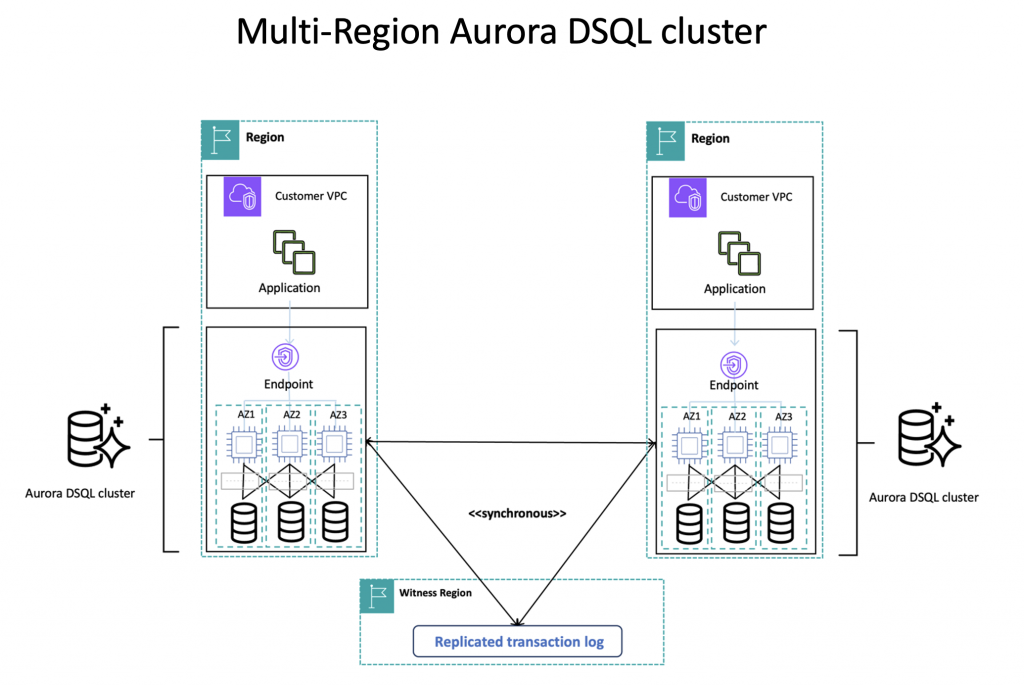
Multi-Region peered clusters work just like single-Region clusters but add a second Regional endpoint. Each endpoint lets you read and write at the same time, and both see the exact same data. You can run your application in multiple Regions at once, with better performance and resilience, and always know that readers are seeing the latest information.
Compatibility with PostgreSQL
The compute layer in Aurora DSQL runs a current version of PostgreSQL. You can connect using standard PostgreSQL tools and drivers like psql. The service is compatible with PostgreSQL 16 and supports a broad set of PostgreSQL features, expressions, and data types. If you already know PostgreSQL, you already know Aurora DSQL.
Region Availability for Aurora DSQL
Aurora DSQL runs in several AWS Regions around the world. The table below lists each Region and the endpoint you use to connect.
| Region Name | Region | Endpoint | Protocol |
| US East (Ohio) | us-east-2 | dsql.us-east-2.api.aws dsql-fips.us-east-2.api.aws |
HTTPS HTTPS |
| US East (N. Virginia) | us-east-1 | dsql.us-east-1.api.aws dsql-fips.us-east-1.api.aws |
HTTPS HTTPS |
| US West (Oregon) | us-west-2 | dsql.us-west-2.api.aws dsql-fips.us-west-2.api.aws |
HTTPS HTTPS |
| Asia Pacific (Melbourne) | ap-southeast-4 | dsql.ap-southeast-4.api.aws | HTTPS |
| Asia Pacific (Osaka) | ap-northeast-3 | dsql.ap-northeast-3.api.aws | HTTPS |
| Asia Pacific (Seoul) | ap-northeast-2 | dsql.ap-northeast-2.api.aws | HTTPS |
| Asia Pacific (Sydney) | ap-southeast-2 | dsql.ap-southeast-2.api.aws | HTTPS |
| Asia Pacific (Tokyo) | ap-northeast-1 | dsql.ap-northeast-1.api.aws | HTTPS |
| Canada (Central) | ca-central-1 | dsql.ca-central-1.api.aws dsql-fips.ca-central-1.api.aws |
HTTPS HTTPS |
| Canada West (Calgary) | ca-west-1 | dsql.ca-west-1.api.aws dsql-fips.ca-west-1.api.aws |
HTTPS HTTPS |
| Europe (Frankfurt) | eu-central-1 | dsql.eu-central-1.api.aws | HTTPS |
| Europe (Ireland) | eu-west-1 | dsql.eu-west-1.api.aws | HTTPS |
| Europe (London) | eu-west-2 | dsql.eu-west-2.api.aws | HTTPS |
| Europe (Paris) | eu-west-3 | dsql.eu-west-3.api.aws | HTTPS |
Multi-Region Cluster Availability
You can set up multi-Region clusters inside certain groups of Regions. Each group contains Regions that are geographically close.
US Regions:
-
US East (N. Virginia)
-
US East (Ohio)
-
US West (Oregon)
Asia Pacific Regions:
-
Asia Pacific (Osaka)
-
Asia Pacific (Seoul)
-
Asia Pacific (Tokyo)

European Regions:
-
Europe (Frankfurt)
-
Europe (Ireland)
-
Europe (London)
-
Europe (Paris)
Important Limitations:
-
All Regions in a multi-Region cluster must come from the same group. For instance, you cannot combine a US Region with a European one.
-
Aurora DSQL does not yet support clusters that span different continents.
Getting Started with Aurora DSQL
Prerequisites
Before you start, make sure:
-
Your IAM user or role can log in to the AWS Management Console.
-
Your IAM identity has the
AmazonAuroraDSQLConsoleFullAccessmanaged policy attached.
Step 1: Create a Single-Region Cluster
-
Log in to the AWS Management Console and open the Aurora DSQL console.
-
Click Create cluster and pick Single-Region.
-
You can change the default name or add tags if you want.
-
Under Cluster settings, you have a few optional choices:
-
Customize encryption settings (advanced) lets you pick or create an AWS KMS key. If you bring your own key, make sure its policy allows Aurora DSQL to use it.
-
Enable deletion protection stops anyone from accidentally removing the cluster. It is turned on by default.
-
Resource-based policy (advanced) lets you attach access policies directly to the cluster.
-
-
Click Create cluster. The console goes back to the Clusters page and shows a message that the cluster is spinning up. You can click the Cluster ID to see more details and track its status.
Step 2: Connect to Your Aurora DSQL Cluster
You can connect through the Query Editor, AWS CloudShell, the psql client, or other PostgreSQL tools. The Query Editor is the fastest way to get started.
-
In the Aurora DSQL console, go to the Clusters page and make sure your cluster shows Active status.
-
Select the cluster, or click its ID to open the details page.
-
Click Connect with Query editor.
-
Choose Connect as admin. (If you have set up a custom role, you can use that instead.)
Step 3: Test Your Cluster with Basic SQL
Once you are connected, you can run a few simple SQL commands to make sure everything works. Try creating a schema, setting up a table, inserting a row, and then reading it back. This confirms that your cluster is ready for use. When you are done testing, you can remove the objects you created.
Step 4 (Optional): Create a Multi-Region Cluster
If you need a cluster that spans Regions, you can build one. Multi-Region clusters use three kinds of Regions:
-
Remote Region: You create a second cluster here and peer it with the first one. Writes on the original cluster replicate to this one. You can read and write from either cluster.
-
Witness Region: This Region gets all the data written to the cluster but does not serve client traffic. It keeps a small encrypted transaction log to help with recovery and voting if a Region goes down.
Steps to create a multi-Region cluster:
-
In the Aurora DSQL console, go to Clusters.
-
Click Create cluster and choose Multi-Region.
-
Optionally change the name or add tags.
-
In Multi-Region settings:
-
Pick a Witness Region (only US-based Regions are supported for this today).
-
If you already have a cluster in another Region, you can enter its ARN under Remote Region cluster ARN. If not, you will finish the setup later.
-
-
Configure any optional cluster settings (encryption, deletion protection, resource policies) for your first cluster.
-
Click Create cluster. If you did not provide a remote cluster ARN, you will see a Cluster setup pending notice.
-
Click Complete multi-Region cluster setup in that notice. This starts creating the second cluster.
-
Choose either:
-
Add remote Region cluster ARN if you already have a cluster to use.
-
Create cluster in another Region to build a new one. Pick the Region for it.
-
-
If you chose to create a new cluster, you will be taken to that Region’s console. Configure its settings and click Create cluster.
-
After the second cluster exists, go back to the first Region and click Peer. Confirm when asked. The multi-Region cluster is now ready.
To test replication:
-
Switch to the Region that holds the second cluster.
-
Open the Aurora DSQL console, go to Clusters, and select that cluster.
-
Click Connect with Query editor, then Connect as admin.
-
Run some basic SQL commands to create a schema, table, and insert data.
-
Switch back to the first Region, connect to the second cluster from there (again using the Query Editor), and query the data. It should appear immediately.
Authentication and Authorization
Aurora DSQL uses IAM for cluster-level access and PostgreSQL roles for database-level access. You link IAM roles to PostgreSQL roles to control who can do what.
Managing Your Cluster Using IAM
-
Authentication: You must authenticate with IAM when you manage clusters. You can do this through the console, AWS CLI, or SDK.
-
Authorization: You grant permissions by attaching IAM policies with Aurora DSQL actions. For example, to see cluster details, your IAM identity needs the
dsql:GetClusteraction.

Connecting to Your Cluster Using IAM
-
Authentication: You generate a short-lived token using an IAM identity that is allowed to connect.
-
Authorization: You give the IAM identity one of these policy actions:
-
dsql:DbConnectAdmin– for the built-in admin role (Aurora DSQL creates this role for you). -
dsql:DbConnect– for a custom database role that you create and manage.
-
PostgreSQL Database Roles and IAM Roles
PostgreSQL uses roles to manage permissions. A role can be a single user or a group. You create roles with SQL commands.
Aurora DSQL has two kinds of database roles:
-
Admin role: Created automatically. You cannot change it. Use it to connect and then create other roles.
-
Custom roles: You create these yourself. To let an IAM role use a custom role, you link them with a special command.
Revoking Authorization
You can take away access in two ways:
-
For admin access: Remove the IAM identity’s permission for
dsql:DbConnectAdminby editing or detaching the IAM policy. New connections are blocked, but existing ones may continue until they expire. -
For custom roles: Either remove the IAM identity’s
dsql:DbConnectpermission, or use theAWS IAM REVOKEcommand inside your database to break the link between the role and the IAM identity
Amazon Aurora DSQL Pricing
-
You pay only for what you use with no upfront costs. Your monthly bill is based on two primary components: database activity measured in Distributed Processing Units (DPU) and storage measured in GB-month.
-
Database activity is billed using Distributed Processing Units (DPU). DPU measures the work required to run your SQL workload, including compute resources for query logic and I/O operations for reading and writing to storage.
-
DPU usage is tracked in real time and you are billed only for active usage. When your cluster is idle, usage scales to zero and you incur no DPU charges.
-
Storage is billed based on the total size of your database, measured in GB-month. You pay for one logical copy of your data per Region even though it is replicated across three Availability Zones for high availability.
-
If you configure a multi-Region cluster, writes replicated to peered clusters incur extra DPU charges equal to the cost of the originating writes. Storage is billed separately in each Region where your data is replicated.
-
A free tier is available. Each month, your first 100,000 DPUs and 1 GB of storage are free. This is automatically applied to your monthly bill.
-
Data transferred in and out of Aurora DSQL is billed at standard AWS data transfer rates.
-
Inter-AZ replication within a Region is included at no additional charge.
-
You can use AWS Backup for backup and restore. AWS Backup has its own pricing for storage and restore operations.
Aurora DSQL and PostgreSQL Compatibility
Aurora DSQL is designed to work like PostgreSQL while adding distributed features.
PostgreSQL Compatibility Highlights
Aurora DSQL runs PostgreSQL 16 under the hood. Important compatibility points:
-
Wire protocol: It speaks the standard PostgreSQL v3 wire protocol, so tools like psql, pgjdbc, and psycopg work without changes.
-
SQL syntax: It supports a wide range of PostgreSQL expressions and functions. The results are identical to PostgreSQL, including how nulls are handled, how sorting works, numeric precision, and string comparisons.
-
Transaction management: It keeps ACID properties and uses an isolation level equivalent to PostgreSQL Repeatable Read.
Distributed Architecture Benefits
Because it is distributed, Aurora DSQL offers advantages that a single-node database cannot:
-
Optimistic Concurrency Control (OCC): Instead of locking rows, it uses an optimistic model. Transactions do not block each other, deadlocks disappear, and parallel execution runs smoothly. This is great for applications that need steady performance as they grow.
-
Asynchronous DDL operations: Schema changes run in the background, so reads and writes keep working. The distributed system handles catalog updates as strongly consistent transactions, so every node sees the same changes even if something fails. The whole setup is leaderless and runs across multiple AZs with separate compute and storage layers.
Amazon Aurora DSQL Cheat Sheet Resources:
https://docs.aws.amazon.com/aurora-dsql/latest/userguide/what-is-aurora-dsql.html
🚀 30% OFF All Azure Reviewers

Turn Your Team Into Cloud-Ready Professionals Today

Learn AWS with our PlayCloud Hands-On Labs

$2.99 AWS and Azure Exam Study Guide eBooks

Learn GCP By Doing! Try Our GCP PlayCloud

Learn Azure with our Azure PlayCloud

FREE AI and AWS Digital Courses

FREE AWS, Azure, GCP Practice Test Samplers


Subscribe to our YouTube Channel

Follow Us On Linkedin


Written by: Joshua Emmanuel Santiago




