
Github Projects Cheat Sheet
GitHub Projects is GitHub’s native planning and tracking system that allows teams to organize issues, pull requests, and draft items into customizable, database-backed projects. It brings project management directly into the development workflow, enabling planning, prioritization, and progress tracking without leaving GitHub.
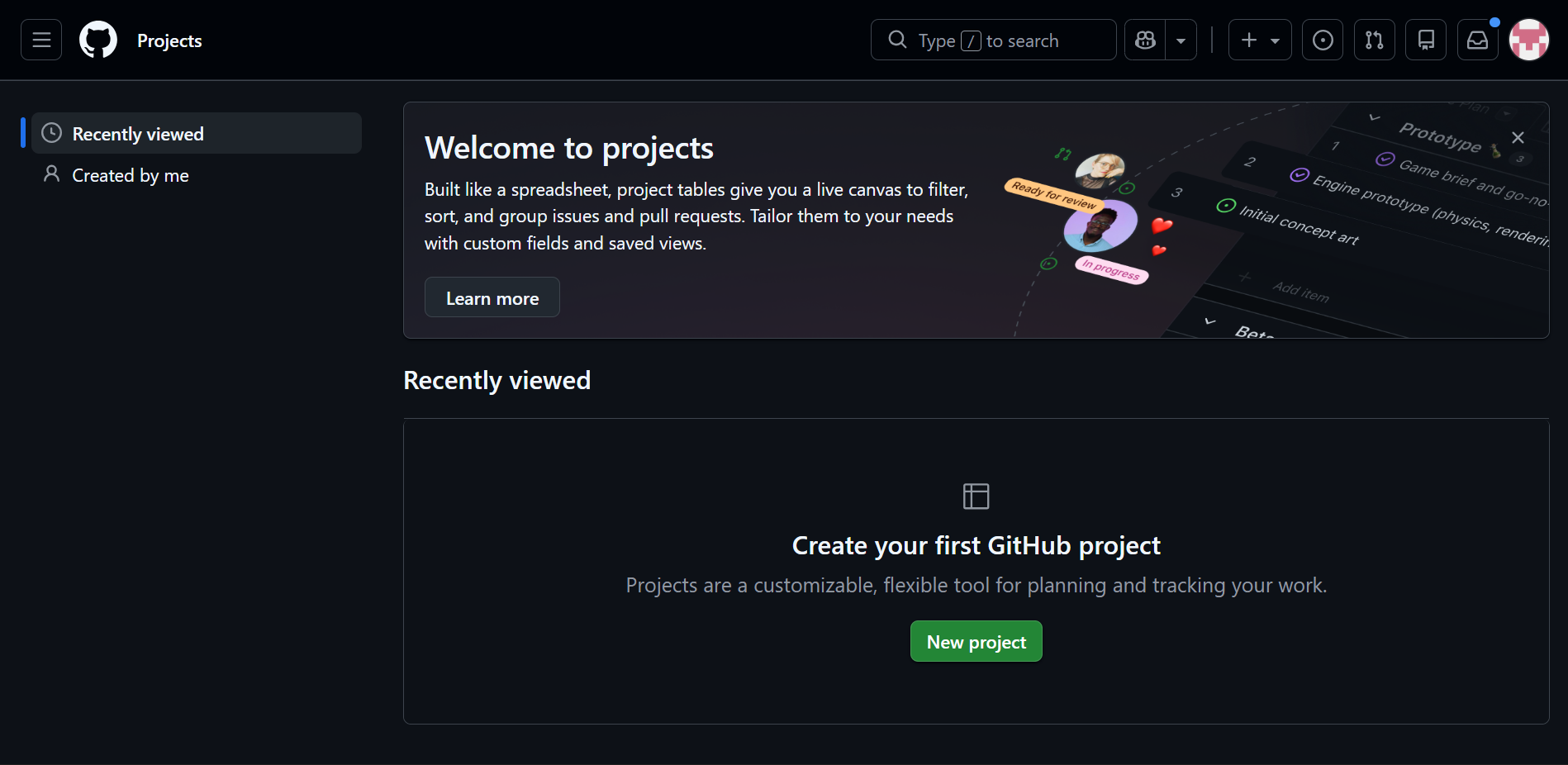
Purpose and Core Concepts
- Centralized planning workspace that brings project management directly into GitHub, keeping planning and code in the same environment.
- Database-backed architecture where each item is stored as a row, and each field represents structured metadata.
- Items can represent issues, pull requests, or draft tasks, allowing both tracked and untracked work to live together.
- A single source of truth where data is stored once and displayed through multiple customizable views.
Project Structure
- Projects can exist at the user, repository, or organization level depending on scope and visibility needs.
- Items can belong to multiple projects at the same time, supporting cross-team and cross-initiative tracking.
- Draft items allow capturing ideas or tasks before deciding which repository they belong to.
- Field values can be edited directly inside the project without opening the underlying issue or PR.
Fields (Metadata)
- Fields store structured information that describes each item and drives filtering, grouping, and automation.
- Shown below are the common field types:

| Field Type | Description | Common Use |
| Text | Stores short free-form strings | Notes, references |
| Number | Stores numeric values | Story points, estimates |
| Date | Stores calendar dates | Due dates, targets |
| Single Select | Stores one value from a predefined list. | Status, Priority |
| Iteration | Stores time-based iteration cycles. | Sprints |
| Labels | Mirrors repository labels. | Categorization |
| Repository | Displays the linked repository. | Multi-repo projects |
| Milestone | Displays the linked milestone. | Version tracking |
Views and Visualization
GitHub Projects lets you visualize project items in multiple ways, giving teams flexibility to plan, track, and manage work in the format that suits them best. Each view provides a different perspective while working on the same underlying data.
View Types:
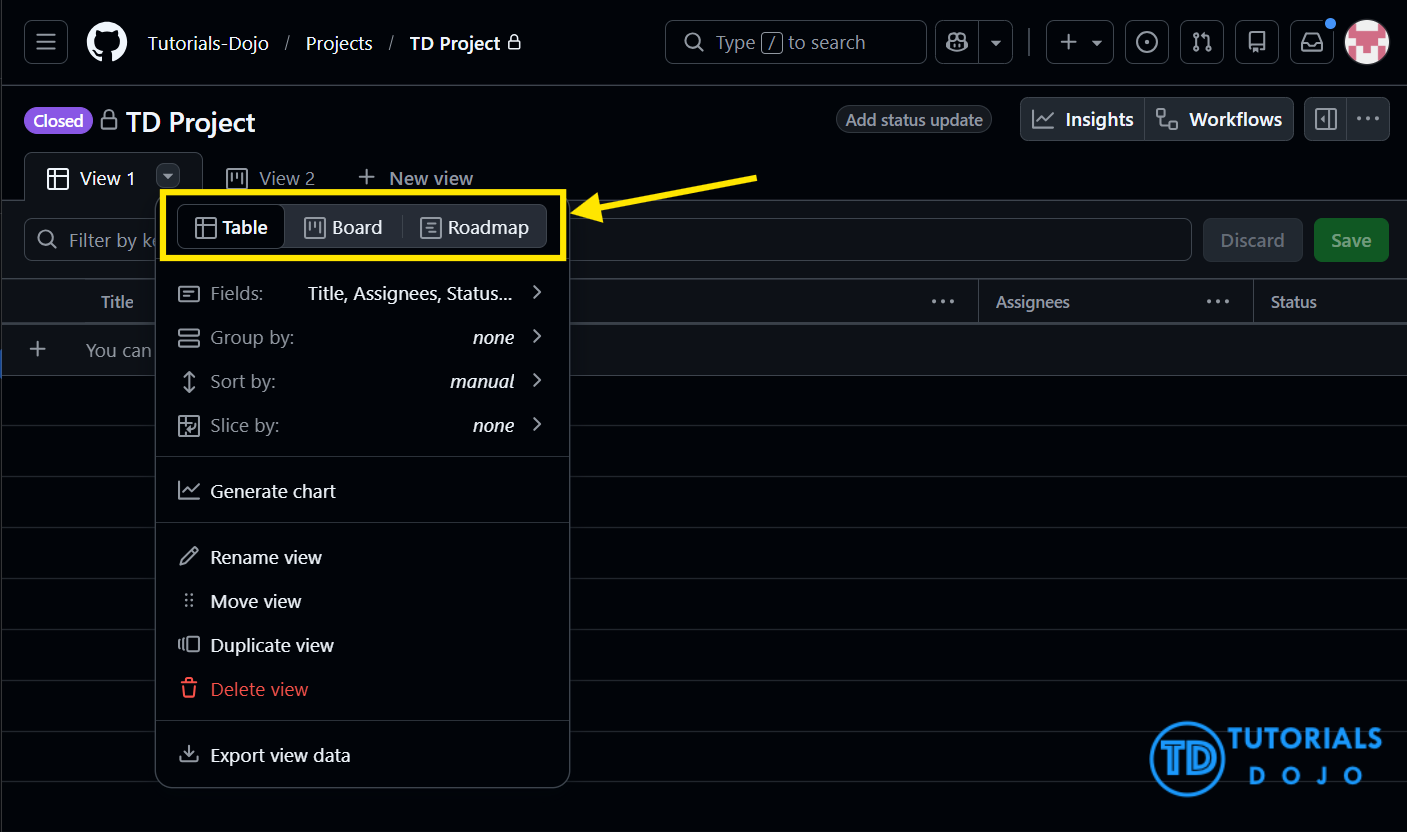
- Table View – Displays items in rows and columns for spreadsheet-style editing, bulk updates, and detailed planning.
- Board View – Shows items as cards organized by a single-select field, ideal for Kanban-style workflows and visual progress tracking.
- Roadmap View – Displays items along a timeline using date or iteration fields, supporting long-term planning and release scheduling.
Key Capabilities across Views:
- Filter – Show only items that meet specific criteria for faster focus.
- Sort – Order items by one or more fields such as priority, status, or date.
- Group – Organize items by a selected field for better categorization.
- Save Views – Persist view configurations for reuse or sharing with different audiences.
Managing Project Items
- You can add existing issues and pull requests by searching across repositories and including them in your project, so all work is tracked in one central place.
- Specific issues or pull requests can be quickly included by pasting their URLs, eliminating the need to navigate manually.
- Draft items allow you to add new tasks or ideas that aren’t yet issues or pull requests in any repository, enabling early planning before work is committed.
- Multiple items can be added or edited at once, which helps streamline project setup and ongoing maintenance.
Automation
- Set field values on item creation – Automatically populate fields such as Status, Priority, or Assignee when a new item is added to a project, reducing manual work.
- Update fields based on changes – Trigger updates to other fields when a related field changes, for example, moving an item to “In Progress” when Status is updated.
- Mark items as Done automatically – Automatically mark project items as completed when linked pull requests are merged, ensuring progress stays in sync.
- Auto-add items based on filters – Automatically include issues or pull requests in a project when they meet specific criteria, such as having a certain label or coming from a specific repository.
Integration with GitHub
- Closing or reopening an issue automatically updates the linked project item, keeping project status in sync with repository work.
- Project membership is displayed in the sidebar of issues and pull requests, making it easy to see which items belong to which projects.
- Status changes in the project can optionally sync with repository labels to maintain consistency across workflows.
- GitHub Projects can be managed programmatically using the GitHub CLI or GraphQL API, enabling automation and integration with other tools.
Permissions and Collaboration
- Read access – Allows users to view project content without making changes.
- Write access – Allows users to edit project items, fields, and basic project details.
- Admin access – Grants full control, including managing project settings, automation, and templates.
- Collaboration features – Users can comment on project items, mention users or teams with @mentions, and organize items using drag-and-drop interaction for workflow management.
Best Practices
- Define a single Status field – Use a dedicated Status field to clearly represent workflow stages, ensuring consistency across all items and simplifying filtering, grouping, and reporting.
- Keep fields minimal and meaningful – Limit the number of fields to those that provide real value, avoiding clutter and making the project easier to navigate and maintain.
- Use draft items for early planning – Capture new ideas, tasks, or backlog items as draft items before they exist in a repository, allowing teams to prioritize and plan work before committing it formally.
- Create multiple views for different purposes – Set up separate views tailored for planning, execution, and reporting to provide relevant perspectives for different audiences without changing the underlying project data.
- Enable automation early – Configure automation rules from the start to reduce repetitive manual work, keep project items up-to-date, and ensure consistency in workflows across your team.
Best Practices

Workflow Management
- Define a single Status field to represent workflow stages clearly, making it easier to filter, group, and report on items.
- Keep the number of fields minimal and meaningful to avoid clutter and simplify project navigation.
- Use draft items to capture early ideas, tasks, or backlog items that haven’t yet been created in a repository, enabling teams to plan and prioritize effectively.
Views and Organization
- Create multiple views tailored for planning, execution, and reporting, so different team members can focus on the perspectives relevant to them without altering the underlying project data.
- Group and sort items strategically within views to improve visibility of priorities, deadlines, and progress.
Automation Practices
- Enable automation early to reduce repetitive manual work, ensure items stay up-to-date, and maintain consistent workflows across the team.
- Use automation rules to synchronize field updates, mark items done based on pull request activity, and auto-add items that match specific filters.
Collaboration and Maintenance
- Encourage commenting and @mentions on project items to keep communication contextual and centralized.
- Regularly review project fields, views, and automation rules to maintain clarity and relevance as the project evolves.
References
https://docs.github.com/en/issues/planning-and-tracking-with-projects/learning-about-projects/about-projects
https://docs.github.com/en/issues/planning-and-tracking-with-projects/understanding-fields
https://docs.github.com/en/issues/planning-and-tracking-with-projects/customizing-views-in-your-project/changing-the-layout-of-a-view
https://docs.github.com/en/issues/planning-and-tracking-with-projects/learning-about-projects/best-practices-for-projects
🤖 $3.74 ONLY for Claude eBooks and Get 25% OFF All Claude Reviewers

Turn Your Team Into Cloud-Ready Professionals Today

Learn AWS with our PlayCloud Hands-On Labs

$2.99 AWS and Azure Exam Study Guide eBooks

Learn GCP By Doing! Try Our GCP PlayCloud

Learn Azure with our Azure PlayCloud

FREE AI and AWS Digital Courses

FREE AWS, Azure, GCP Practice Test Samplers


Subscribe to our YouTube Channel

Follow Us On Linkedin


Written by: Lois Angelo Dar Juan




