
Microsoft 365 Copilot Cheat Sheet
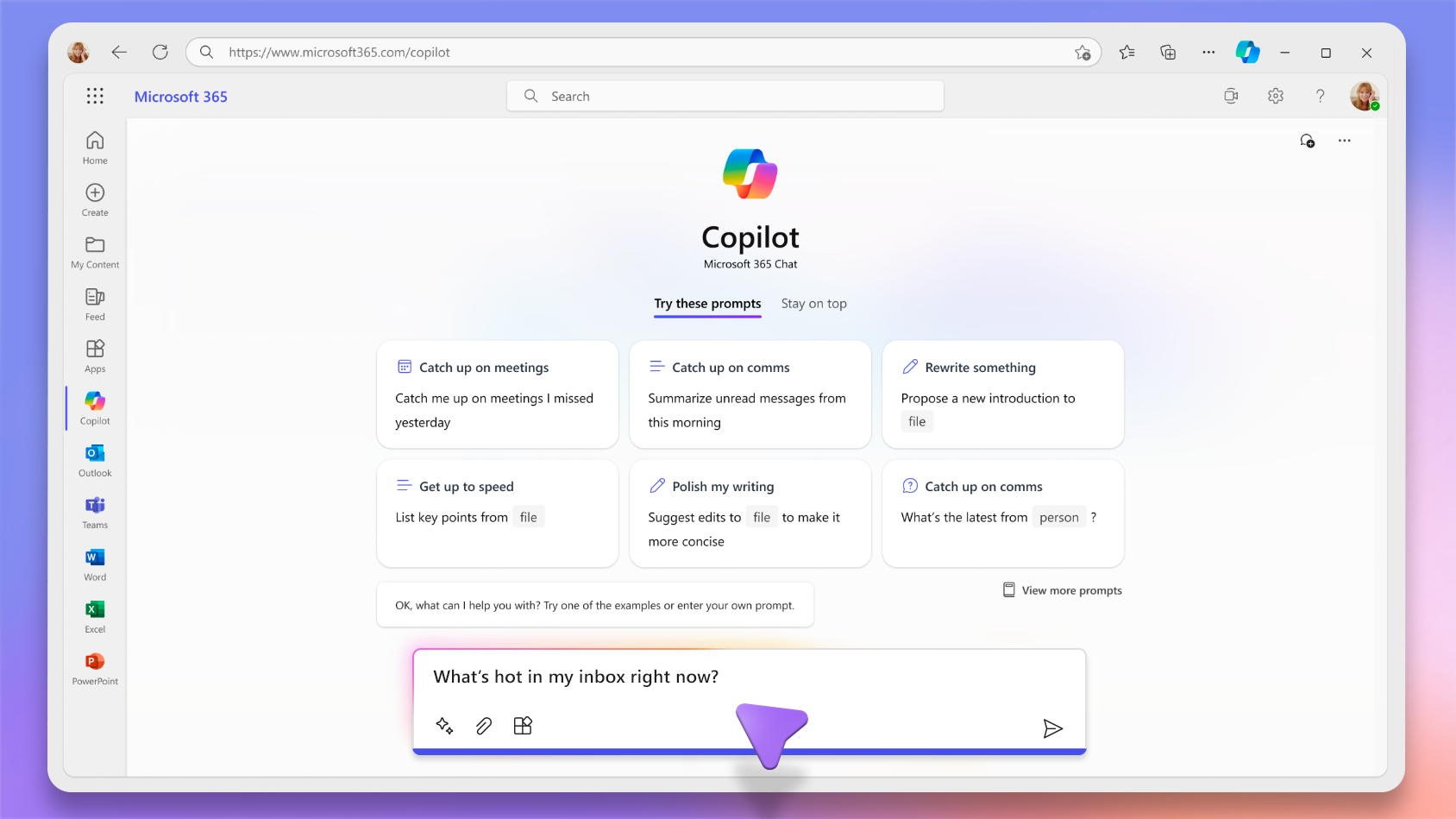
- An AI-powered productivity assistant built into Microsoft 365 apps that helps users draft content, analyze data, summarize information, and automate tasks using large language models and organizational data.
- Combines advanced language models with Microsoft Graph to provide context-aware responses based on emails, meetings, files, and chats.
- Designed to improve productivity while maintaining enterprise-grade security, compliance, and data privacy.
- Operates within the user’s existing permission boundaries and respects tenant-level security controls.
Key Features
AI-Powered Assistance in Microsoft 365 Apps
Embedded directly into the following Microsoft 365 Apps:
- Microsoft Word – Draft, rewrite, summarize, and generate documents
- Microsoft Excel – Analyze data, generate formulas, summarize trends
- Microsoft PowerPoint – Create presentations from prompts or documents
- Microsoft Outlook – Summarize email threads, draft replies
- Microsoft Teams – Summarize meetings and chats, generate action items
- Microsoft OneNote – Organize and summarize notes
Microsoft Graph Grounding
- Uses Microsoft Graph signals (meetings, emails, files, chats, calendar) to generate contextual and relevant responses.
- Ensures outputs reflect organizational data the user is already authorized to access.
Copilot Chat
Secure AI chat built into Microsoft 365 that provides conversational querying, drafting, summarization, and task support. It runs on the latest models, supports side-by-side workflows within apps (Word, Excel, PowerPoint, OneNote, Outlook, Teams), and features built-in enterprise controls and enterprise data protection.
- Basic Copilot Chat is web-grounded and does not require a full license
- Conversational interface aware of content open in Microsoft 365 apps.
- Integrated Copilot Search, recent chats, and suggested prompts.
- Copilot Chat with Microsoft 365 Copilot uses organizational content with file upload, image generation, and advanced reasoning

Copilot Connectors
Enable Copilot to ingest and reason over enterprise data from multiple sources to deliver richer, context-aware responses.
- Connect enterprise systems like ERP, CRM, databases, and knowledge management tools
- Enrich Copilot intelligence for summarization, analysis, and multi-source insights
- Ensure secure access and compliance; users see only authorized data
- Integrate with tools like Microsoft Search and ContextIQ for seamless workflows
Agents
Extend Microsoft 365 Copilot by providing task-focused AI assistants that can automate processes, retrieve knowledge, and deliver specialized support.
- Can be prebuilt by Microsoft, created by your organization, or shared by other users.
- Available within the Copilot experience and accessible from the Agents section.
- Perform multi-step tasks and automate repetitive workflows.
- Provide tailored insights based on connected organizational data.
- Sample agents include:
- Analyst – Helps analyze data, summarize trends, and generate insights from structured information
- Researcher – Assists in gathering, synthesizing, and summarizing information from multiple sources
- Visual Creator – Generates visual content such as images or creative assets based on prompts
Copilot Search
AI-powered search experience in Microsoft 365 that enables fast content discovery, contextual relevance, and seamless transition to Copilot Chat or app-based tasks.
- Unified search across Microsoft 365 apps and connected data sources
- Provides AI-enhanced results ranked by relevance and context
- Integrates with Copilot Chat for deeper exploration or follow-up actions
- Supports files, emails, chats, meetings, and organizational content
Copilot Pages
A persistent interactive workspace where Copilot responses and workflows can be organized into editable and shareable content.
- Transform chat responses into collaborative documents.
- Save and refine AI-generated content.
- Share Pages via Teams, Outlook, or Microsoft 365 apps.
- Co-create and update pages with Copilot in real time.
Notebooks
An integrated environment that helps users organize projects, store ideas, add reference files, and ask Copilot questions about structured collections of knowledge.
- Enables deeper exploration and iterative work with AI.
- Useful for research, planning, ideation, and iterative content creation.
- Notebooks can include content context relevant to ongoing tasks.
Enterprise Data Protection & Governance
Copilot inherits Microsoft’s enterprise security, compliance, and governance stack:
- Enterprise Data Protection (EDP) is integrated for secure AI usage.
- Role and identity-based security through Microsoft Entra ID.
- Full auditing, compliance, and retention via Microsoft Purview.
- Tenant-controlled policies and rights management are built in by default.

Sample Use Cases
- Draft and refine business documents in Microsoft Word, including proposals, reports, and internal communications, using meeting notes or existing files as context.
- Summarize email threads and meetings in Microsoft Outlook and Microsoft Teams to extract decisions, risks, and action items quickly.
- Analyze data and generate insights in Microsoft Excel by identifying trends, creating formulas, and explaining results in plain language.
- Build executive-ready presentations in Microsoft PowerPoint from prompts or existing documents, including structured slides and summaries.
- Organize project research and reusable content using Copilot Pages and Notebooks to consolidate files and iteratively improve outputs.
- Automate recurring workflows with Agents, such as compiling weekly updates or gathering research across approved sources.
Integrations with other Azure services
| Azure Service | Integration Capabilities |
| Microsoft Entra ID | Authentication, role-based access control, Conditional Access |
| Microsoft Purview | Data classification, DLP, eDiscovery, auditing, retention |
| Microsoft Graph | Contextual grounding using organizational data |
| SharePoint Online | File storage and content retrieval for Copilot grounding |
| Microsoft Teams | Meeting transcripts, chat summaries, collaborative AI experiences |
| Microsoft Copilot Studio | Custom agent creation and extensibility |
Important terminologies
- Copilot Chat: Conversational AI interface for work queries and responses across Microsoft 365 apps
- Copilot Search: AI-powered search that delivers contextual results and integrates with Copilot Chat for deeper exploration
- Copilot Connectors: Mechanism to ingest and index enterprise data from multiple sources to enrich Copilot intelligence while maintaining secure and compliant access
- Agents: Task-focused AI assistants that automate workflows, provide insights, or perform specialized tasks
- Pages: Persistent, editable, and shareable workspaces built from Copilot outputs for collaboration and refinement
- Notebooks: Project-centric containers that organize content and enable iterative AI-assisted work
- Microsoft Graph Grounding: Using Microsoft Graph signals (emails, files, meetings, chats, calendar) to provide context for AI responses
- Permission Trimming: A security mechanism ensuring Copilot only accesses data the user is authorized to see
- Enterprise Data Protection (EDP): Copilot’s enterprise-grade security and compliance framework protecting data within organizational boundaries
- Large Language Model (LLM): An AI model that generates contextual outputs based on prompts and organizational grounding
- ContextIQ: AI framework in Microsoft 365 that suggests relevant content, prompts, or files to enhance Copilot responses.
Licensing & Access
- Prerequisites
- Requires a qualifying Microsoft 365 business or enterprise subscription to access Copilot Chat features with a work or school account
- Microsoft 365 Copilot add‑on license is needed to unlock full capabilities, including advanced work data grounding and premium Copilot features
- Some features are available without a full Copilot license, depending on the tenant configuration
- Access
- Copilot is accessible via a dedicated desktop app, in supported Microsoft 365 applications, and through a mobile app for iOS and Android
- User must sign in with their Microsoft 365 work or school account to use Copilot
- Administration
- IT admins must assign Copilot licenses to users via the Microsoft 365 Admin Center to enable premium features
- Some advanced features, such as work data grounding, Agents, and cross-app integration, are only available when a Copilot add‑on license is assigned
Microsoft 365 Copilot Cheat Sheet References:
https://www.microsoft.com/en-us/microsoft-365-copilot/enterprise
https://learn.microsoft.com/en-us/copilot/microsoft-365/microsoft-365-copilot-overview
https://support.microsoft.com/en-au/topic/welcome-to-the-microsoft-365-copilot-app-092599f1-5917-4bd6-bd59-58af628bbc39
https://learn.microsoft.com/en-us/microsoft-365-copilot/extensibility/overview
https://support.microsoft.com/en-au/topic/agents-built-by-microsoft-9cc7cccf-b1ed-4b17-b416-2c15e5e13d5a
🚀 30% OFF All Azure Reviewers

Turn Your Team Into Cloud-Ready Professionals Today

Learn AWS with our PlayCloud Hands-On Labs

$2.99 AWS and Azure Exam Study Guide eBooks

Learn GCP By Doing! Try Our GCP PlayCloud

Learn Azure with our Azure PlayCloud

FREE AI and AWS Digital Courses

FREE AWS, Azure, GCP Practice Test Samplers


Subscribe to our YouTube Channel

Follow Us On Linkedin


Written by: Lois Angelo Dar Juan




