
Claude Cowork Cheat Sheet
Claude Cowork helps you delegate multi-step work to Claude, such as gathering information from connected apps, reviewing files, and preparing a report. Describe the outcome you want, provide the relevant sources, and review the finished work.
What Is Claude Cowork?
Cowork can break a request into steps and use available tools to produce a deliverable. Depending on your plan, settings, and permissions, those tools can include connectors, approved local files, a browser, or computer use. Anthropic is rolling out a unified Claude experience that combines chat and Cowork, so the interface can vary by account.
The Core Concept
- You provide the desired outcome, source material, access, and instructions for handling uncertainty or approvals.
- Claude provides task planning, tool use, and deliverable creation within the available permissions.
- Your team owns access decisions, verification, and approval of sensitive actions or external distribution.
Architecture Overview
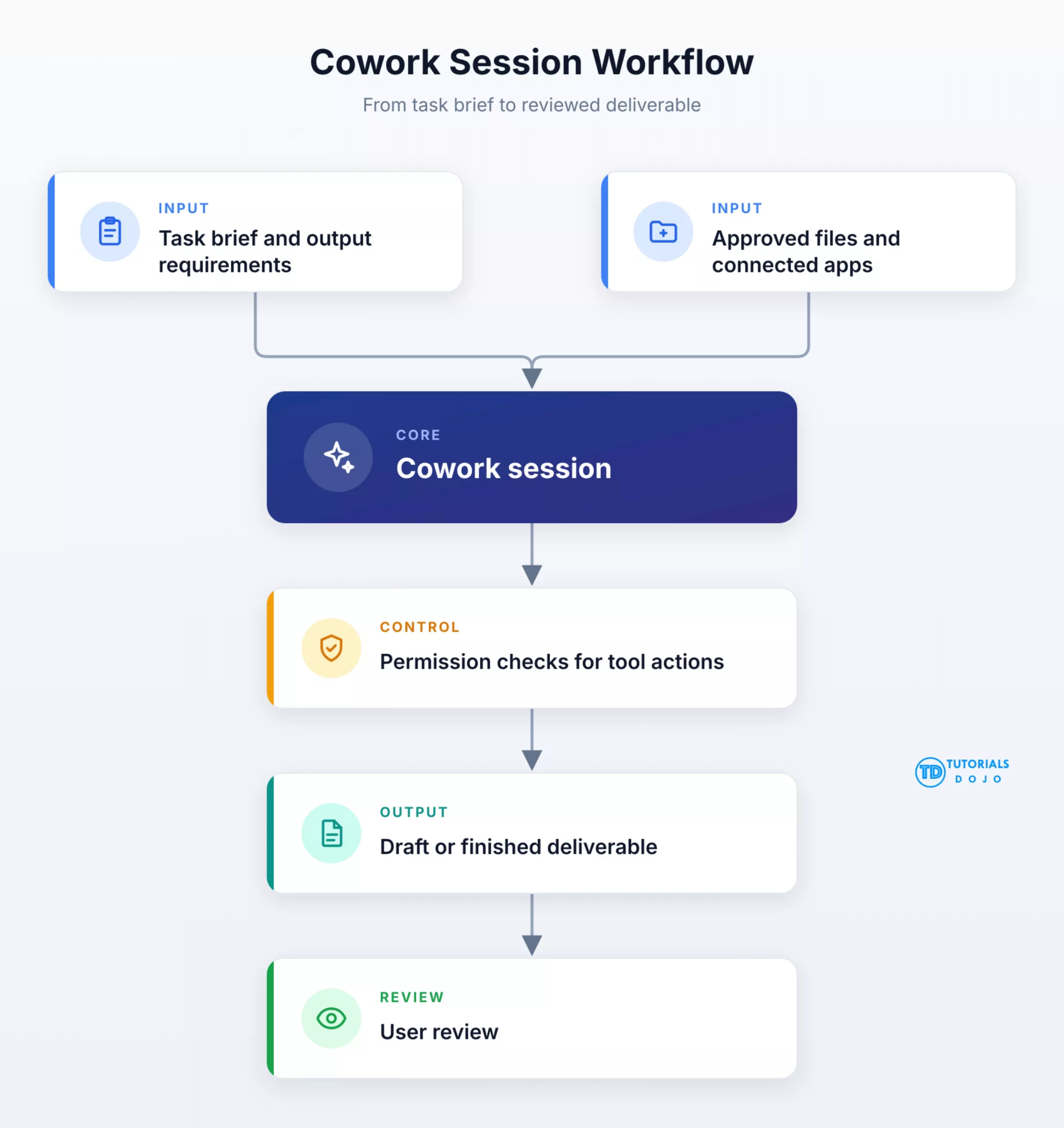
Cloud execution and desktop access are separate. A cloud session can use cloud-accessible sources. Work that needs local files or desktop interaction depends on the desktop connection and supported settings.
Key Components & Features
| Component | What it does |
|---|---|
| Task session | Works through a request with multiple steps, such as collecting source material and writing a report. |
| Connectors | Let Claude read from or act in supported services according to the granted access and tool permissions. |
| Desktop access | Lets Claude work with approved local resources through Claude Desktop where supported. |
| Browser and computer use | Can interact with supported websites or desktop features when enabled and appropriate to the task. Availability varies by platform and plan. |
| Permission settings | Control when Claude checks with you. The unified Claude experience offers Auto and Manual modes. Connector permissions also affect which actions are available. |
| Scheduled tasks | Run recurring work such as briefings and reports. Cloud scheduling depends on plan and organization settings. |
Example Prompt
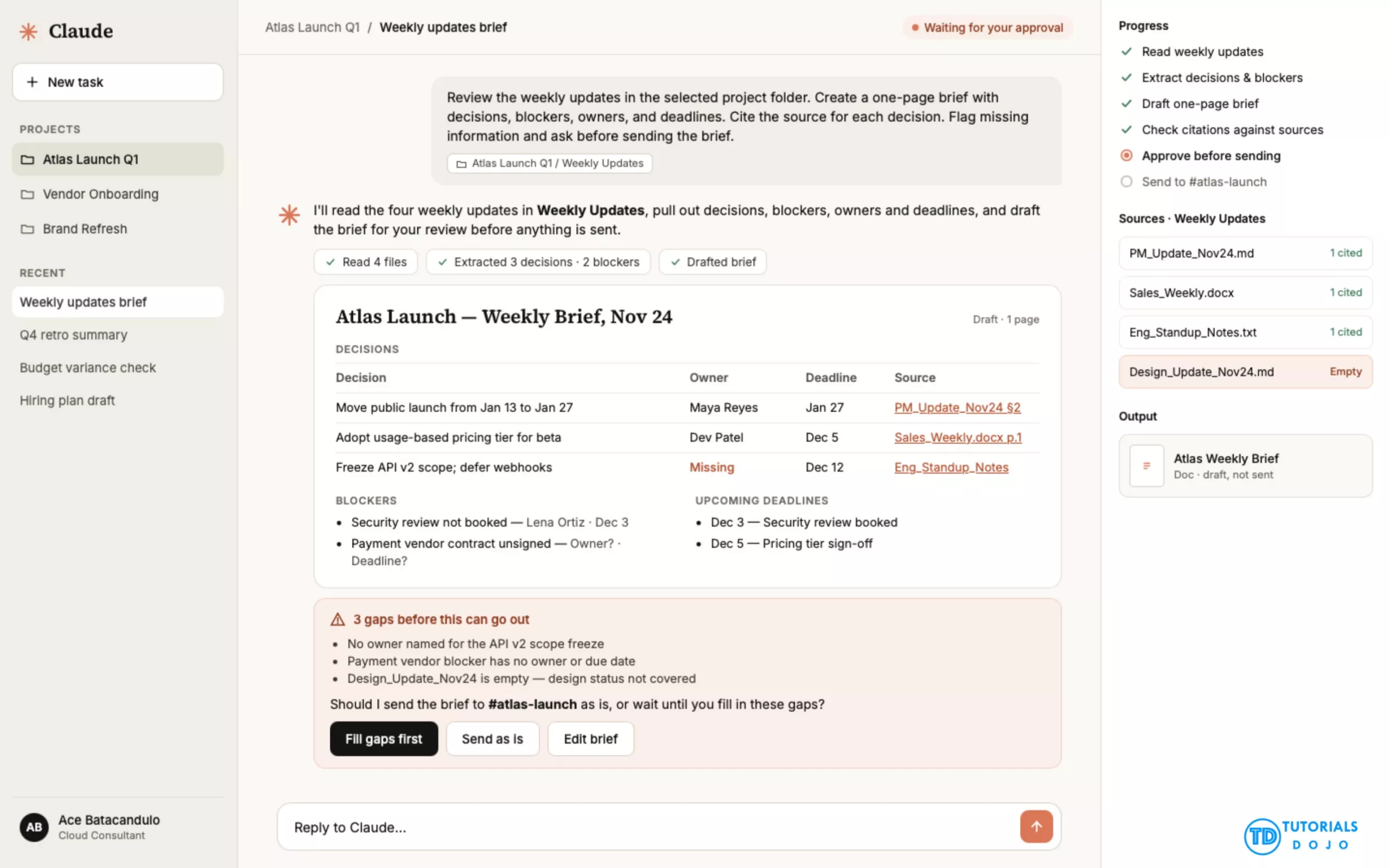
Review the weekly updates in the selected project folder. Create a one-page brief with decisions, blockers, owners, and deadlines. Cite the source for each decision. Flag missing information and ask before sending the brief.
Primary Use Cases
-
Combine updates from approved sources into a brief with decisions, deadlines, and open questions.
-
Summarize supplied documents and produce a comparison table with source references.
-
Set a schedule for a digest using cloud-accessible sources and review the first run before relying on it.

Key Benefits & Value Proposition
- Delegate information gathering, synthesis, and formatting in one request.
- Use the same brief for recurring reports or other repeatable work.
- Ask for a specific file format, citations, and a list of missing or conflicting inputs.
Deployment Process & Timeline
| Phase | Activities | Estimated duration |
|---|---|---|
| Define the task | Specify the audience, output, source material, and what needs approval. | Depends on scope. |
| Set access | Connect the required tools or grant access to selected files. Review applicable permission settings. | Depends on account and tool access. |
| Run a pilot | Use a representative task and check the sources, calculations, and output. | Depends on task complexity. |
| Repeat or schedule | Reuse the tested brief. Confirm that scheduled runs can reach the necessary sources. | Depends on recurrence and access requirements. |
Ideal Customer Profile
-
Operations and project teams that regularly synthesize inputs into shared deliverables.
-
Analysts and knowledge workers who need to work across documents and connected apps instead of assembling each output manually.
Key Considerations & Planning Factors
-
Anthropic lists Cowork on desktop for Pro, Max, Ultra, Team, and Enterprise. Web and mobile access are available on Pro, Max, Ultra, and Team, with Team in beta, and on Enterprise when an owner enables it.
-
Anthropic lists scheduled tasks on paid plans. Cloud-enabled schedules can use cloud-accessible inputs without relying on an open desktop session. Verify local dependencies separately.
-
Grant Claude access to the specific files and tools the task needs. Review approval settings before allowing actions such as sending a message or editing a shared record.
-
Treat instructions encountered in webpages and documents as untrusted. Review unexpected action requests and verify the resulting deliverable.
Claude Cowork vs. Adjacent Tools
| Factor | Claude Cowork | Claude Tag | Claude Code |
|---|---|---|---|
| Best fit | Multi-step work across files and apps. | Delegating shared team tasks in Slack. | Working in a codebase and implementing software changes. |
| Starting point | A task brief plus approved sources. | An @Claude mention in a configured Slack channel. | A repository and an engineering task. |
| Typical output | A report, document, or other work product. | A result or follow-up in the Slack thread. | Code changes, test results, or technical analysis. |
Conclusion
Use Cowork when you can describe an outcome, identify the sources, and define which actions need your approval. Verify one representative run before using the same task on a schedule.
Claude Cowork Cheat Sheet References:
https://support.claude.com/en/articles/13345190-get-started-with-claude-cowork
https://support.claude.com/en/articles/13854387-schedule-recurring-tasks-in-claude-cowork
https://support.claude.com/en/articles/14128542-let-claude-use-your-computer-in-cowork
🛍️ $0.99 eBooks Are Here and Save Up to 75% on All Practice Exams & Video Courses

Turn Your Team Into Cloud-Ready Professionals Today

Learn AWS with our PlayCloud Hands-On Labs

50% OFF ON OUR YEARLY PLAN

Learn GCP By Doing! Try Our GCP PlayCloud

Learn Azure with our Azure PlayCloud

FREE AI and AWS Digital Courses

FREE AWS, Azure, GCP Practice Test Samplers


Subscribe to our YouTube Channel

Follow Us On Linkedin


Written by: Ace Kenneth Batacandulo