
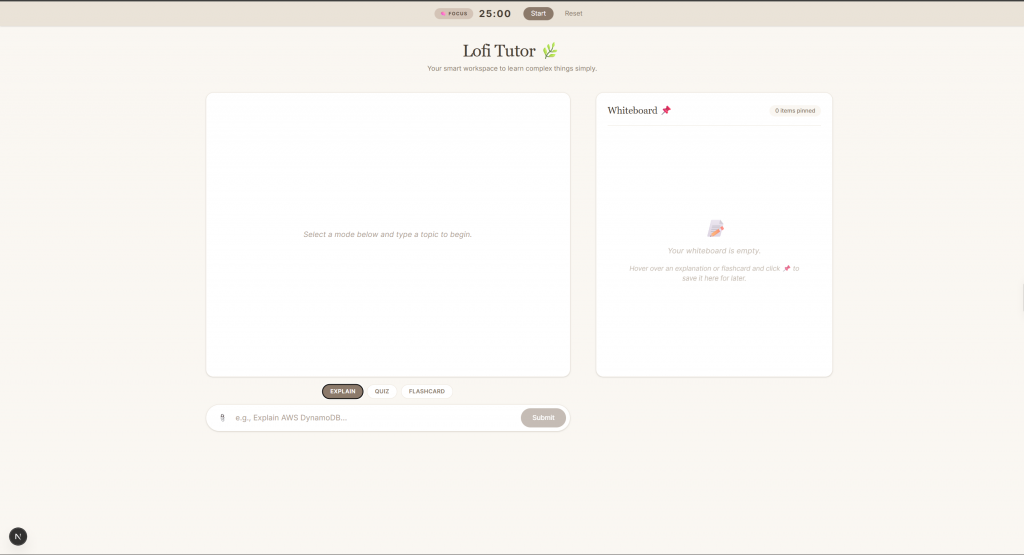
We are going to move past the basic chatbot wrapper and build a true Cozy AI Study Workspace. This is a fully functional application designed for deep focus. We will implement interactive multiple choice quizzes, 3D flipping flashcards, a split screen sticky whiteboard for notes, an automatic Pomodoro timer, and a document uploader so the AI can quiz you directly on your class materials.
Prerequisites
You do not need to be a senior engineer to put this together. Just make sure you have:
-
Node.js: Installed on your computer.
-
A Groq API Key: Grab a free key from the Groq Developer Console for very fast AI responses.
-
Your Code Editor: VS Code or your editor of choice.
Phase 1: Setting Up the Foundation
Setting up a React environment manually takes time. We will use the terminal to instantly create a clean Next.js application with Tailwind CSS already configured.
Open your terminal and run:
* 1. Create the Next.js app (Press 'Enter' to accept default prompts)
npx create-next-app@latest lofi-tutor

* 2. Move into the project folder
cd lofi-tutor

* 3. Install the tools required for our backend AI streaming
npm install ai @ai-sdk/groq
Before writing any code, secure your API key. Create a file named .env.local in the root of your project folder and add your key so it stays hidden from public GitHub repositories:
GROQ_API_KEY=your_api_key_here
Phase 2: The Smart AI Backend
When building an AI app, letting the AI decide how to format its response usually breaks your interface. If we want our Cozy AI Study Workspace to render interactive quizzes and flashcards, the AI must return strictly formatted data instead of conversational fluff.
We achieve this by giving the AI distinct rules based on the study mode selected by the user. We also add a document context variable so the AI can read uploaded study notes, along with a strict PEMDAS rule to prevent it from failing math calculations.

Create a new file at app/api/chat/route.ts and add this code:
import { groq } from '@ai-sdk/groq';
import { streamText } from 'ai';

export async function POST(req: Request) {
  try {
    const { messages, studyMode = 'EXPLAIN', documentContext = '' } = await req.json();

    let modeInstructions = '';
    if (studyMode === 'EXPLAIN') {
      modeInstructions = '- Break the topic down into 3 simple bullet points.\n- Use an easy-to-understand analogy.';
    } else if (studyMode === 'QUIZ') {
      modeInstructions = '- Generate exactly 10 multiple-choice questions on the topic.\n- CRITICAL MATH RULE: If this is a math topic, you MUST verify the calculation using order of operations (PEMDAS) step-by-step internally before generating the final answer.\n- YOU MUST FORMAT EACH QUESTION EXACTLY LIKE THIS ON A SINGLE LINE:\nQUIZ_ITEM: [Question] | O: [Option 1] | O: [Option 2] | O: [Option 3] | O: [Option 4] | A: [Exact Text of the Correct Option]\n- Do not include any asterisks, numbers, or conversational text.';
    } else if (studyMode === 'FLASHCARD') {
      modeInstructions = '- Generate exactly 10 flashcards on the topic.\n- YOU MUST FORMAT EACH FLASHCARD EXACTLY LIKE THIS ON A SINGLE LINE:\nQ: [Question] | A: [Answer]';
    }

    let systemPrompt = `
      You are a Lofi Tutor.
      CURRENT STUDY MODE: ${studyMode}

      CRITICAL RULES:
      ${modeInstructions}
      - Keep a warm, supportive tone (unless generating strictly formatted data).
    `;

    if (documentContext) {
      systemPrompt += `\n\nSOURCE DOCUMENT PROVIDED BY USER:\n"""\n${documentContext}\n"""\nCRITICAL RULE: You must base all your explanations, flashcards, and quizzes STRICTLY on the information provided in the source document above.`;
    }

    const result = await streamText({
      model: groq('openai/gpt-oss-20b'),
      system: systemPrompt,
      messages: messages,
    });

    return result.toTextStreamResponse();

  } catch (error: any) {
    return new Response(error.message, { status: 500 });
  }
}
Phase 3: Building the 3D Flashcard Component
Now we start building the frontend interface in app/page.tsx. Instead of writing one massive block of code all at once, we are going to build small and reusable pieces called Components.
First, we need flashcards that actually feel like physical paper. We want them to flip over when you click them.
function Flashcard({ question, answer, onPin, onRemove }: { question: string, answer: string, onPin?: () => void, onRemove?: () => void }) {
  const [flipped, setFlipped] = useState(false);

  return (


<div className="relative w-full h-32 group [perspective:1000px] mb-4">


<div onClick={() => setFlipped(!flipped)} className={`cursor-pointer relative w-full h-full transition-transform duration-500 [transform-style:preserve-3d] ${flipped ? '[transform:rotateY(180deg)]' : ''}`}>


<div className="absolute w-full h-full [backface-visibility:hidden] bg-white border-2 border-[#EAE3D8] rounded-xl p-4 flex flex-col items-center justify-center text-center">

{question}
        </div>


<div className="absolute w-full h-full [backface-visibility:hidden] [transform:rotateY(180deg)] bg-[#FAF7F2] border-2 border-[#D4C4B7] rounded-xl p-4 flex flex-col items-center justify-center text-center">

{answer}
        </div>


      </div>


    </div>


  );
}
How it works: We wrap the card in a CSS perspective container. This tells the browser to render the element with 3D depth. The card itself has two sides. The back side is permanently rotated 180 degrees backwards. We hide the backface visibility so you cannot see the text bleeding through the front. When you click the card, React changes the flipped state to true. That applies a smooth half circle rotation to the entire container.
Phase 4: Building the Interactive Quiz Component
Instead of forcing the user to type quiz answers into a chat box, we built a standalone mini application. This component intercepts the raw data generated by the AI and turns it into a clickable interface with score tracking.
function InteractiveQuiz({ questions }: { questions: {q: string, options: string[], a: string}[] }) {
  const [started, setStarted] = useState(false);
  const [currentIndex, setCurrentIndex] = useState(0);
  const [selected, setSelected] = useState<string | null>(null);
  const [score, setScore] = useState(0);

  const q = questions[currentIndex];

  const handleCheckAnswer = () => {
    setIsAnswered(true);
    if (selected === q.a) setScore(s => s + 1);
  };
}
How it works: The React state acts as the component memory. It remembers which question you are on, what answer you clicked, and your total score. When you hit the check button, the component runs a quick validation. It checks if the exact text of the button you clicked matches the answer generated by the AI backend. It then uses Tailwind CSS to immediately turn the button green or red so you get instant visual feedback.
Phase 5: The Automatic Pomodoro Engine
To keep users focused, your Cozy AI Study Workspace needs a timer. A basic timer just counts down to zero, but a smart timer enforces breaks and notifies you when it is time to switch gears.
Inside our main component, we set up an engine using a React hook.
const [timerMode, setTimerMode] = useState<'FOCUS' | 'BREAK'>('FOCUS');
  const [timeLeft, setTimeLeft] = useState(25 * 60);
  const [isTimerRunning, setIsTimerRunning] = useState(false);

  useEffect(() => {
    let interval: NodeJS.Timeout;

    if (isTimerRunning && timeLeft > 0) {
      interval = setInterval(() => setTimeLeft((prev) => prev - 1), 1000);
    } else if (timeLeft === 0 && isTimerRunning) {
      setIsTimerRunning(false);

      try {
        const audio = new Audio('https://actions.google.com/sounds/v1/alarms/dinner_bell_triangle.ogg');
        audio.play();
      } catch (e) {
        console.log("Browser blocked auto-play sound.");
      }

      if (timerMode === 'FOCUS') {
        setTimerMode('BREAK');
        setTimeLeft(5 * 60);
      } else {
        setTimerMode('FOCUS');
        setTimeLeft(25 * 60);
      }
    }
    return () => clearInterval(interval);
  }, [isTimerRunning, timeLeft, timerMode]);
How it works: The hook runs continuously in the background. If the timer is active, the interval reduces the time variable by 1 every 1000 milliseconds. When it hits zero, it executes a browser audio link to play a soft bell. It then checks the current mode. If you were focusing, it automatically sets a five minute break. If you were resting, it resets to a twenty five minute focus session.
Phase 6: The Smart File Uploader
We want the AI to read your class notes. Browsers natively read plain text, but binary files like Word documents or PowerPoint slides are incredibly complex under the hood. Reading them requires heavy backend servers.
Since our Cozy AI Study Workspace is a lightweight local application, we use a classic developer workaround.
const handleFileUpload = (e: React.ChangeEvent<HTMLInputElement>) => {
    const file = e.target.files?.[0];
    if (!file) return;

    const fileExtension = file.name.split('.').pop()?.toLowerCase();
    const validTextExtensions = ['txt', 'md', 'csv'];

    if (!validTextExtensions.includes(fileExtension || '')) {
       alert("Word (.docx), PowerPoint (.pptx), and PDFs are complex binary files that require heavy server parsing.\n\n💡 PRO TIP: Open your document, click 'File > Save As > Plain Text (.txt)' and upload that instead!");
       e.target.value = '';
       return;
    }

    setDocumentName(file.name);

    const reader = new FileReader();
    reader.onload = (event) => {
      setDocumentText(event.target?.result as string);
    };
    reader.readAsText(file);
  };
How it works: We configure our file input to display all file types. When a user selects a file, we extract the extension. If they select a Word or presentation file, we stop the process and show an alert teaching them how to save the file as plain text. If they upload a valid text file, the native browser file reader extracts the text and saves it to the memory of the app.
Phase 7: Custom Data Streaming
When you submit a prompt, we need to send your conversation history and your uploaded document to the Next.js backend. Instead of waiting for the AI to finish thinking and printing the whole response at once, we stream it to the screen.
const onSubmit = async (e: FormEvent) => {
    e.preventDefault();
    if (!input.trim() || isLoading) return;

    try {
      const res = await fetch('/api/chat', {
        method: 'POST',
        headers: { 'Content-Type': 'application/json' },
        body: JSON.stringify({ messages: conversationHistory, studyMode, documentContext: documentText }),
      });

      const reader = res.body?.getReader();
      const decoder = new TextDecoder();
      let assistantMessage = '';

      setMessages(prev => [...prev, { role: 'assistant', content: '', id: (Date.now() + 1).toString() }]);

      while (true) {
        const { done, value } = await reader.read();
        if (done) break;
        assistantMessage += decoder.decode(value, { stream: true });

        setMessages(prev => {
          const updatedMessages = [...prev];
          updatedMessages[updatedMessages.length - 1].content = assistantMessage;
          return updatedMessages;
        });
      }
    }
  };
How it works: We use a standard fetch request to talk to our API. Then we use a text decoder to read the incoming data stream piece by piece. As the AI generates each word, we append it to the message variable and update the screen instantly. This creates a satisfying typewriter effect so you never have to stare at a loading spinner.
Phase 8: Putting It All Together
Finally, we wrap all these components and logic inside a Tailwind CSS split-screen layout. On mobile screens, the app stacks the chat vertically above the whiteboard. On larger screens, it automatically switches to a row layout, keeping your whiteboard locked to the right side of the screen as a permanent sticky sidebar.
Here is the complete final code. Open your app/page.tsx file and paste this in:
"use client";
import { useState, useEffect, FormEvent } from 'react';

// --- CUSTOM INTERACTIVE QUIZ COMPONENT ---
function InteractiveQuiz({ questions }: { questions: {q: string, options: string[], a: string}[] }) {
  const [started, setStarted] = useState(false);
  const [currentIndex, setCurrentIndex] = useState(0);
  const [selected, setSelected] = useState<string | null>(null);
  const [isAnswered, setIsAnswered] = useState(false);
  const [score, setScore] = useState(0);
  const [finished, setFinished] = useState(false);

  if (!started) {
    return (


<div className="bg-white border-2 border-[#EAE3D8] rounded-xl p-8 flex flex-col items-center justify-center text-center shadow-sm w-full my-4">


<div className="text-4xl mb-4">🎯</div>


<h3 className="text-xl font-serif text-[#4A3F35] mb-2">Ready for your Quiz?</h3>


I've prepared {questions.length} questions for you.
         <button onClick={() => setStarted(true)} className="px-8 py-2.5 bg-[#8C7A6B] text-white rounded-full text-sm hover:bg-[#726255] transition-colors font-medium shadow-sm">
           Start Quiz
         </button>
      </div>


    );
  }

  if (finished) {
    return (


<div className="bg-white border-2 border-[#EAE3D8] rounded-xl p-8 flex flex-col items-center justify-center text-center shadow-sm w-full my-4">


<div className="text-4xl mb-4">{score === questions.length ? '🏆' : '📚'}</div>


<h3 className="text-xl font-serif text-[#4A3F35] mb-2">Quiz Complete!</h3>


You scored {score} out of {questions.length}
         <button onClick={() => { setStarted(false); setCurrentIndex(0); setScore(0); setFinished(false); setSelected(null); setIsAnswered(false); }} className="px-6 py-2 border border-[#8C7A6B] text-[#8C7A6B] rounded-full text-sm hover:bg-[#FAF7F2] transition-colors font-medium">
           Retake Quiz
         </button>
       </div>


    );
  }

  const q = questions[currentIndex];

  const handleCheckAnswer = () => {
    setIsAnswered(true);
    if (selected === q.a) setScore(s => s + 1);
  };

  const handleNext = () => {
    if (currentIndex + 1 < questions.length) {
      setCurrentIndex(c => c + 1);
      setSelected(null);
      setIsAnswered(false);
    } else {
      setFinished(true);
    }
  };

  return (


<div className="bg-white border-2 border-[#EAE3D8] rounded-xl p-6 shadow-sm w-full my-4">


<div className="flex justify-between items-center mb-6">
          <span className="text-[10px] font-bold text-[#8C7A6B] uppercase tracking-wider bg-[#FAF7F2] px-3 py-1 rounded-full">Question {currentIndex + 1} of {questions.length}</span>
          <span className="text-[10px] font-bold text-[#8C7A6B] uppercase tracking-wider">Score: {score}</span>
        </div>


{q.q}


<div className="flex flex-col gap-3 mb-6">
          {q.options.map((opt, i) => {
             let btnClass = 'border-[#EAE3D8] hover:border-[#D4C4B7] text-[#5C4D43] bg-white';
             if (selected === opt && !isAnswered) {
                btnClass = 'border-[#8C7A6B] bg-[#FAF7F2] text-[#4A3F35] shadow-inner font-medium';
             } else if (isAnswered) {
                if (opt === q.a) {
                   btnClass = 'border-green-400 bg-green-50 text-green-800 font-medium';
                } else if (selected === opt && opt !== q.a) {
                   btnClass = 'border-red-400 bg-red-50 text-red-800 font-medium';
                } else {
                   btnClass = 'opacity-50 border-[#EAE3D8] bg-white';
                }
             }

             return (
                <button key={i} disabled={isAnswered} onClick={() => setSelected(opt)} className={`p-3 text-left rounded-xl border-2 transition-all text-sm ${btnClass}`}>
                  {opt}
                </button>
             );
          })}
        </div>


<div className="flex justify-end pt-4 border-t border-[#EAE3D8]">
           {!isAnswered ? (
             <button disabled={!selected} onClick={handleCheckAnswer} className="px-6 py-2 bg-[#8C7A6B] text-white rounded-full text-sm hover:bg-[#726255] transition-colors disabled:opacity-50 font-medium shadow-sm">
               Check Answer
             </button>
           ) : (
             <button onClick={handleNext} className="px-6 py-2 bg-[#4A3F35] text-white rounded-full text-sm hover:bg-[#342C25] transition-colors font-medium shadow-sm flex items-center gap-2">
               {currentIndex + 1 === questions.length ? 'See Results' : 'Next Question ➔'}
             </button>
           )}
        </div>


     </div>


  );
}

// --- CUSTOM INTERACTIVE FLASHCARD COMPONENT ---
function Flashcard({ question, answer, onPin, onRemove }: { question: string, answer: string, onPin?: () => void, onRemove?: () => void }) {
  const [flipped, setFlipped] = useState(false);
  return (


<div className="relative w-full h-32 group [perspective:1000px] mb-4">
      {onPin && (
        <button onClick={(e) => { e.stopPropagation(); onPin(); }} className="absolute -top-3 -right-3 z-20 bg-white border border-[#EAE3D8] shadow-sm rounded-full p-1.5 text-xs opacity-0 group-hover:opacity-100 transition-opacity hover:bg-[#EAE3D8]" title="Pin to Whiteboard">📌</button>
      )}
      {onRemove && (
        <button onClick={(e) => { e.stopPropagation(); onRemove(); }} className="absolute -top-3 -right-3 z-20 bg-white border border-[#EAE3D8] shadow-sm rounded-full p-1.5 text-xs opacity-0 group-hover:opacity-100 transition-opacity hover:bg-red-50 text-red-500" title="Remove from Whiteboard">❌</button>
      )}


<div onClick={() => setFlipped(!flipped)} className={`cursor-pointer relative w-full h-full transition-transform duration-500 [transform-style:preserve-3d] ${flipped ? '[transform:rotateY(180deg)]' : ''}`}>


<div className="absolute w-full h-full [backface-visibility:hidden] bg-white border-2 border-[#EAE3D8] rounded-xl p-4 flex flex-col items-center justify-center text-center shadow-sm hover:border-[#D4C4B7] transition-colors">
          <span className="text-[10px] text-[#8C7A6B] font-bold tracking-widest mb-2 uppercase">Question</span>

{question}
        </div>


<div className="absolute w-full h-full [backface-visibility:hidden] [transform:rotateY(180deg)] bg-[#FAF7F2] border-2 border-[#D4C4B7] rounded-xl p-4 flex flex-col items-center justify-center text-center shadow-sm">
           <span className="text-[10px] text-[#8C7A6B] font-bold tracking-widest mb-2 uppercase">Answer</span>

{answer}
        </div>


      </div>


    </div>


  );
}

// Data shapes for the Whiteboard
type PinnedItem =
  | { id: string; type: 'note'; text: string }
  | { id: string; type: 'flashcard'; q: string; a: string };

export default function Home() {
  const [studyMode, setStudyMode] = useState('EXPLAIN');

  // Timer States
  const [timerMode, setTimerMode] = useState<'FOCUS' | 'BREAK'>('FOCUS');
  const [timeLeft, setTimeLeft] = useState(25 * 60);
  const [isTimerRunning, setIsTimerRunning] = useState(false);

  // Application States
  const [messages, setMessages] = useState<{role: string, content: string, id: string}[]>([]);
  const [input, setInput] = useState('');
  const [isLoading, setIsLoading] = useState(false);
  const [pinnedItems, setPinnedItems] = useState<PinnedItem[]>([]);

  // Document Reading States
  const [documentText, setDocumentText] = useState('');
  const [documentName, setDocumentName] = useState('');

  // Native Browser File Reader with smart format checking
  const handleFileUpload = (e: React.ChangeEvent<HTMLInputElement>) => {
    const file = e.target.files?.[0];
    if (!file) return;

    const fileExtension = file.name.split('.').pop()?.toLowerCase();
    const validTextExtensions = ['txt', 'md', 'csv'];

    if (!validTextExtensions.includes(fileExtension || '')) {
       alert("Word (.docx), PowerPoint (.pptx), and PDFs are complex binary files that require heavy server parsing.\n\n💡 PRO TIP: Open your document, click 'File > Save As > Plain Text (.txt)' and upload that instead!");
       e.target.value = '';
       return;
    }

    setDocumentName(file.name);

    const reader = new FileReader();
    reader.onload = (event) => {
      setDocumentText(event.target?.result as string);
    };
    reader.readAsText(file);
  };

  const pinNote = (text: string) => {
    if (!pinnedItems.find(item => item.type === 'note' && item.text === text)) {
      setPinnedItems(prev => [{ id: Date.now().toString(), type: 'note', text }, ...prev]);
    }
  };

  const pinFlashcard = (q: string, a: string) => {
    if (!pinnedItems.find(item => item.type === 'flashcard' && item.q === q)) {
      setPinnedItems(prev => [{ id: Date.now().toString(), type: 'flashcard', q, a }, ...prev]);
    }
  };

  const removePinnedItem = (id: string) => {
    setPinnedItems(prev => prev.filter(item => item.id !== id));
  };

  const handleModeChange = (mode: string) => {
    setStudyMode(mode);
    setMessages([]);
  };

  // Pomodoro Logic with Audio and Auto-Switching
  useEffect(() => {
    let interval: NodeJS.Timeout;

    if (isTimerRunning && timeLeft > 0) {
      interval = setInterval(() => setTimeLeft((prev) => prev - 1), 1000);
    } else if (timeLeft === 0 && isTimerRunning) {
      setIsTimerRunning(false);

      try {
        const audio = new Audio('https://actions.google.com/sounds/v1/alarms/dinner_bell_triangle.ogg');
        audio.volume = 0.5;
        audio.play();
      } catch (e) {
        console.log("Browser blocked auto-play sound.");
      }

      if (timerMode === 'FOCUS') {
        setTimerMode('BREAK');
        setTimeLeft(5 * 60);
      } else {
        setTimerMode('FOCUS');
        setTimeLeft(25 * 60);
      }
    }

    return () => clearInterval(interval);
  }, [isTimerRunning, timeLeft, timerMode]);

  const formatTime = (seconds: number) => {
    const m = Math.floor(seconds / 60).toString().padStart(2, '0');
    const s = (seconds % 60).toString().padStart(2, '0');
    return `${m}:${s}`;
  };

  const onSubmit = async (e: FormEvent) => {
    e.preventDefault();
    if (!input.trim() || isLoading) return;

    const userMessage = { role: 'user', content: input, id: Date.now().toString() };
    const conversationHistory = [...messages, userMessage];
    setMessages(conversationHistory);
    setInput('');
    setIsLoading(true);

    try {
      const res = await fetch('/api/chat', {
        method: 'POST',
        headers: { 'Content-Type': 'application/json' },
        body: JSON.stringify({ messages: conversationHistory, studyMode, documentContext: documentText }),
      });

      if (!res.ok) throw new Error(await res.text());
      const reader = res.body?.getReader();
      if (!reader) throw new Error("Stream failed");

      const decoder = new TextDecoder();
      let assistantMessage = '';

      setMessages(prev => [...prev, { role: 'assistant', content: '', id: (Date.now() + 1).toString() }]);

      while (true) {
        const { done, value } = await reader.read();
        if (done) break;
        assistantMessage += decoder.decode(value, { stream: true });

        setMessages(prev => {
          const updatedMessages = [...prev];
          updatedMessages[updatedMessages.length - 1].content = assistantMessage;
          return updatedMessages;
        });
      }
    } catch (error: any) {
      console.error(error);
      setMessages(prev => [...prev, { role: 'assistant', content: "An error occurred. Please try again! ☕", id: Date.now().toString() }]);
    } finally {
      setIsLoading(false);
    }
  };

  return (
    <main className="flex flex-col min-h-screen bg-[#FAF7F2] text-[#5C4D43] font-sans selection:bg-[#E8DCCB]">


<div className={`w-full p-3 flex justify-center items-center gap-6 shadow-sm z-10 sticky top-0 transition-colors duration-500 ${timerMode === 'BREAK' ? 'bg-[#E2EEDB]' : 'bg-[#EAE3D8]'}`}>


<div className="flex items-center gap-3">
          <span className={`text-[10px] font-bold uppercase tracking-widest px-3 py-1 rounded-full ${timerMode === 'BREAK' ? 'bg-[#C5DFB9] text-[#4A5D43]' : 'bg-[#D4C4B7] text-[#5C4D43]'}`}>
            {timerMode === 'FOCUS' ? '🧠 Focus' : '☕ Break'}
          </span>


<div className="font-mono text-xl text-[#4A3F35] font-bold tracking-widest">
            {formatTime(timeLeft)}
          </div>


        </div>


<div className="flex items-center gap-2">
          <button onClick={() => setIsTimerRunning(!isTimerRunning)} className="px-4 py-1 text-sm bg-[#8C7A6B] text-white rounded-full hover:bg-[#726255] transition-colors">
            {isTimerRunning ? 'Pause' : 'Start'}
          </button>
          <button onClick={() => { setIsTimerRunning(false); setTimeLeft(timerMode === 'FOCUS' ? 25 * 60 : 5 * 60); }} className="px-4 py-1 text-sm text-[#8C7A6B] hover:bg-white/50 rounded-full transition-colors">
            Reset
          </button>
        </div>


      </div>


<div className="text-center space-y-2 mt-8 mb-4">


<h1 className="text-4xl font-serif tracking-tight text-[#4A3F35]">Lofi Tutor 🌿</h1>


Your smart workspace to learn complex things simply.
      </div>


<div className="flex-1 w-full max-w-[1400px] mx-auto flex flex-col lg:flex-row gap-6 p-6 pb-20">


<div className="flex-1 flex flex-col gap-4 max-w-3xl mx-auto w-full">


<div className="w-full h-[600px] overflow-y-auto bg-white rounded-2xl shadow-sm border border-[#EAE3D8] p-6 flex flex-col relative custom-scrollbar">
            {messages.length === 0 ? (


<div className="h-full flex-1 flex items-center justify-center text-[#B0A395] text-center italic">
                Select a mode below and type a topic to begin.
              </div>


            ) : (


<div className="flex flex-col gap-6">
                {messages.map((m) => {

                  if (studyMode === 'QUIZ' && m.role === 'assistant') {
                    const quizQuestions: {q: string, options: string[], a: string}[] = [];
                    m.content.split('\n').forEach((line) => {
                      if (line.includes('QUIZ_ITEM:') && line.includes('| A:')) {
                        const parts = line.split('|');
                        const qPart = parts[0]?.replace('QUIZ_ITEM:', '').trim();
                        const options = parts.slice(1, 5).map(o => o?.replace('O:', '').trim());
                        const aPart = parts[5]?.replace('A:', '').trim();
                        if (qPart && options.length === 4 && aPart) {
                          quizQuestions.push({ q: qPart, options, a: aPart });
                        }
                      }
                    });
                    if (quizQuestions.length > 0) return <InteractiveQuiz key={m.id} questions={quizQuestions} />;
                  }

                  if (studyMode === 'FLASHCARD' && m.role === 'assistant') {
                    const cards: {q: string, a: string}[] = [];
                    m.content.split('\n').forEach((line) => {
                      if (line.includes('Q:') && line.includes('| A:')) {
                        const parts = line.split('| A:');
                        const qPart = parts[0].replace('Q:', '').trim();
                        const aPart = parts[1].trim();
                        if (qPart && aPart) cards.push({ q: qPart, a: aPart });
                      }
                    });
                    if (cards.length > 0) {
                      return (


<div key={m.id} className="grid grid-cols-1 md:grid-cols-2 gap-4 my-2">
                          {cards.map((card, i) => (
                            <Flashcard key={i} question={card.q} answer={card.a} onPin={() => pinFlashcard(card.q, card.a)} />
                          ))}
                        </div>


                      );
                    }
                  }

                  return (


<div key={m.id} className={`flex w-full ${m.role === 'user' ? 'justify-end' : 'justify-start'}`}>


<div className={`relative group max-w-[80%] p-4 rounded-2xl whitespace-pre-wrap leading-relaxed ${
                        m.role === 'user' ? 'bg-[#8C7A6B] text-white rounded-br-none' : 'bg-[#FAF7F2] border border-[#EAE3D8] text-[#5C4D43] rounded-bl-none'
                      }`}>
                        {m.role === 'assistant' && studyMode === 'EXPLAIN' && m.content.length > 10 && (
                          <button onClick={() => pinNote(m.content)} className="absolute -top-3 -right-3 opacity-0 group-hover:opacity-100 transition-opacity bg-white border border-[#EAE3D8] shadow-sm rounded-full p-1.5 text-xs hover:bg-[#EAE3D8]" title="Pin to Whiteboard">📌</button>
                        )}
                        {m.content}
                      </div>


                    </div>


                  );
                })}
                {isLoading &&


<div className="text-[#B0A395] italic text-sm animate-pulse">Thinking...</div>


}
              </div>


            )}
          </div>


<div className="w-full flex flex-col gap-3">


<div className="flex justify-center gap-2">
              {['EXPLAIN', 'QUIZ', 'FLASHCARD'].map((mode) => (
                <button key={mode} onClick={() => handleModeChange(mode)} className={`px-4 py-1.5 rounded-full text-xs font-semibold tracking-wide transition-all ${ studyMode === mode ? 'bg-[#8C7A6B] text-white shadow-sm' : 'bg-white border border-[#EAE3D8] text-[#8C7A6B] hover:bg-[#EAE3D8]' }`}>
                  {mode}
                </button>
              ))}
            </div>


<form onSubmit={onSubmit} className="w-full relative">
              {documentName && (


<div className="absolute -top-10 left-4 bg-[#EAE3D8] text-[#5C4D43] text-xs px-4 py-1.5 rounded-full flex items-center gap-2 shadow-sm border border-[#D4C4B7]">
                  📄 {documentName}
                  <button type="button" onClick={() => {setDocumentName(''); setDocumentText('');}} className="text-[#8C7A6B] hover:text-red-500 font-bold ml-1">×</button>
                </div>


              )}


<div className="flex bg-white rounded-full shadow-sm border border-[#EAE3D8] p-2 pl-4 items-center focus-within:ring-2 ring-[#D4C4B7] transition-all">
                <label className="cursor-pointer mr-2 p-2 text-[#8C7A6B] hover:bg-[#EAE3D8] rounded-full transition-colors relative" title="Upload Study Notes (.txt, .md, .csv)">
                  📎
                  <input type="file" accept=".txt,.md,.csv,.docx,.pptx,.pdf" className="hidden" onChange={handleFileUpload} />
                </label>

                <input
                  type="text"
                  value={input}
                  onChange={(e) => setInput(e.target.value)}
                  placeholder={
                    studyMode === 'QUIZ' ? "What topic should I quiz you on?" :
                    studyMode === 'FLASHCARD' ? "What topic do you want flashcards for?" :
                    "e.g., Explain AWS DynamoDB..."
                  }
                  className="flex-1 bg-transparent text-[#5C4D43] placeholder-[#B0A395] focus:outline-none"
                  disabled={isLoading}
                />
                <button type="submit" disabled={isLoading || !input.trim()} className="ml-2 px-6 py-2.5 bg-[#8C7A6B] text-white rounded-full text-sm hover:bg-[#726255] transition-colors disabled:opacity-50 disabled:cursor-not-allowed font-medium">
                  Submit
                </button>
              </div>


            </form>


          </div>


        </div>


<div className="w-full lg:w-[450px] xl:w-[500px] h-[600px] bg-white rounded-2xl shadow-sm border border-[#EAE3D8] p-6 flex flex-col relative overflow-y-auto custom-scrollbar">


<div className="flex items-center justify-between mb-6 pb-4 border-b border-[#EAE3D8]">


<h2 className="text-xl font-serif text-[#4A3F35]">Whiteboard 📌</h2>


            <span className="text-xs text-[#8C7A6B] font-medium bg-[#FAF7F2] px-3 py-1 rounded-full">{pinnedItems.length} items pinned</span>
          </div>


          {pinnedItems.length === 0 ? (


<div className="flex-1 flex flex-col items-center justify-center text-[#B0A395] text-center italic opacity-70 p-8 space-y-4">


<div className="text-4xl">📝</div>


Your whiteboard is empty.

Hover over an explanation or flashcard and click 📌 to save it here for later.
            </div>


          ) : (


<div className="flex flex-col gap-4">
              {pinnedItems.map((item) => {
                if (item.type === 'note') {
                  return (


<div key={item.id} className="relative group bg-[#FEF9C3] text-[#713F12] p-5 rounded-xl shadow-sm border border-[#FEF08A] whitespace-pre-wrap text-sm leading-relaxed">
                      <button onClick={() => removePinnedItem(item.id)} className="absolute -top-2 -right-2 opacity-0 group-hover:opacity-100 transition-opacity bg-white border border-[#EAE3D8] shadow-sm rounded-full p-1 text-xs hover:bg-red-50 text-red-500">❌</button>
                      {item.text}
                    </div>


                  );
                }
                if (item.type === 'flashcard') {
                  return (


<div key={item.id} className="relative group">
                      <Flashcard question={item.q} answer={item.a} onRemove={() => removePinnedItem(item.id)} />
                    </div>


                  );
                }
              })}
            </div>


          )}
        </div>


      </div>


    </main>
  );
}
Wrap Up

You just turned a standard chat API into a highly effective learning tool. By taking control of the React state management manually, breaking the user interface down into focused components, and building features specifically around how people learn, you have built a true Cozy AI Study Workspace. Instead of mindlessly scrolling through walls of generated text, you now have an active environment. The Pomodoro timer keeps you from burning out, the sticky whiteboard ensures your best notes never disappear, and the document uploader grounds the AI in your actual coursework.
From here, you can easily deploy your application for free using platforms like Vercel, or you can keep building on top of it. Maybe you want to add a dark mode or a new study mode just for coding interviews. Add a hydration warning to your layout file to keep Grammarly from crashing your layout. Keep experimenting, keep studying, and enjoy your new Cozy AI Study Workspace.
References
🎃 UP TO 40% OFF Any Product & Use Code: HALLOWEEN2026

Turn Your Team Into Cloud-Ready Professionals Today

Learn AWS with our PlayCloud Hands-On Labs

$2.99 AWS and Azure Exam Study Guide eBooks

Learn GCP By Doing! Try Our GCP PlayCloud

Learn Azure with our Azure PlayCloud

FREE AI and AWS Digital Courses

FREE AWS, Azure, GCP Practice Test Samplers


Subscribe to our YouTube Channel

Follow Us On Linkedin


Written by: Joshua Emmanuel Santiago