
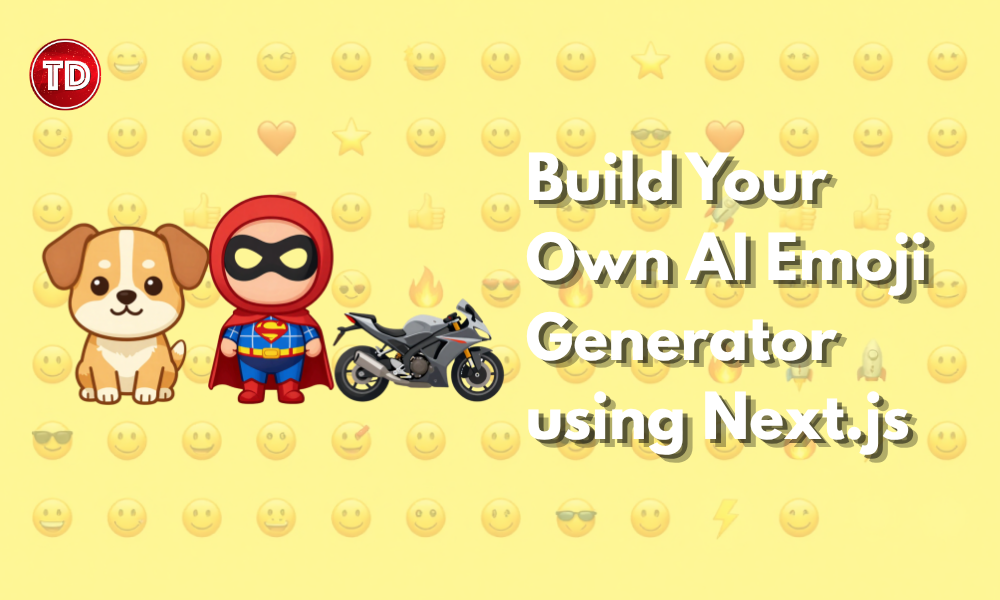
Have you ever wanted to build a completely custom AI Emoji Generator but got stuck trying to make a cloned template run on your local computer?
Downloading a production-ready starter repository is rarely a plug-and-play experience. You clone the code, run it, and immediately hit a wall of scary terminal errors from database version mismatches to API rate limit crashes.
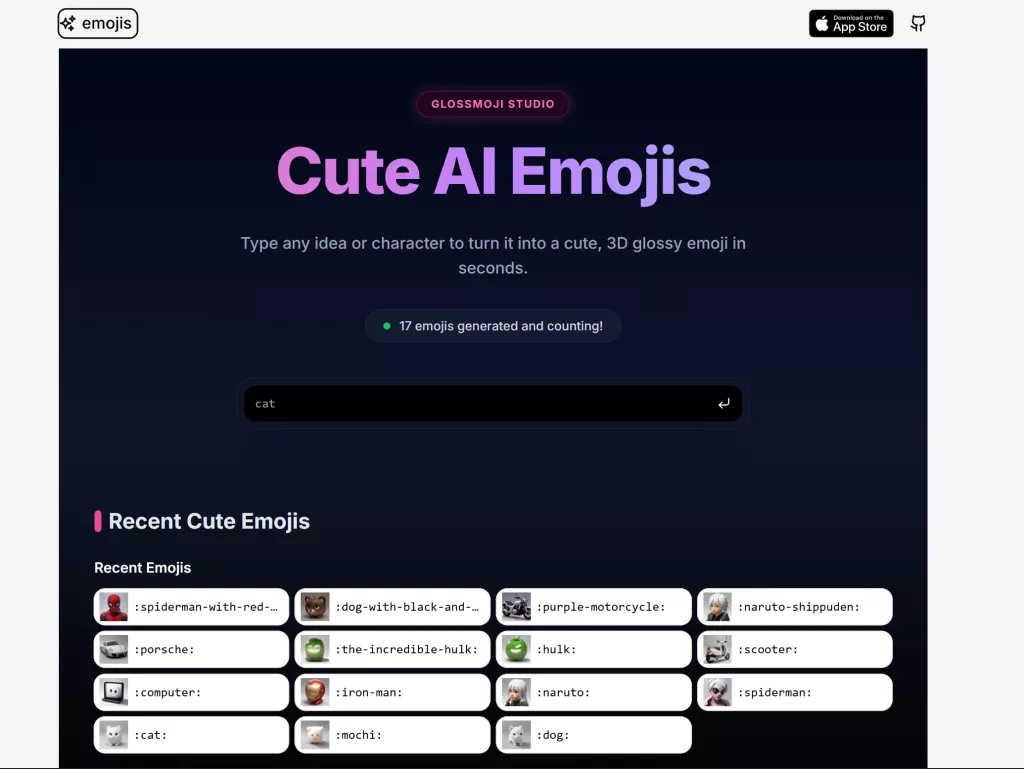
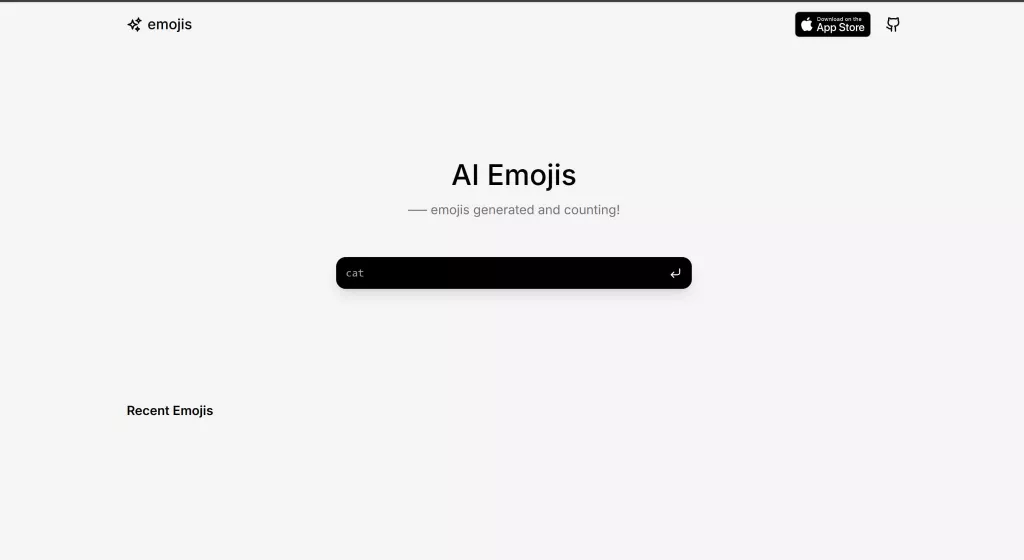
In this tutorial, we will walk through how to take a standard Next.js AI template, set it up locally step-by-step, and troubleshoot the most common invisible walls that trip up beginners. We will also cover how to customize your user interface and fix stubborn layout bugs. By the end of this guide, your app will be generating custom emojis seamlessly.
Prerequisites
Before we dive in, ensure you have the following ready:
- Node.js: Installed on your local machine to run JavaScript outside of a browser. For Prisma ORM 5 and above, it is recommended to use Node version 18 or newer.
- A Relational Database: A MySQL or PostgreSQL database. Free cloud providers like Aiven, Supabase, or PlanetScale work perfectly for this.
- An API Token: For an AI image generation service if you plan to deploy to production.
- A GitHub Account: To store your project’s code and manage versions.
Phase 1: AI Emoji Generator From Vercel to GitHub to Your Local Machine
When you find a great template on Vercel, there is usually a “Deploy” button. It is tempting to just download the ZIP file directly, but that is a trap!
The Issue: If you download a ZIP without linking it to a version control system like Git, deploying future updates or tracking your changes becomes an absolute nightmare.
The Fix: Always use the Vercel “Deploy” button to automatically create a brand new repository in your own GitHub account first. Once Vercel successfully builds it in the cloud, you can safely pull that code down to your personal computer to start experimenting.
Open your terminal and run these commands to grab your code and install the necessary packages:
# Clone your newly created GitHub repository to your computer
git clone https://github.com/your-username/your-new-repo-name.git
# Move into the project folder
cd your-new-repo-name
# Install all the required dependencies the template needs
npm install
Phase 2: AI Emoji Generator Fix the Database Version Mismatch (Error P1012)
The first step in any full-stack application is connecting your database. After setting your database URL in your environment file, you typically push your schema using Prisma to create your tables.
The Issue: If you download the absolute latest version of Prisma globally, it might conflict with the configuration of an older template. You will often see an error stating that the datasource property url is no longer supported in schema files.
The Fix: Force your terminal to use the specific version of Prisma that the architecture of your template expects. For example, if the template was built for Prisma 5, run:
npx prisma@5 db push
Phase 3: AI Emoji Generator Bypass Local Rate Limiters (Vercel KV Error)
Production templates frequently include rate limiters to prevent users from spamming the server and racking up compute costs.

The Issue: Rate limiters require a separate Redis database to track user IP addresses. Because you do not have Redis running locally, your application will throw a connection error, and your terminal logs will warn about a missing Key-Value store URL.
The Fix: You do not need to configure Redis just to test your app locally. Open your Server Actions or API routes, locate the rate limiting code block, and safely comment it out until you are ready for production.
// Comment out the rate limiter to test locally without Redis
// const { success } = await ratelimit.limit(identifier);
// if (!success) {
// return new Response("Rate limit exceeded", { status: 429 });
// }
Phase 4: AI Emoji Generator Manage AI API Costs for Local Testing
Generating images requires cloud GPU compute, which means professional AI APIs operate on a usage-based billing model.
The Issue: If you attempt to generate an image without an active billing account, the API will reject your request and throw a 402 Payment Required error, crashing your app.
Note on Pricing: API costs fluctuate based on the provider and the model you use. Always review the official documentation of your provider for general pricing guidance, monitor your usage dashboard regularly, and set hard billing limits on your account to avoid unexpected charges in production.
The Fix: For local development, avoid burning through your production budget. You can easily swap your paid SDK integration with a free, URL-based generation service like Pollinations AI.
const cleanPrompt = encodeURIComponent(`high quality 3D emoji of ${userPrompt}`);
// Swap your paid API call for a free endpoint during testing
const freeImageUrl = `https://image.pollinations.ai/prompt/${cleanPrompt}?width=512&height=512`;
Phase 5: AI Emoji Generator Resolve Database Race Conditions (Prisma P2025)
When combining fast external APIs with local database inserts, execution timing is critical.
The Issue: You might encounter a P2025 Record to update not found error. This occurs when your code attempts to attach the newly generated AI image URL to a database row that has not completely finished saving yet.
The Fix: Do not group database creations and external API calls into a single array loop. Separate them to guarantee sequential execution.
// 1. Await the database insert FIRST to ensure the ID exists
const newEmoji = await prisma.emoji.create({ data: { prompt } });
// 2. Only after the row is confirmed, generate and attach the image
await generateAndSaveImage(newEmoji.id);
Phase 6: AI Emoji Generator Remove Premium Caching Layers
Enterprise-grade templates often utilize edge caching layers, such as Prisma Accelerate, to serve data faster to users around the globe.
The Issue: Standard, free-tier relational databases do not support these premium caching commands out of the box. Running a query with them will result in an Unknown argument cacheStrategy error.
The Fix: Use your code editor’s search function to locate cacheStrategy. Delete the argument entirely to make the query compatible with a standard database.
const emojis = await prisma.emoji.findMany({
orderBy: { createdAt: 'desc' },
// Remove this premium configuration for local/standard databases
// cacheStrategy: { swr: 60, ttl: 60 }
});
Phase 7: AI Emoji Generator Fix the Database Column Size Limit (Prisma P2000)
Once image generation works, saving that image to your database might trigger another crash.
The Issue: Standard String columns in databases like MySQL are strictly limited to 191 characters. Free AI image URLs are often much longer than this. When your app tries to save a 300-character URL, the database rejects it.
The Fix: Open your Prisma schema and explicitly define the column as a Text type so it can handle long strings. Remember to remove these columns from any @@index arrays, as databases require strict length limits for indexed text fields.
model Emoji {
id String @id @default(cuid())
prompt String
// Add @db.Text to allow strings longer than 191 characters
originalUrl String? @db.Text
@@index([prompt]) // Ensure originalUrl is NOT in this array
}
Phase 8: AI Emoji Generator Stop Blank Images and Hostname Errors
After a few hours of testing, your previously generated images might suddenly disappear, leaving blank boxes on your screen.
The Issue: Temporary trial links from paid AI providers expire quickly. Furthermore, Next.js’s <Image> component actively blocks external images from rendering unless you whitelist their exact domain names in your configuration files.
The Fix: Swap the proprietary Next.js component for a standard HTML <img> tag to bypass strict domain blocking. Then, write a fallback logic sequence to catch expired database links.
// 1. Prioritize the database, but fall back to a dynamic generation link
const fallbackSrc = `https://image.pollinations.ai/prompt/${encodeURIComponent(name)}`;

const src = data?.recentSrc || fallbackSrc;
// 2. Use a standard HTML tag to avoid Next.js domain whitelist blocks
<img
alt={`emoji of ${name}`}
src={src}
className="h-8 w-8 object-contain"
/>
Phase 9: AI Emoji Generator Fix the Missing CSS Bug (Next.js on Windows)
You have fixed the backend, but the frontend might still be fighting you.
The Issue: Your application successfully loads, but the Tailwind CSS is completely broken, leaving you with unstyled text. In your terminal, you will see a massive ERR_INVALID_URL error loop.
The Cause: The framework has a known bug on Windows operating systems. It crashes when attempting to resolve local file paths for dynamic icon generators (like @vercel/og). This crash halts the CSS compiler and caches the broken layout.
The Fix:
- Navigate to your src/app directory and delete any files named icon.tsx or opengraph-image.tsx inside your dynamic routes.
- Locate the hidden .next folder at the root of your project directory. Delete it entirely to clear the corrupted CSS cache.
- Restart your development server with npm run dev or bun dev.
Phase 10: AI Emoji Generator Untangle Conflicting UI Styles
When you decide to customize the default template and add a sleek dark mode design, your layout might suddenly warp into weird, bulky shapes.
The Issue: You wrap an existing component in a beautiful new container, but the text pushes out of bounds or sits awkwardly in the corner. This happens because the inner component still has its original padding and margin classes hardcoded into it, creating a CSS box-inside-a-box conflict.
The Fix: Open the child component and strip away its structural classes. Surrender formatting control to your new parent container to keep the UI perfectly aligned.
// BEFORE: The child forces its own padding and borders, breaking the parent UI
// return <div className="p-4 m-2 flex items-center border">{count} emojis!</div>;
// AFTER: Strip classes to let the parent container style it smoothly
return <span>{count} emojis!</span>;
Wrap Up
We finally made it! Let’s be real for a second: building modern apps is incredibly fun, but just getting the starter code to actually run on your laptop is usually the hardest, most frustrating part of the whole project.
It is so easy to feel like you are doing something wrong when a template you just downloaded throws twenty red error messages at you. But every single developer goes through this exact same ritual. We all sit there staring at the terminal, Googling errors that make zero sense, sighing as we delete that hidden .next folder for the fifth time today, and wondering why a simple image refuses to show up on the screen.
The biggest secret to coding isn’t being a genius; it is just being stubborn. The trick is to take a deep breath, scroll to the very bottom of that scary error log, and fix the problems one at a time.
We Didn’t just “install a template” today. We successfully pulled code from Vercel to GitHub, forced your database to accept massive AI image links, outsmarted a nasty Next.js Windows bug that broke your styling, ripped out enterprise caching we didn’t need, fixed a UI box-inside-a-box conflict, and built a clever fallback to keep your images looking perfect even when a link died.
Now, you have a beautiful, fully functioning custom AI emoji generator running right there on your own machine.
Resources
⏳ Get 30% OFF on Microsoft Azure and GitHub Reviewers this Black Friday Sale!

Turn Your Team Into Cloud-Ready Professionals Today

Learn AWS with our PlayCloud Hands-On Labs

$2.99 AWS and Azure Exam Study Guide eBooks

Learn GCP By Doing! Try Our GCP PlayCloud
Learn Azure with our Azure PlayCloud

FREE AI and AWS Digital Courses

FREE AWS, Azure, GCP Practice Test Samplers


Subscribe to our YouTube Channel

Follow Us On Linkedin


Written by: Joshua Emmanuel Santiago