Last updated on January 6, 2026
What if your Client can have a Chatbot that throws a highly accurate responses based on your documents?
Without having a guilt of the monthly expenses. Without even subscribing to any costly, AI-support subscriptions. Only pay per inquiry requests to your model provider, and of course only costs you cents, and it lessens when your client is already satisfied with the answer, as it returns a fully verified response based from the documents you have in your database? Consider this as well, it is cost-aware, making sure that it will notify you once it exceeds your budget limits for you to decide the next step.
That’s the promise of a Cost-Aware Retrieval-Augmented Generation (RAG) on AWS.
In this tutorial, we’ll build a beginner-friendly but production-minded RAG application using Amazon Bedrock, then monitor and control its cost and performance using Amazon CloudWatch for a cost-aware feature. This post is written from the mindset of a Software Engineer, with a mindset of a Solutions Architect, with attention to financial literacy, observability, and responsible AI usage.
Who this is for in Building a Cost-Aware RAG Application?
- Beginners exploring Generative AI via Amazon Bedrock on AWS.
- Early-career Solutions Architect who wants to have a practical, runnable examples.
- Developers who wants to have a hands-on proof, while optionally studying for AWS AI-related certification exams.
- Anyone who wants to build AI systems that are accurate, observable, and cost-aware.
What we’ll build consisting of Cost-Aware RAG Application with Amazon Bedrock?
By the end of this guide, you will be able to have:
- A crash course on Retrieval-Augmented Generation (RAG) and Amazon Bedrock
- A working RAG architecture using Amazon Bedrock
- A minimal runnable Python example invoking Bedrock
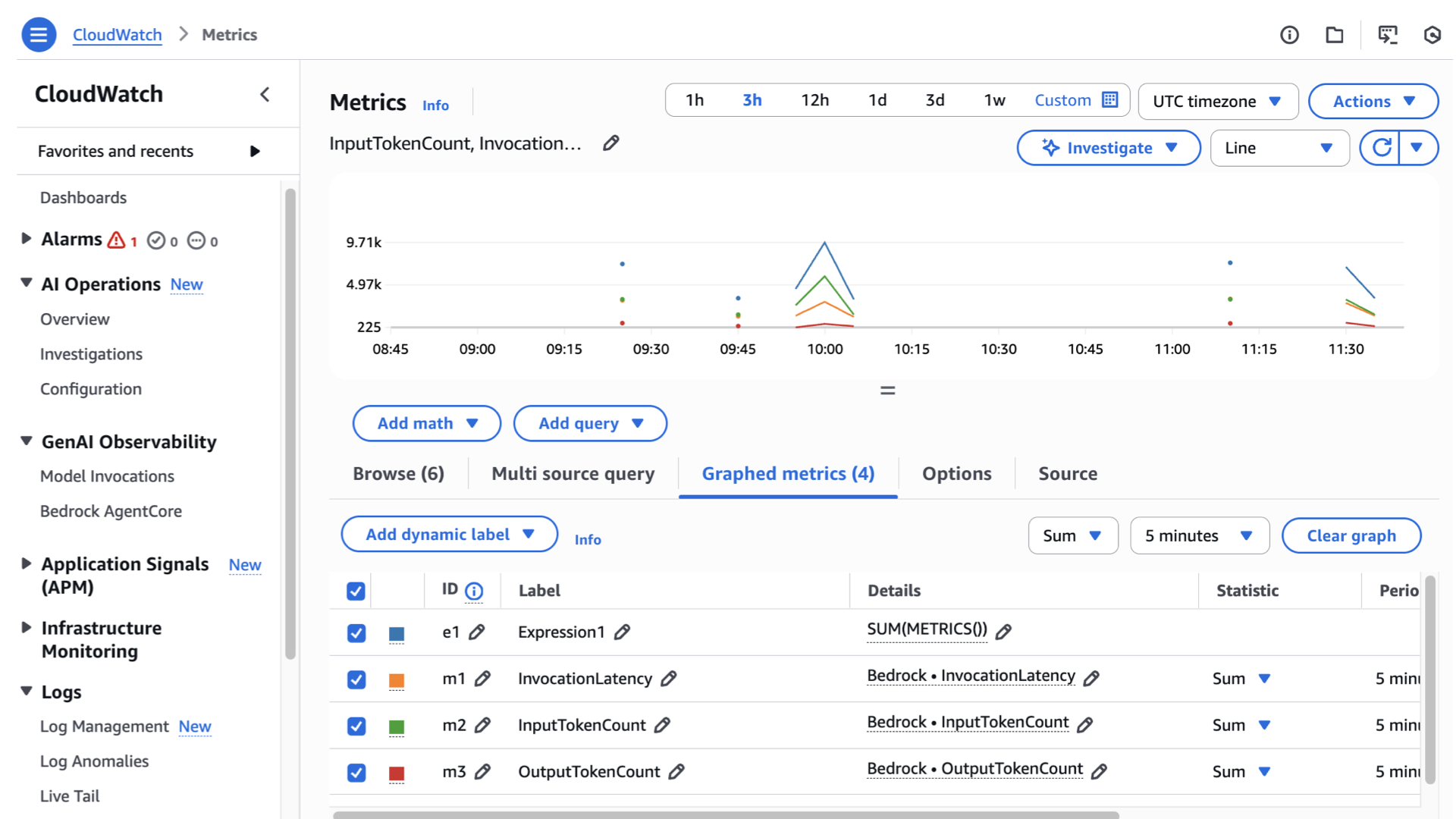
- CloudWatch metrics and dashboards to monitor latency, usage, and errors
- Token-level cost visibility using CloudWatch Logs Insights
- A structure you can reuse for e-commerce, blogs, or production systems
What is Retrieval-Augmented Generation (RAG) and why Amazon Bedrock is involved?
Retrieval-Augmented Generation (RAG) is a powerful AI pattern that combines external data retrieval with large language models (LLMs). When we say external data retrieval, it means extracting data, commonly textual from any document, and it’s added on top of any foundational model you’ll use. In a RAG pipeline, user queries are first converted into vector embeddings and used to retrieve relevant documents from a knowledge base, and then those documents are provided as context to an LLM to generate a more accurate answer. Now this is where Amazon Bedrock comes into play. It provides us a fully managed RAG capabilities via Bedrock Knowledge Bases, which helps you ingest your private data (it can be from an S3 , Kendra indexes, etc), embed and index it, and use it to augment generative AI models. Let me show you a complete workflow.
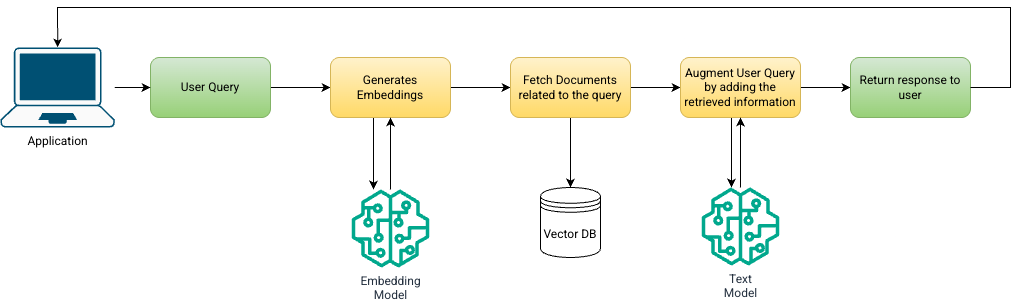
This is based on AWS’s blogs, as you can see here, there’s a RAG pipeline. From the application it will send a user query payload, and it will be converted into an embedding, which is now used to retrieve the documents from a vector store, and the retrieved text is concatenated to the query for the text model to generate the final answer back to the application as a response.
Based on the documentations of Amazon Web Services, it explains that RAG “uses information from data sources to improve the relevancy and accuracy of generated responses” and that Bedrock Knowledge Bases “empower organizations to give foundation models context from your private data sources”. In this practice, you can create chatbots or any Q&A systems, or an AI insights extractor to create dashboards based from your company’s documents. For an instance, Amazon’s finance team utilized a RAG pipeline on Bedrock for them to create an application consisting of a Q&A feature, for finance policy questions. Enough of that, let me give you the overview in building a RAG application.
Use cases of a Cost-Aware RAG Application with Amazon Bedrock
-
Internal finance assistant — answer company finance FAQs, budget rules, or policy documents.
-
Customer support augmentation — ground answers in your private docs.
-
Compliance & audit search — search policies and return sourced answers.
-
Personal finance learning assistant — teach saving / budgeting rules with citations.
Pre-requisites for building an Amazon Bedrock-powered App
*In case that the snippets got buggy, you can access the official repo here: https://github.com/kaynedrigs/rag-bedrock-cloudwatch.git
Assign names to the following so that you can just copy-paste it later on. This helps you reduce the mental numbness in deciding the settings for your app.
-
YOUR_BUCKET— planned S3 bucket name (e.g.,my-rag-kb-docs-12345), mine, I’ll uses3-kayne-rodrigo-developer -
REGION— AWS region that supports Bedrock (e.g.,us-east-1), mine, I’ll stick to us-east-1 to to varying model availablity. -
MODEL_ID— Bedrock model you have access to (change when needed) – browse https://docs.aws.amazon.com/bedrock/latest/userguide/models-supported.html -
YOUR_ACCOUNT_ID— AWS Account ID -
Python access in CLI, python 10 onwards will do.
-
awscli access in your terminal (create an access key in your IAM account)
- brew install awscli
- aws –version
-
Go to AWS Console
-
Click Top-right → Security credentials
-
Under Access keys, click Create access key
-
Choose CLI use
-
Save:
-
Access Key ID
-
Secret Access Key
-
-
run `aws configure –profile my-account`
-
then add information as prompted.
Collect demo documents for your Knowledge Base reference (ex. Filipino recipes)
For a beginner demo, create or use any documentation you’d like, as long as it’s in PDF, Markdown, or TXT. under docs/ folder with titles and simple sections. On my end, I’ll be creating a filipino recipe website, therefore needing filipino recipes, in halal for more inclusions.
Example file:
-
`filipino-halal-recipes.md`
You can also use freely available public recipe PDFs; if you link external content, ensure licensing allows reproduction.
Mindset.
Also, to set the mindset in building a Cost-Aware RAG Application with Amazon Bedrock, when you encounter some errors especially when there are changes in the future, try to trace it back first, troubleshoot, and repeat. Have a great debugging tolerance and never give up! One of the common mistakes is not researching the appropriate inference parameters in Boto3 for your selected Model Id. Also sometimes the model does not support text invocations as well. Be careful and read your documentations! Use AI if you need to but always take note of your insights.
Organized Workflow as we build a cost-aware RAG Application with Amazon Bedrock
To make it easy for you to traverse the management console, personally, I open all the associated AWS service then save it in a bookmark. Just a tip.
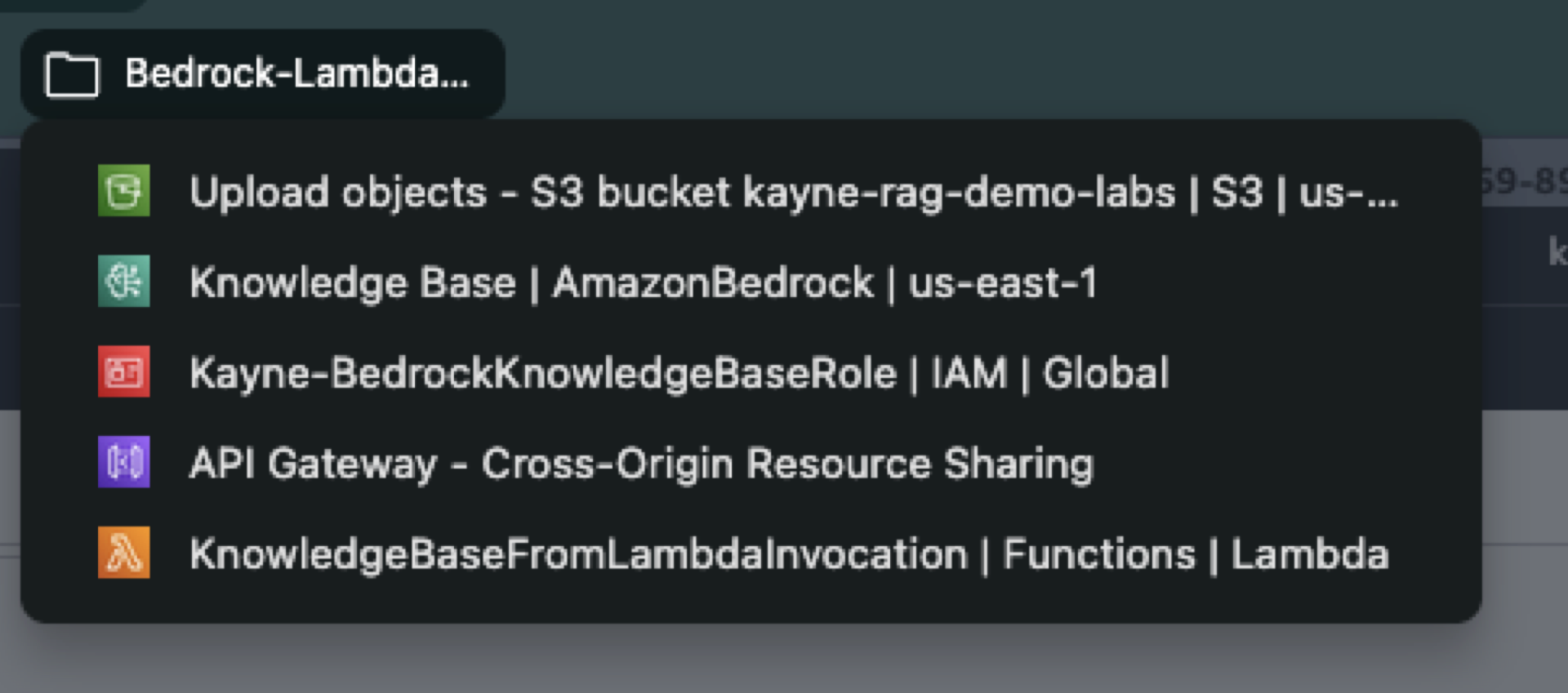
General Overview in Building an Amazon-Bedrock-based RAG application
- Create or configure a knowledge base – Decide on a data source. You can connect Bedrock to an existing data store or let Bedrock create one for you. For unstructured data, you might use S3 documents or an OpenSearch index; for structured data, Bedrock can translate queries into SQL. According to the Bedrock docs, setting up a knowledge base involves connecting to your data source and syncing it. You can even skip a manual index step by using the Bedrock console’s OpenSearch Serverless option.
- Ingest and embed Documents – Use Bedrock APIs or console to sync data. Behind the scenes, Bedrock will preprocess each document: splitting it into text chunks, running an embedding model on each chunk, and storing the resulting vectors in a vector store (e.g. an OpenSearch collection) . This ensures your knowledge base has searchable embeddings for all content.
- Query Handling – In your application (e.g. a chatbot or web service), when a user asks a question, first call the Bedrock embedding model to convert the question into a vector. Then perform a similarity search against the knowledge base to retrieve the top-n relevant chunks.
- Invoke the language model– Take the retrieved chunks (the “context”) and prepend or append them to the user’s query in the prompt. Call the Bedrock LLM (e.g. Claude, Titan, or other foundation model) via InvokeModel or Converse . The prompt might look like: “Using the following information: [retrieved text chunks], answer the user’s query.” The model then generates the final answer.
- Post-processing (Optional, but Recommended) – Optionally, use Bedrock Guardrails or custom logic to scrub the output. For example, Bedrock Guardrails can remove sensitive PII or enforce responsible AI rules as part of the generation pipeline.
Building this architecture involves coordinating multiple AWS components (embedding model, vector store, generative model). A typical setup might use OpenSearch Serverless as the backing vector store, one or more Bedrock embedding models to create embeddings, and a Bedrock chat model to respond. It’s also common to include additional steps like reranking: after retrieving candidates, apply a ranker model (or simple algorithm) to sort the results by relevance before feeding them to the LLM. Now let’s get our hands dirty.
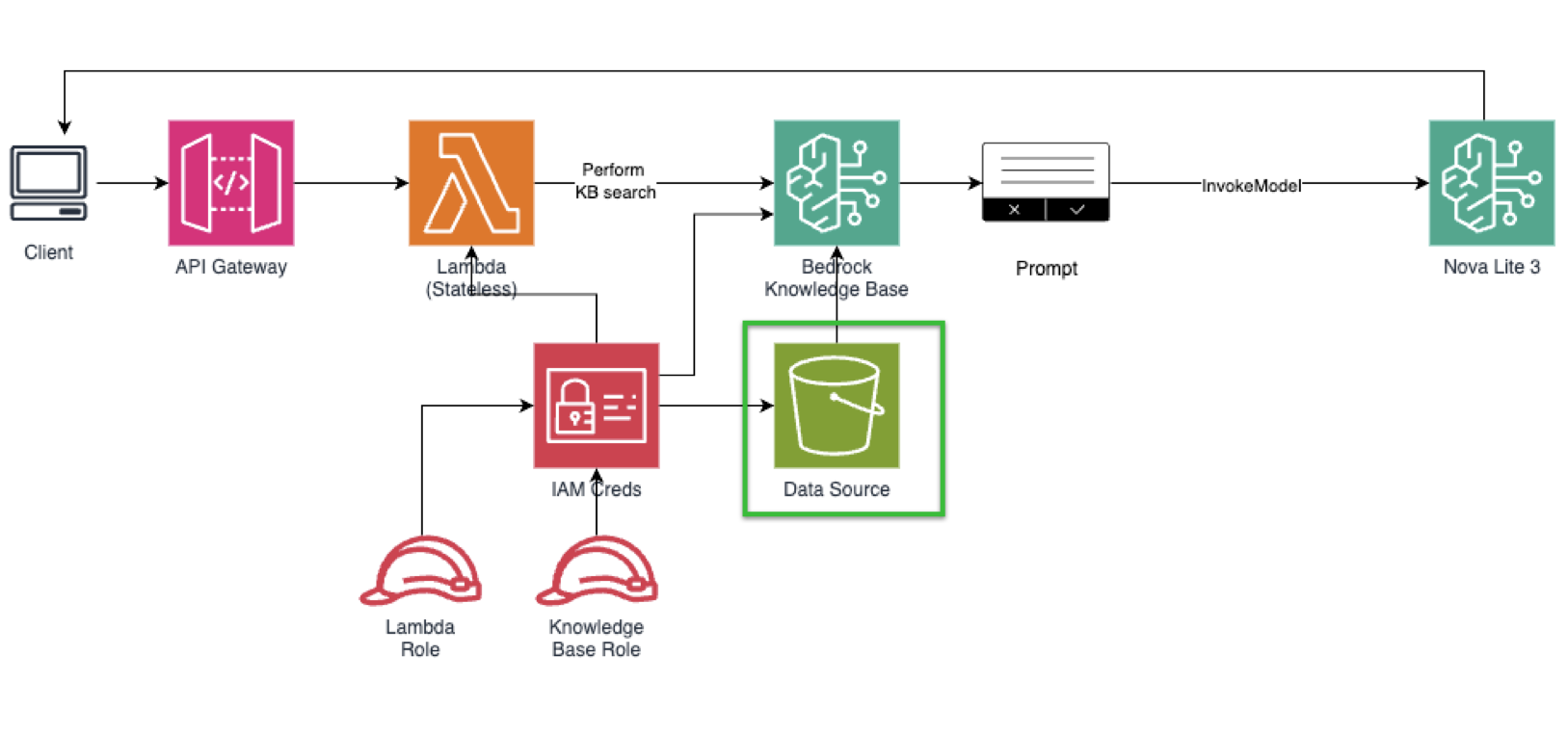
Quick architecture overview for our Amazon Bedrock-based RAG application.

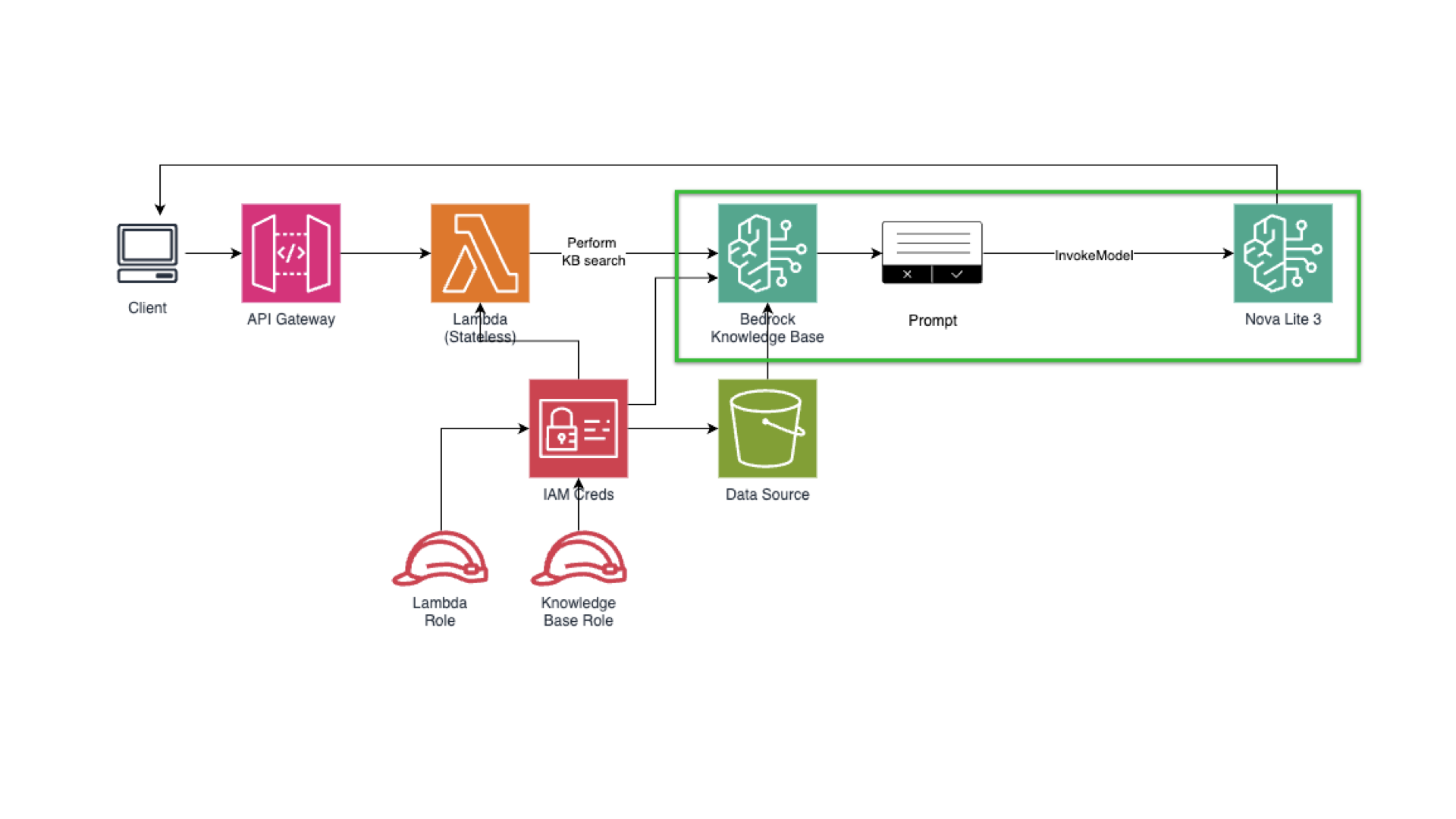
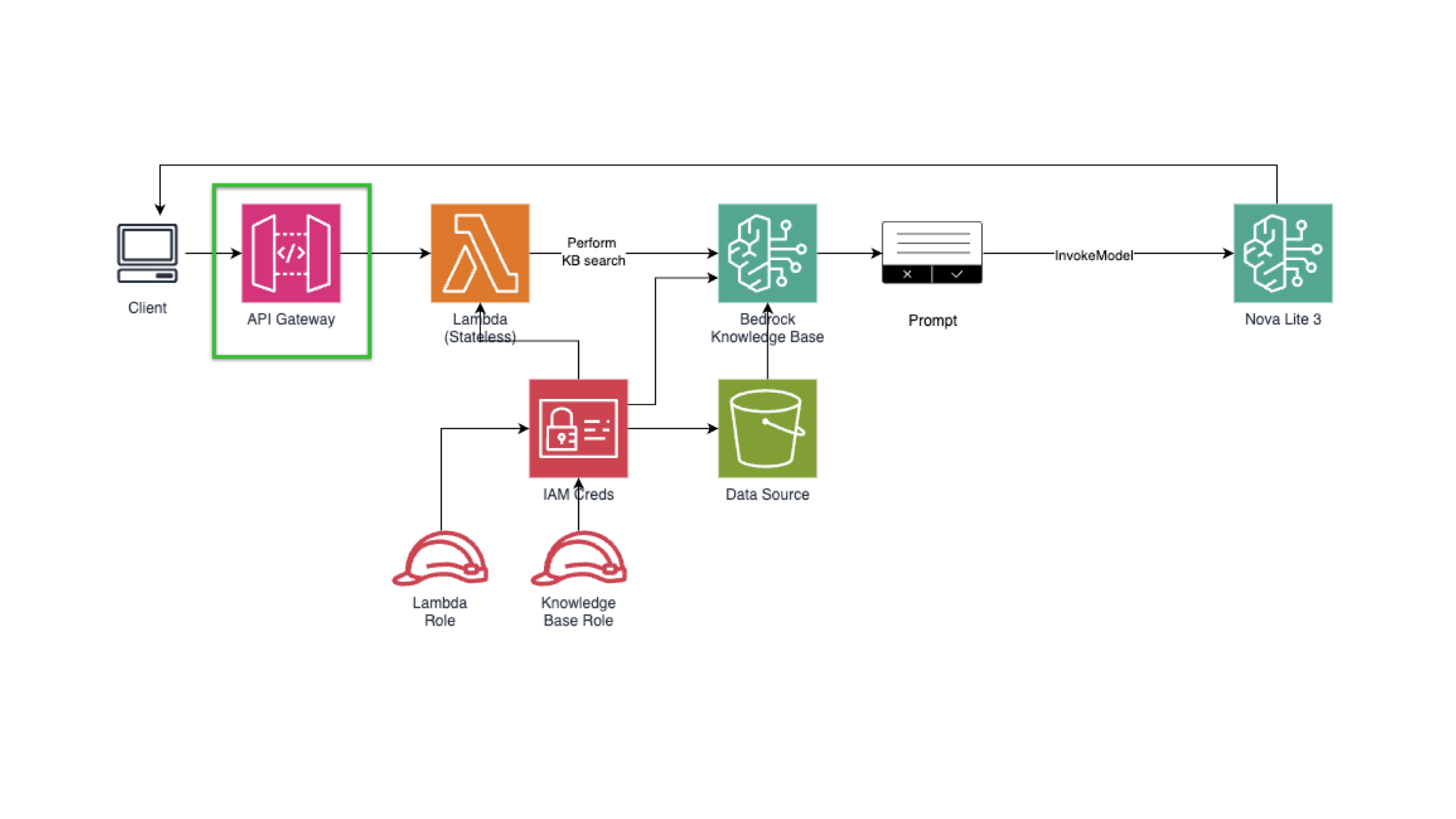
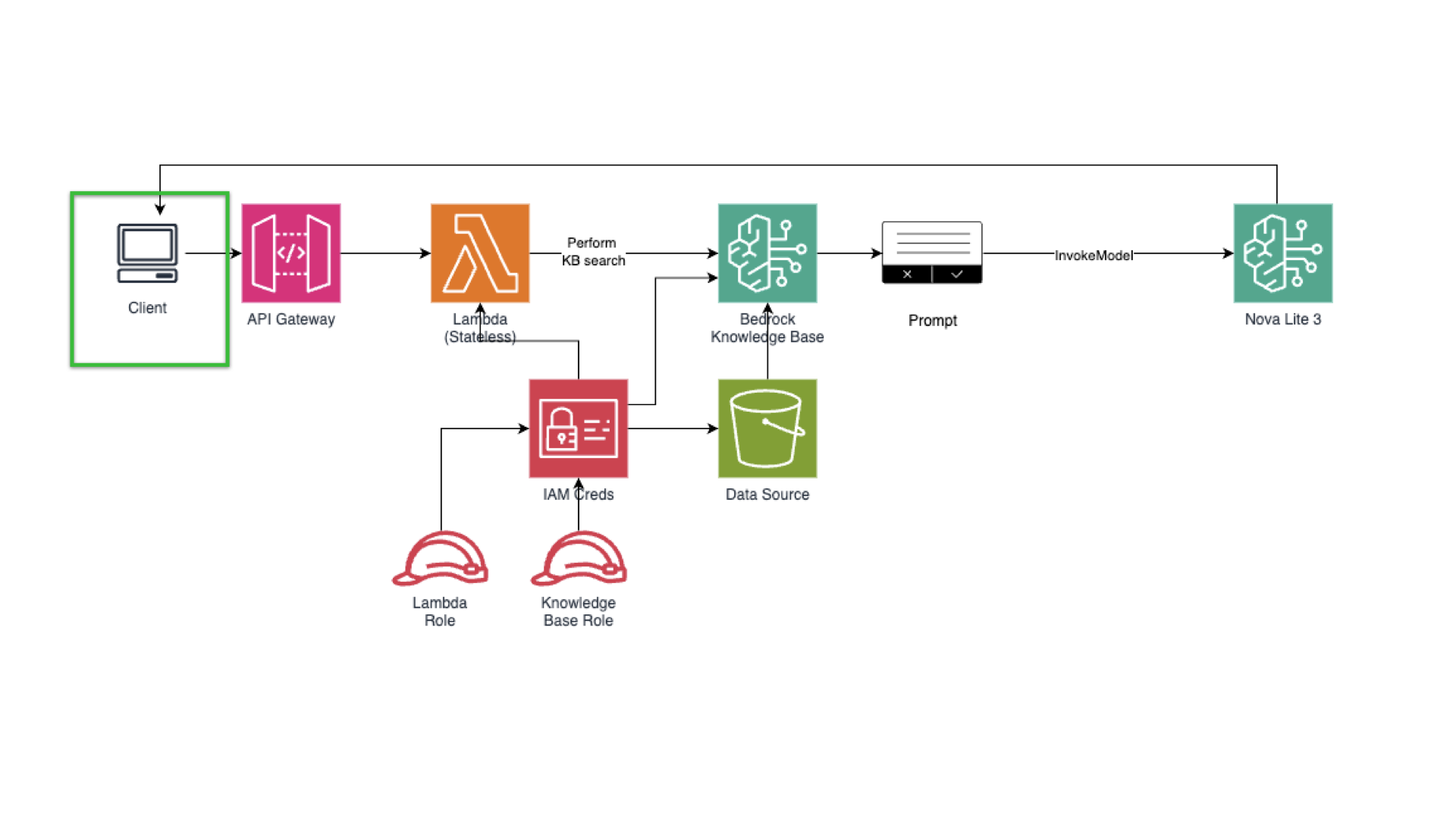
Client → API Gateway → Lambda → (1) bedrock:Retrieve (KB search) → (2) bedrock:InvokeModel (Nova Lite) → Response.
-
Retrieval: Bedrock Knowledge Base (vector store on S3 Vectors)
-
Generation: Nova Lite (text model) — good cost/quality tradeoff
-
Integration: Python Lambda; API Gateway for HTTP endpoint
-
Observability: CloudWatch metrics & Logs Insights
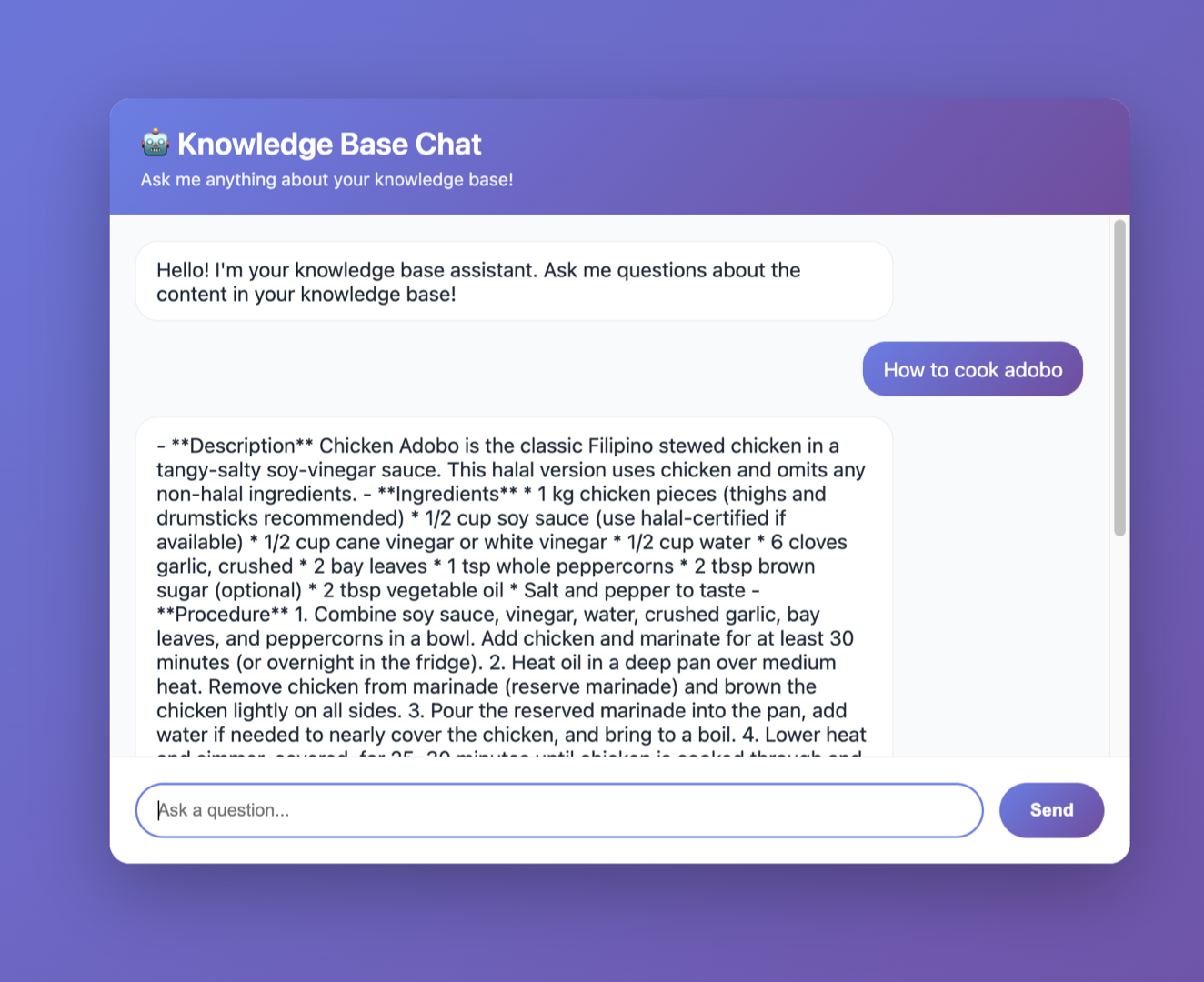
Application Interface with a Cost-Aware RAG Application with Amazon Bedrock (provided in GitHub repo)
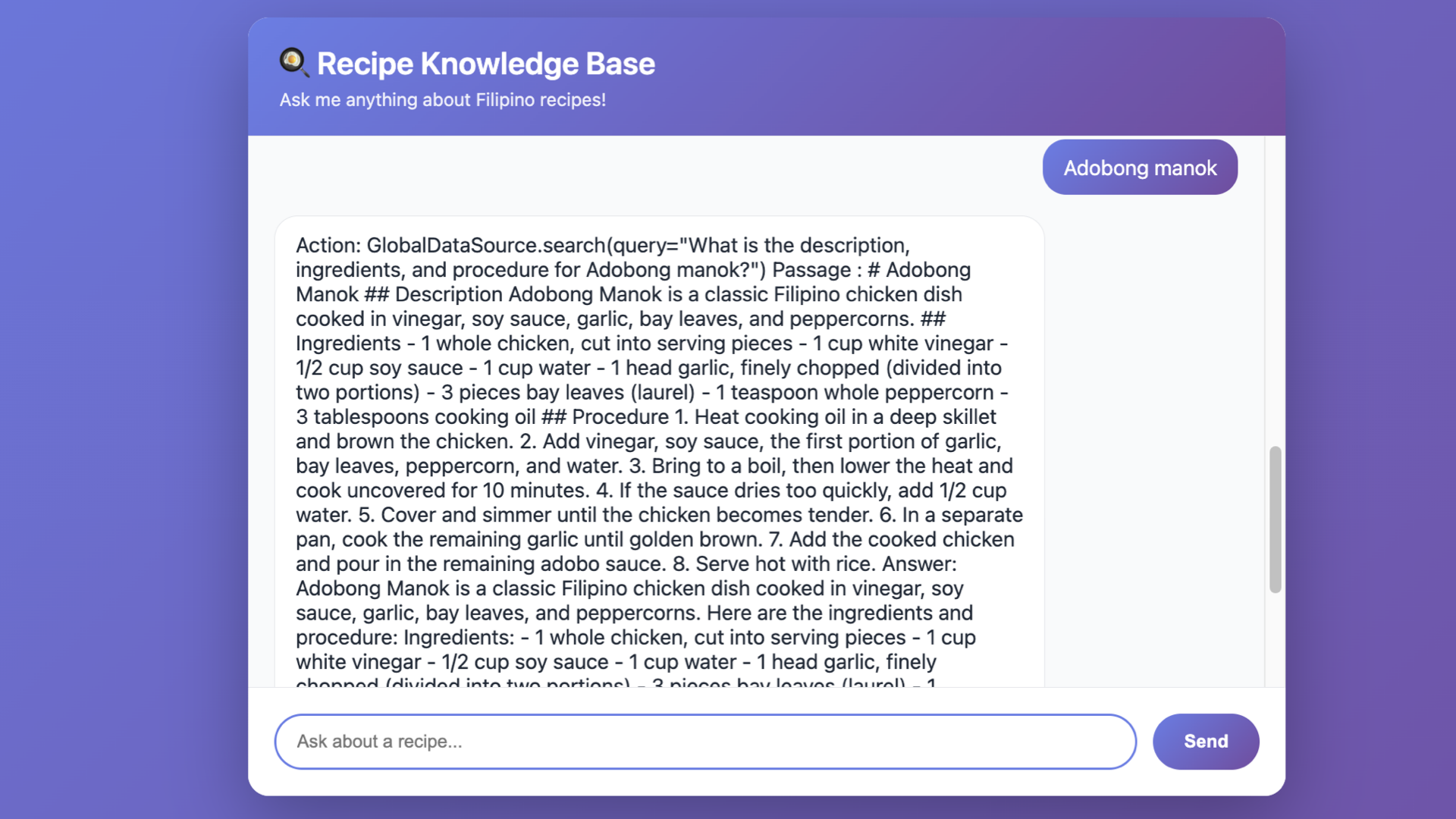
While it’s better to fix the formatting, this is the minimal expected outcome for an application to have. Don’t worry if you don’t know how to make this website, I’ll the code in a GitHub repo.
Step 0: Naming Conventions for our Amazon Bedrock project.
Good naming helps long-term maintainability and review approvals. Beforehand, create this in your text editor, to make it organized.
-
S3 bucket:
rb-kb-<project>-<region>→rb-kb-filipino-recipes-us-east-1- rb = recipe book
- kb = knowledge base
-
Knowledge Base name:
recipes-filipino-kb(only[A-Za-z0-9_-], no spaces) -
Data source name:
recipes-filipino-source -
IAM role for KB:
BedrockKnowledgeBaseRole(orrb-bedrock-kb-role) -
IAM policy name: ex. `lambda-bedrock-policy-demo`
-
Lambda function:
recipes-kb-query-lambda -
API stage:
dev/prod -
GitHub repo:
kayne/bedrock-recipes-rag-demo

Here’s an example in my Sublime Text.
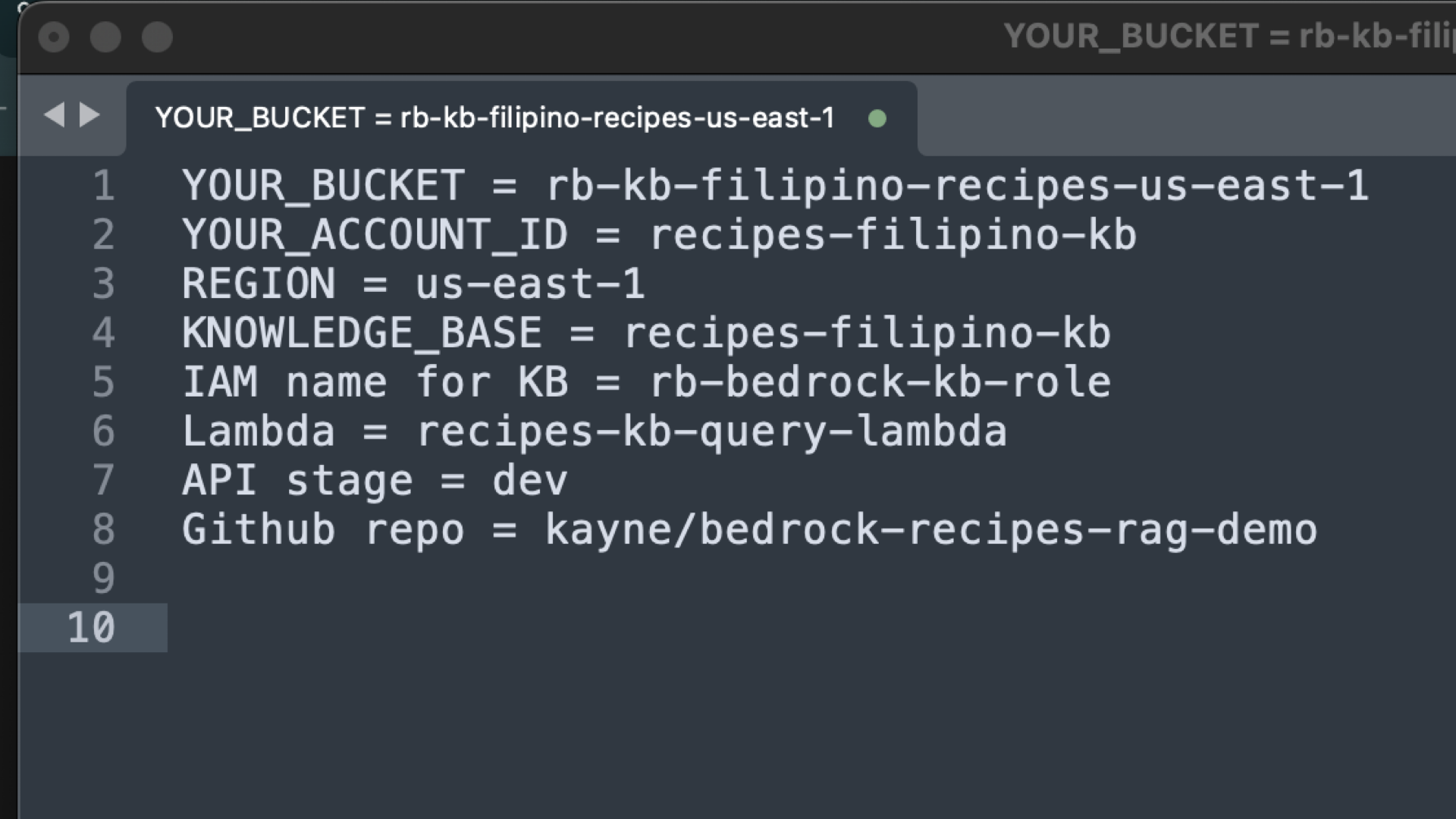
Step 1: IAM & Permissions for our Amazon Bedrock and Lambda (Before creating the Knowledge Base)
We’re now in Step 1. The green rectangle shows where we at right now.
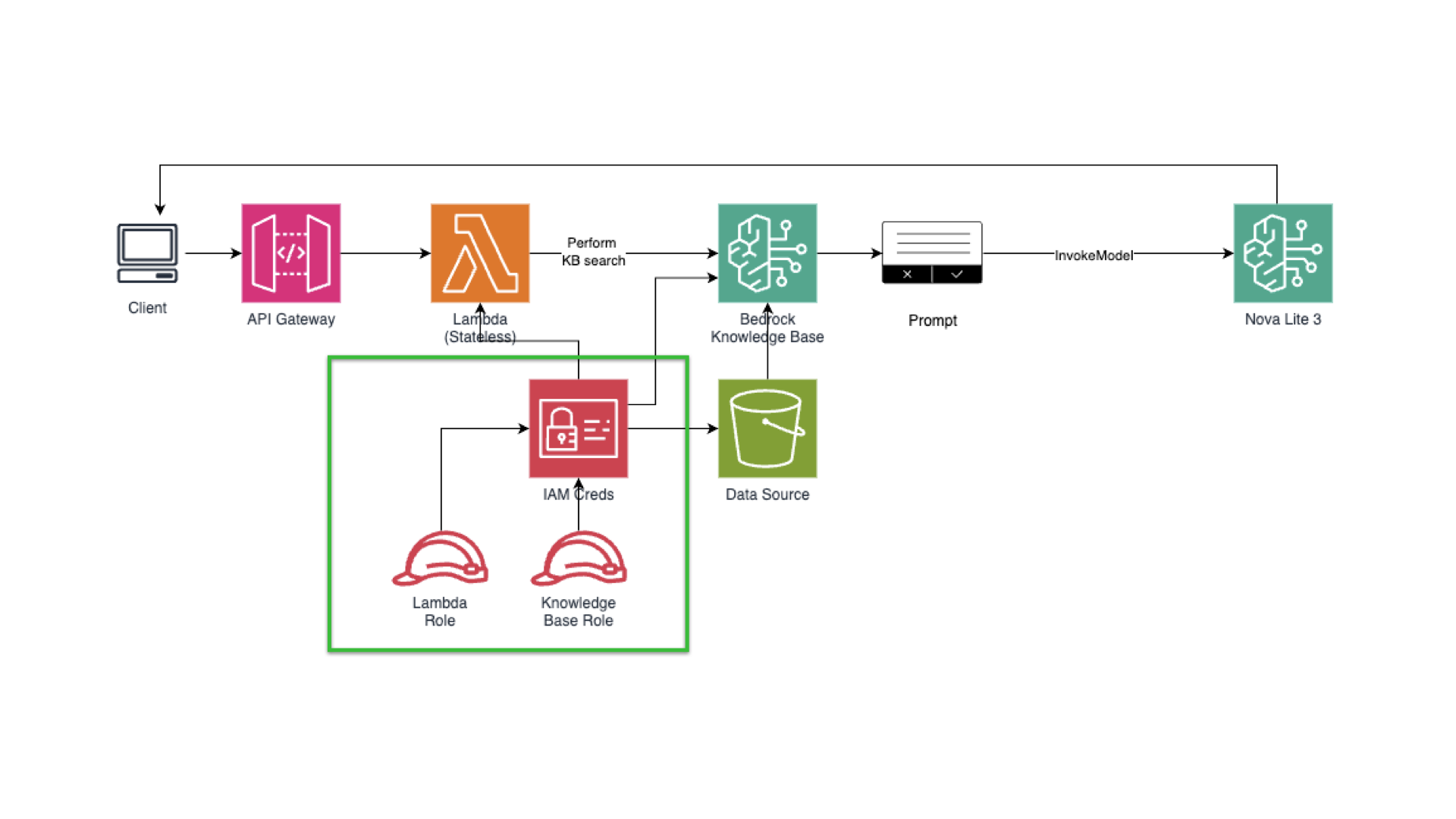
Our goal is to have the least-priviledge identities for our application and knowledge base. You can use a local script that has an IAM user with programmatic access or use your Lambda/EC2/ECS to set your IAM role for compute with attached policy.
You can let Bedrock auto-create a KB role, but you must add these permissions to the role after creation (or create the role yourself and attach them first). Below are the minimal policy snippets you’ll need to paste/edit in the console.
IMPORTANT: Replace YOUR_BUCKET, YOUR_ACCOUNT_ID, REGION, and KB_ID where applicable. Copy the syntax first then paste it in your text editor for you to replace. For the KB_ID, it will be provided after you create a knowledge base. Just save the snippet first in your text editor.
How to create an IAM policy for our RAG and Amazon Bedrock project.
- Go the to management console.
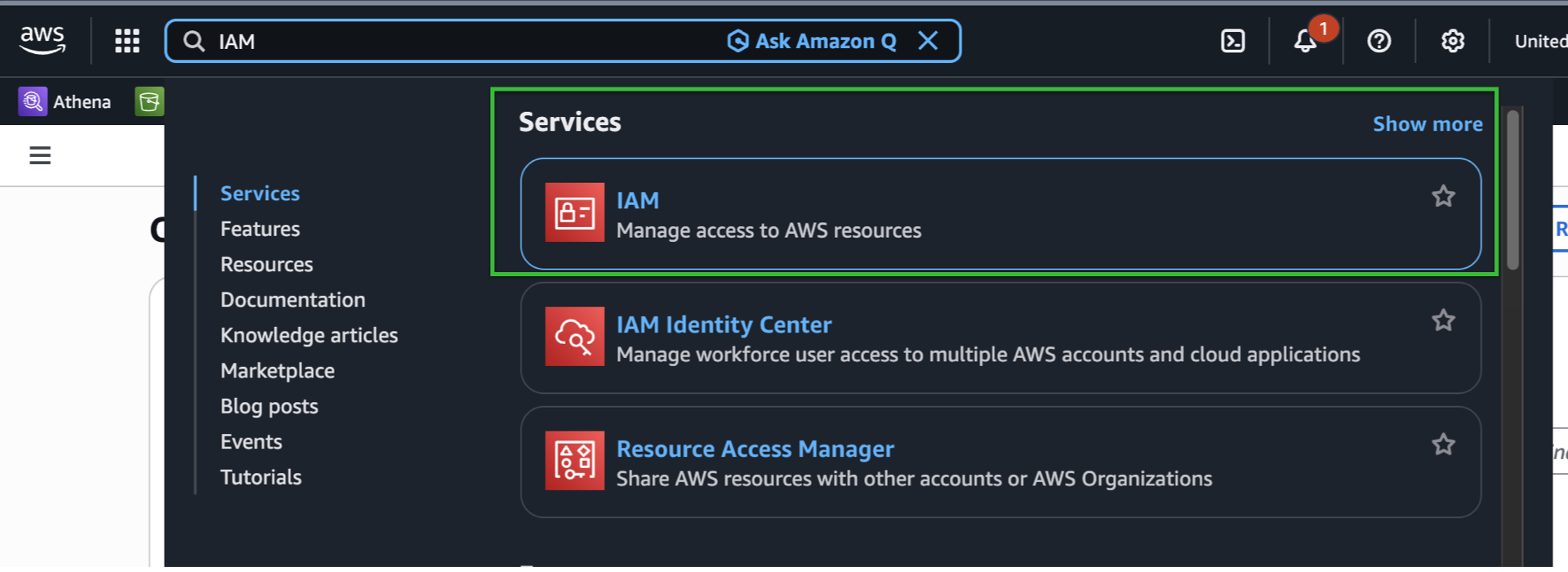
- Search and select IAM.

- On the sidebar, under Access Management dropdown, select Policies.
- Click “Create Policy”
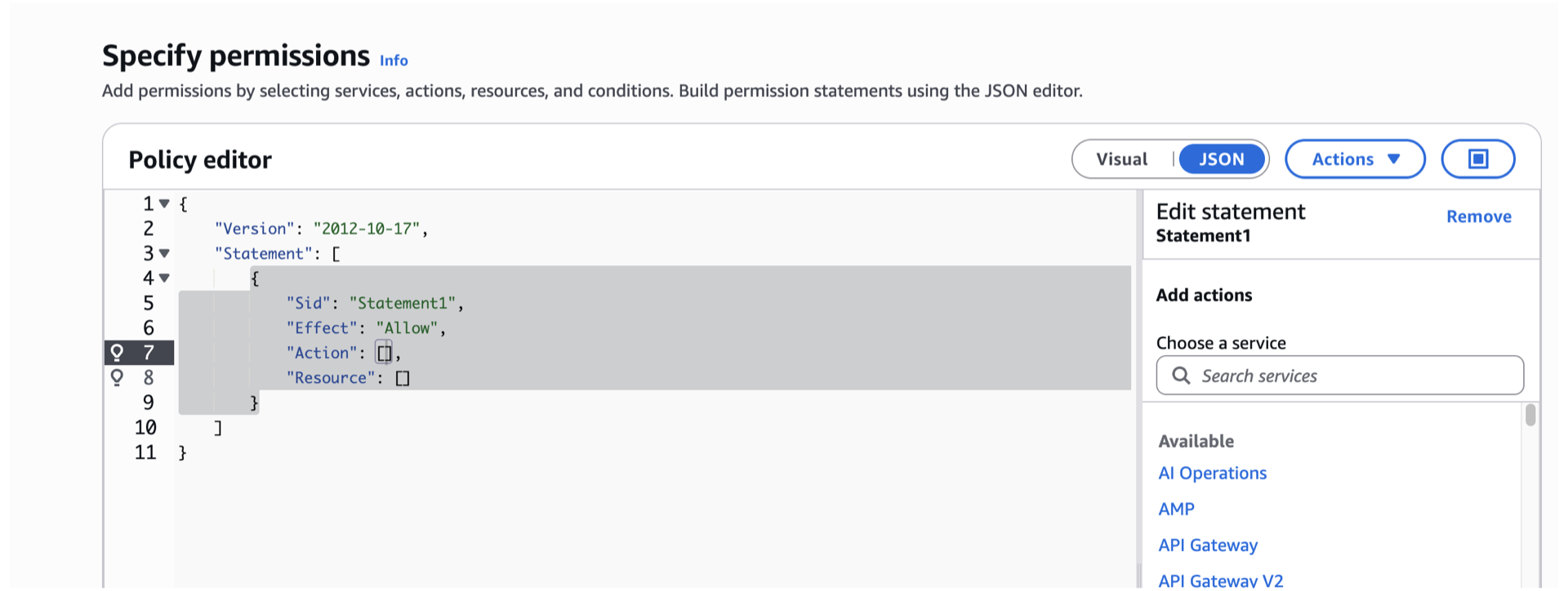
- Toggle the JSON option. The UI should be like this.

- Paste the policy. For example we’ll use lambda-bedrock-policy.json.

- Scroll down, click next.
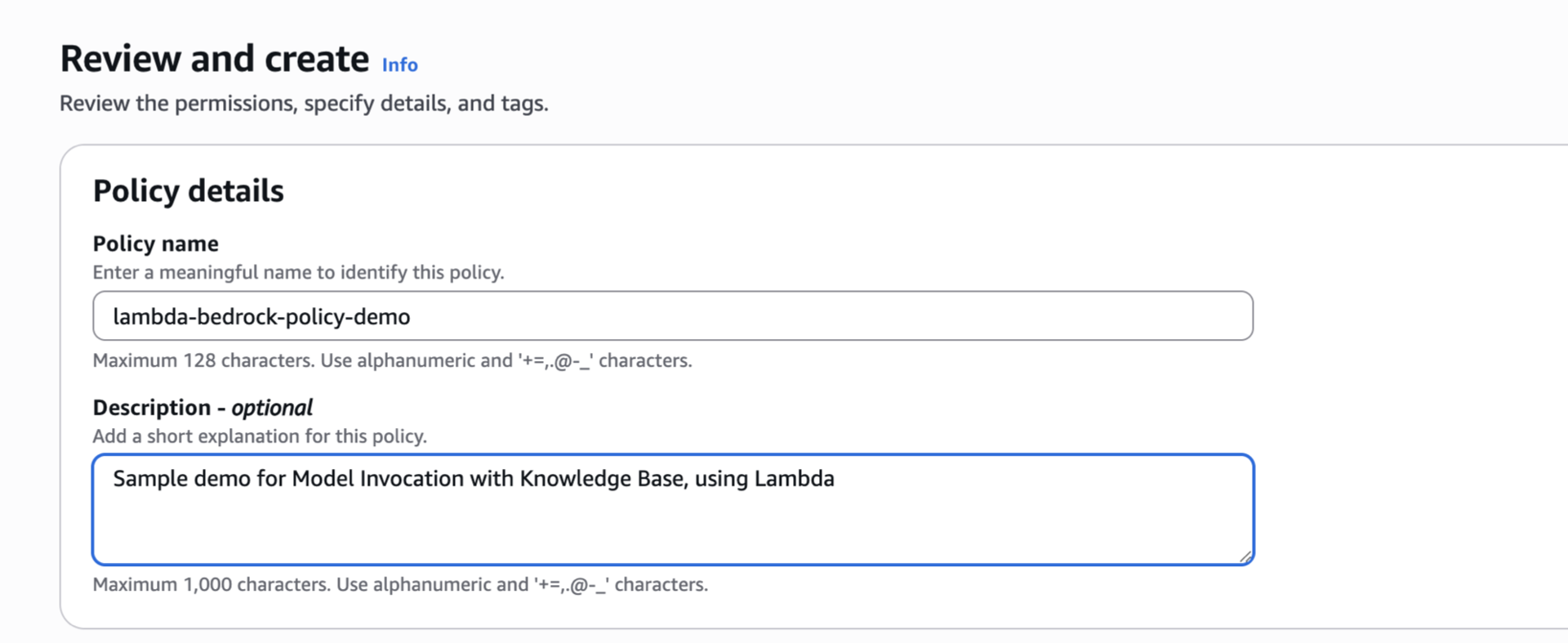
- Paste or create a new policy name. For this one, we’ll name it lambda-bedrock-policy-demo.
- [Optional] Add description.

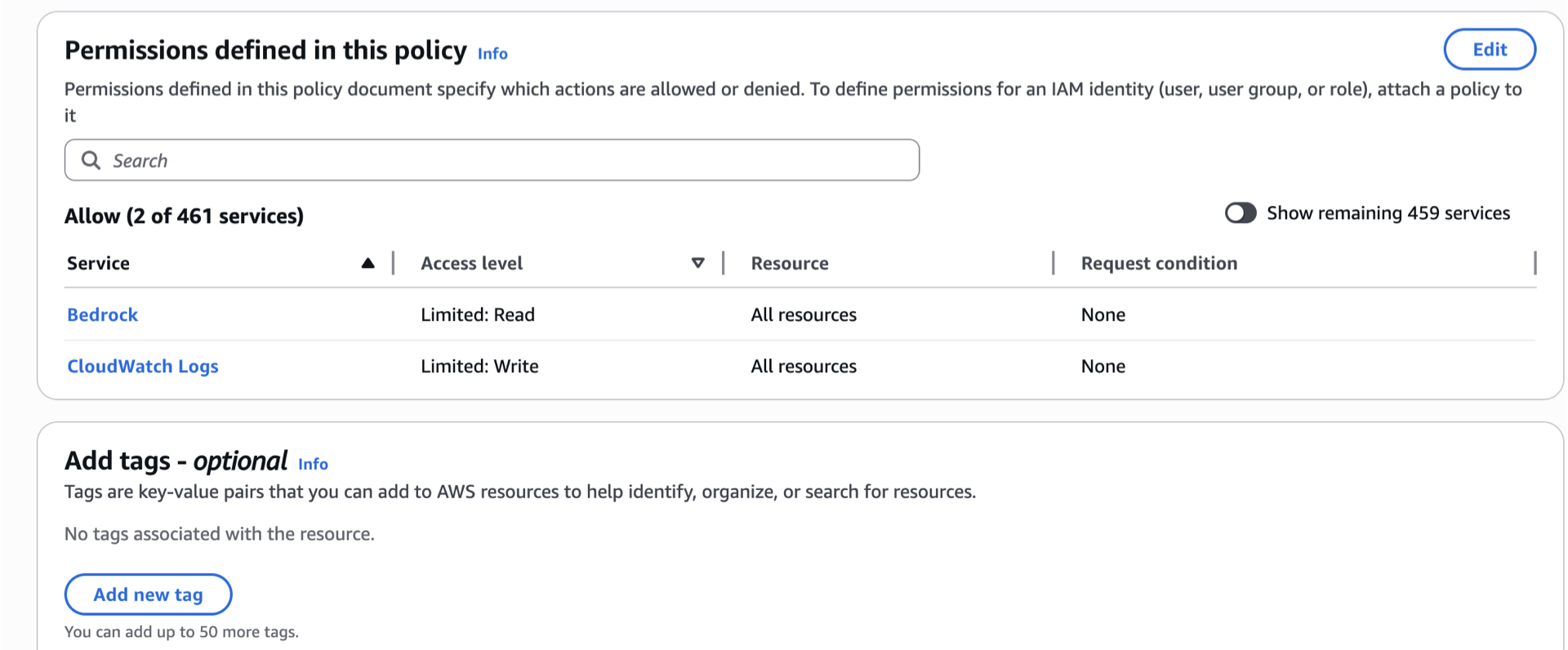
- Review the permissions.
- [Optional] Add tags.
- Scroll down, Click “Create policy”.
- Repeat the same steps whenever you’re creating a policy.
How to create an IAM role for our RAG and Amazon Bedrock project?
- Go back to IAM
- On the side bar, under Access management dropdown, select Roles.
- On the right side of your screen, click create Role.
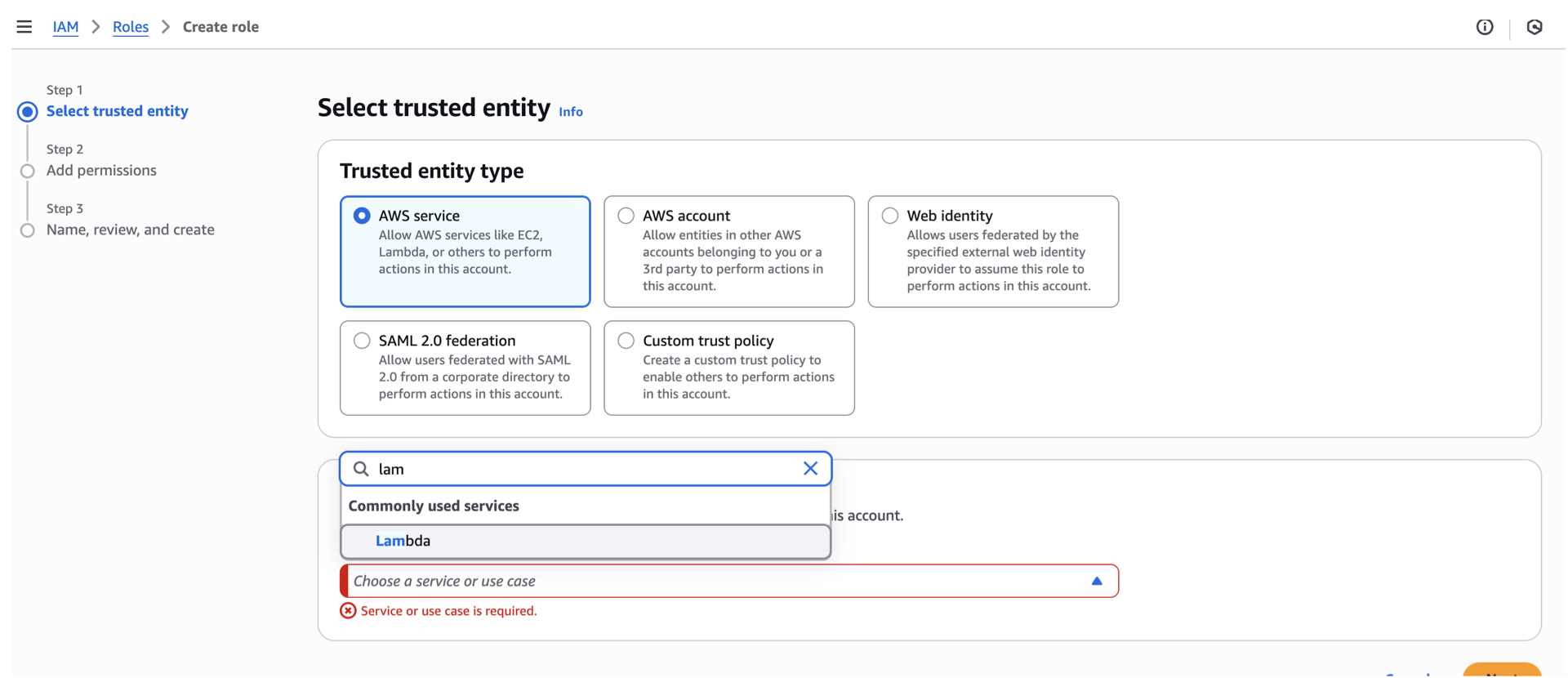
- For the Selected trusted entity, the selection is depending on your use case. For the Lambda execution role, we’ll just stick to AWS service since we’ll be adding a role to a Lambda service.
- Under use case, click the dropdown and select Lambda.

- Scroll down, click next.
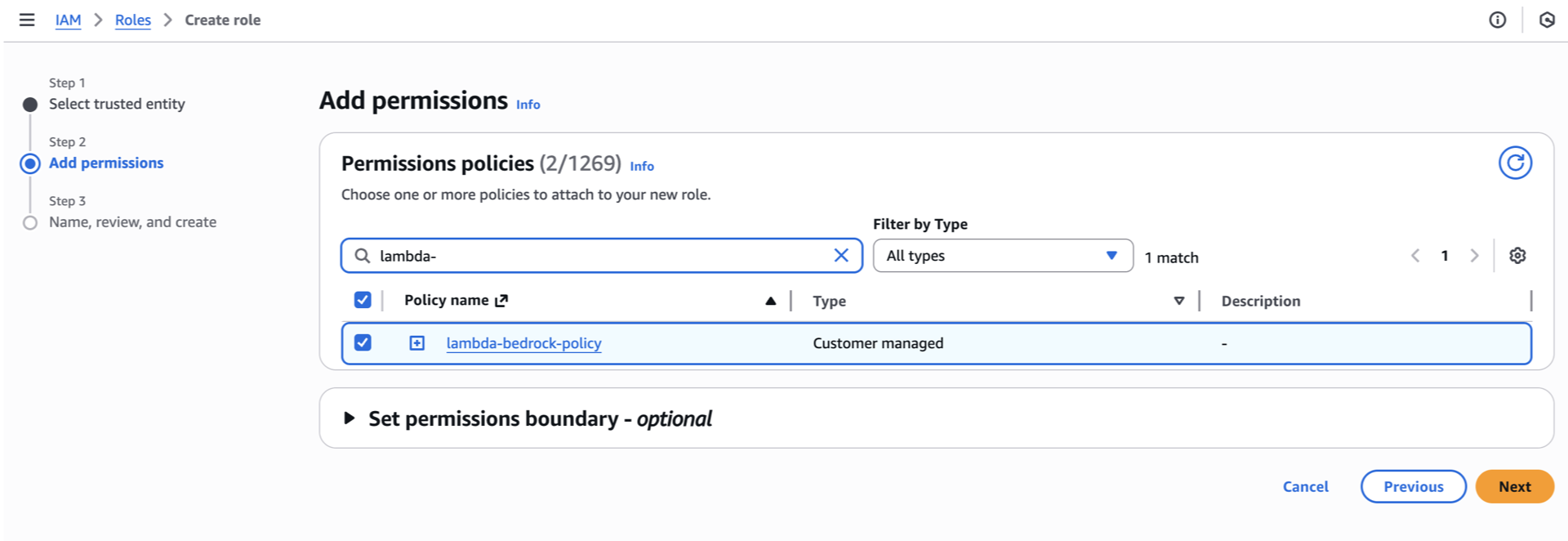
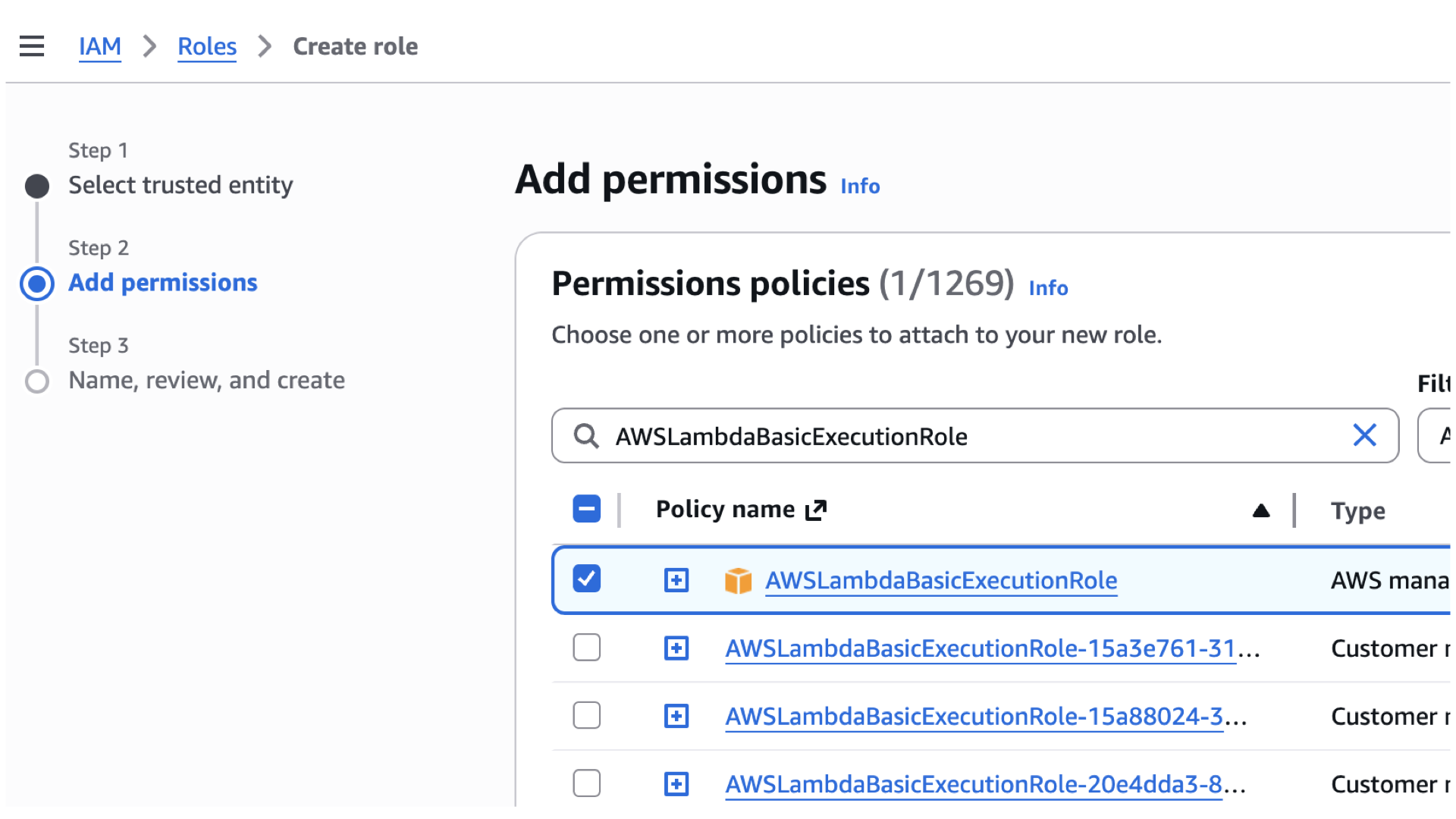
- Search and select for the Customer Policy you’ve created.

- Search and select for
AWSLambdaBasicExecutionRole.

- Scroll down and click next.
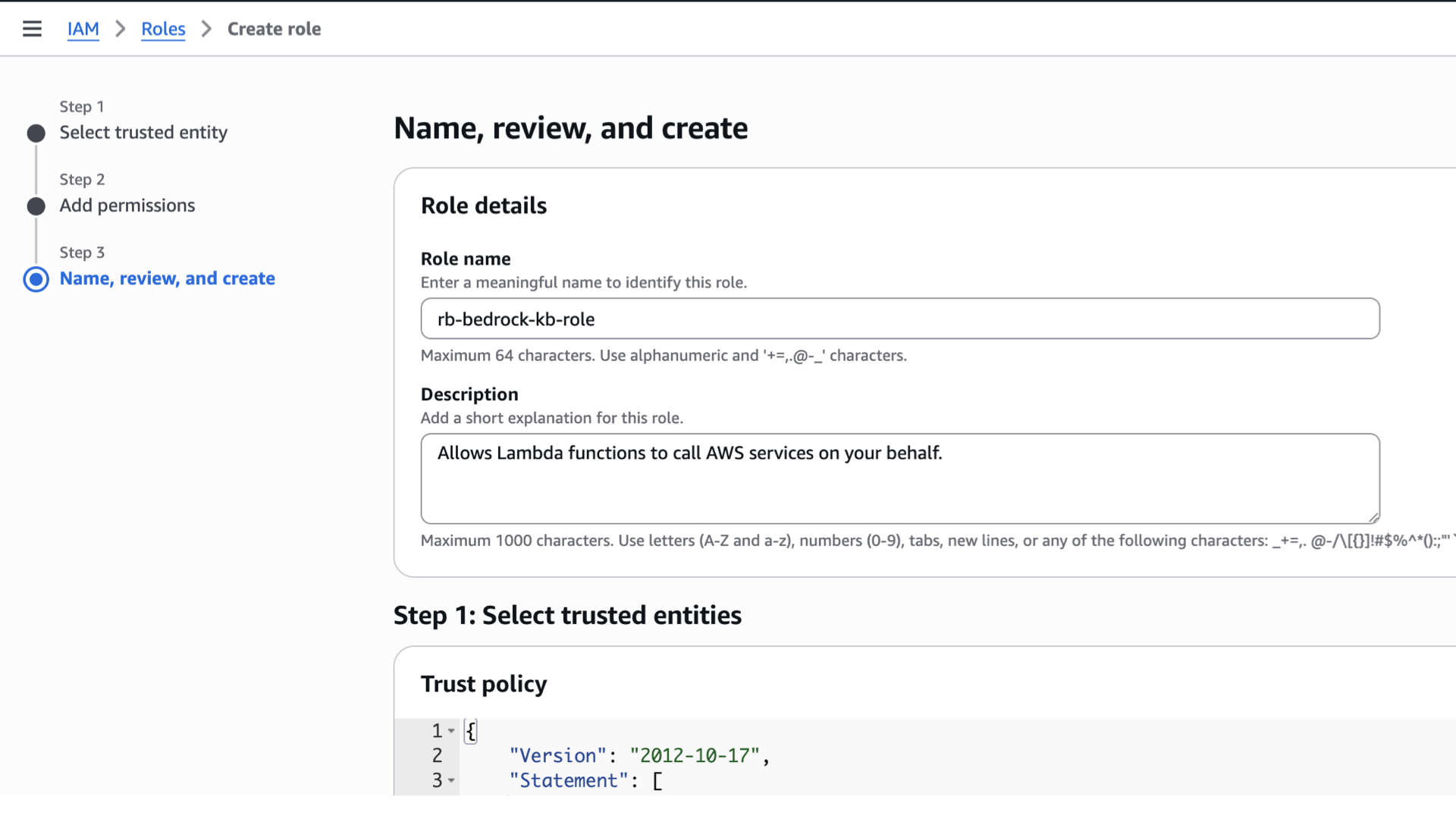
- For the role name, use the one you’ve named after, or use mine. “rb-bedrock-kb-role”
- Scroll down and review Steps 1-3, if you’re satisfied, click “Create role”
Snippets for our RAG and Amazon Bedrock project:
Lambda execution role (basic)
Attach AWSLambdaBasicExecutionRole and this inline policy (lambda-bedrock-policy.json):
-
{
  "Version": "2012-10-17",
  "Statement": [
    {
      "Sid": "AllowKBListDocs",
      "Effect": "Allow",
      "Action": "s3:ListBucket",
      "Resource": "arn:aws:s3:::YOUR_BUCKET",
      "Condition": {
        "StringLike": {
          "s3:prefix": [
            "docs",
            "docs/*"
          ]
        }
      }
    },
    {
      "Sid": "AllowKBGetDocs",
      "Effect": "Allow",
      "Action": "s3:GetObject",
      "Resource": "arn:aws:s3:::YOUR_BUCKET/docs/*"
    },
    {
      "Sid": "AllowBedrockInvokeForEmbeddings",
      "Effect": "Allow",
      "Action": [
        "bedrock:InvokeModel",
        "bedrock:InvokeModelWithResponseStream"
      ],
      "Resource": [
        "arn:aws:bedrock:REGION::foundation-model/amazon.titan-embed-text-v1",
        "arn:aws:bedrock:REGION::foundation-model/*"
      ]
    },
    {
      "Sid": "AllowS3Vectors",
      "Effect": "Allow",
      "Action": [
        "s3vectors:QueryVectors",
        "s3vectors:GetVectors",
        "s3vectors:PutVectors",
        "s3vectors:DeleteVectors",
        "s3vectors:ListIndexes"
      ],
      "Resource": "*"
    },
    {
      "Sid": "CloudWatchLogs",
      "Effect": "Allow",
      "Action": [
        "logs:CreateLogGroup",
        "logs:CreateLogStream",
        "logs:PutLogEvents"
      ],
      "Resource": "*"
    }
  ]
}
For this part it will be used AFTER the creation of a Knowledge Base, wherein we will create another role.
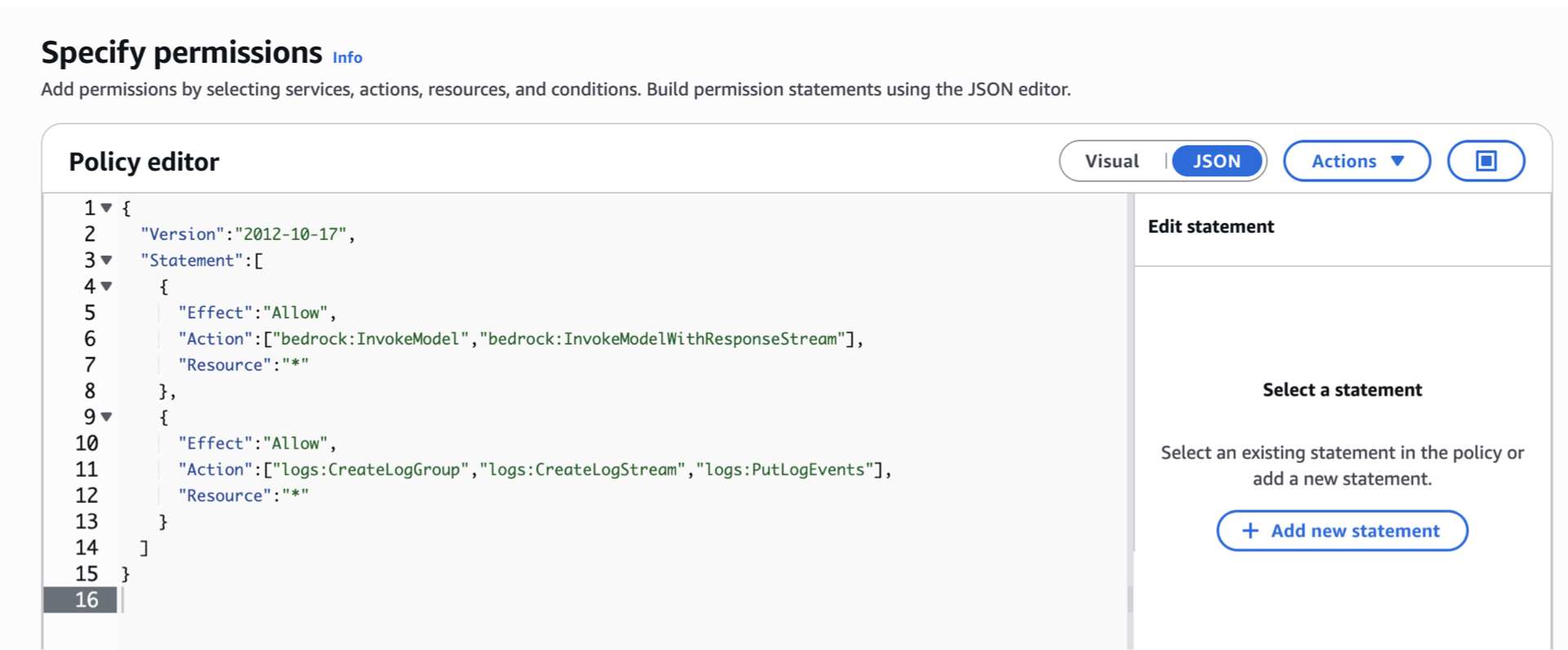
Knowledge Base role (must include S3, Bedrock embed, S3 Vectors)
Attach this inline policy to the KB role (kb-inline-permissions.json):
-
{
  "Version":"2012-10-17",
  "Statement":[
    {
      "Effect":"Allow",
      "Action":["bedrock:InvokeModel","bedrock:InvokeModelWithResponseStream"],
      "Resource":"*"
    },
    {
      "Effect":"Allow",
      "Action":["logs:CreateLogGroup","logs:CreateLogStream","logs:PutLogEvents"],
      "Resource":"*"
    }
  ]
}
Lambda role must also be allowed to Retrieve from the KB
Add to your Lambda role (ensure you replace those placeholders):
-
{
	"Version": "2012-10-17",
	"Statement": [
		{
			"Effect": "Allow",
			"Action": [
				"bedrock:RetrieveAndGenerate",
				"bedrock:Retrieve"
			],
			"Resource": [
				"arn:aws:bedrock:us-east-1:<AWS-ACCOUNT-ID>:knowledge-base/<KB-ID>"
			]
		},
		{
			"Effect": "Allow",
			"Action": [
				"bedrock:InvokeModel"
			],
			"Resource": [
				"arn:aws:bedrock:us-east-1::foundation-model/amazon.nova-lite-v1:0"
			]
		}
	]
}
Or for convenience during development:
-
"Resource":"arn:aws:bedrock:REGION:YOUR_ACCOUNT_ID:knowledge-base/*"
Step 2 – Create S3 bucket and upload docs/
We’re now in this part, let’s keep moving!
- Console → S3 → Create bucket → General Purpose
- Bucket name:
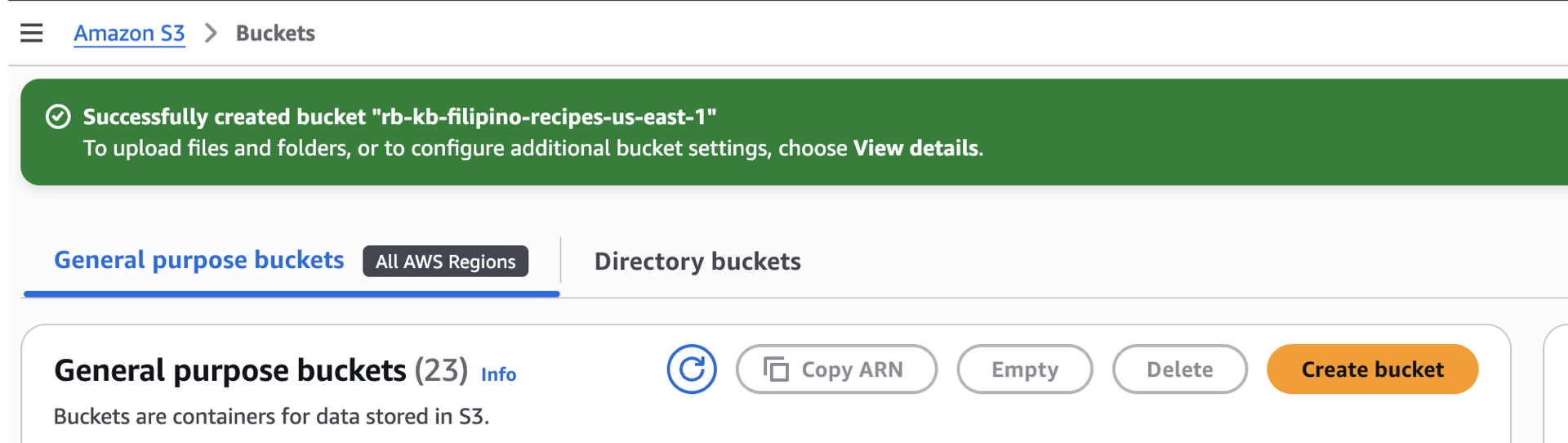
rb-kb-filipino-recipes-us-east-1(or your chosen unique name). - Scroll down, block public access: On.
- Default encryption: SSE-S3 (or SSE-KMS if you prefer — if KMS, add
kms:Decryptto KB role). -
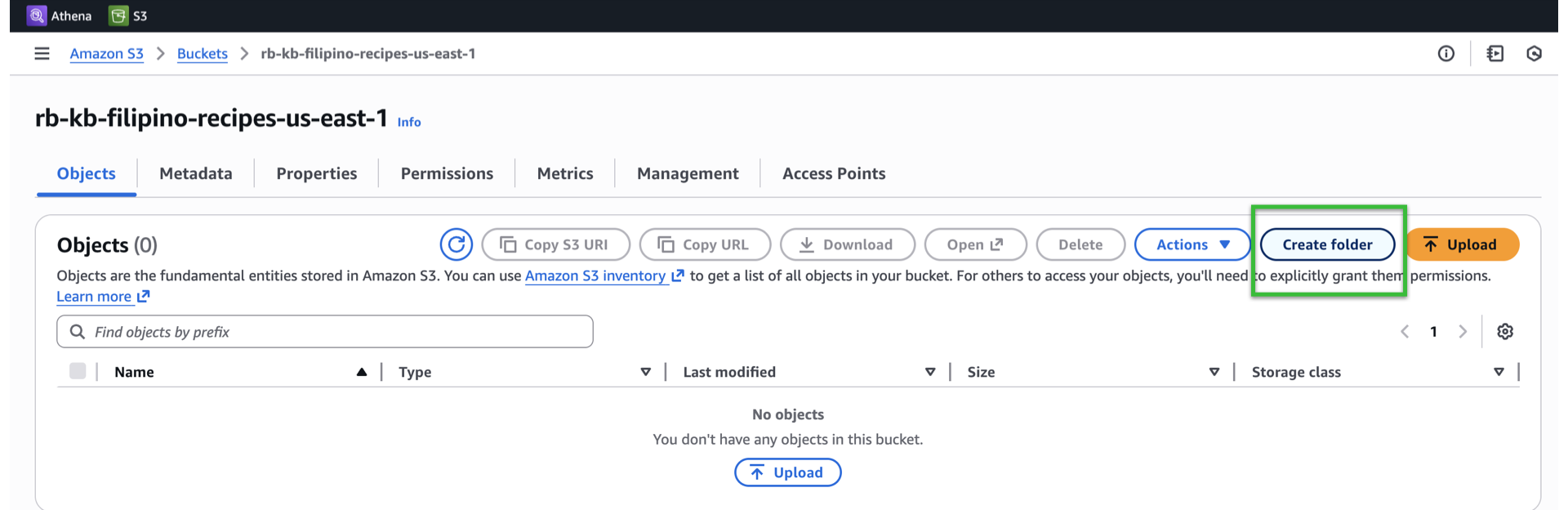
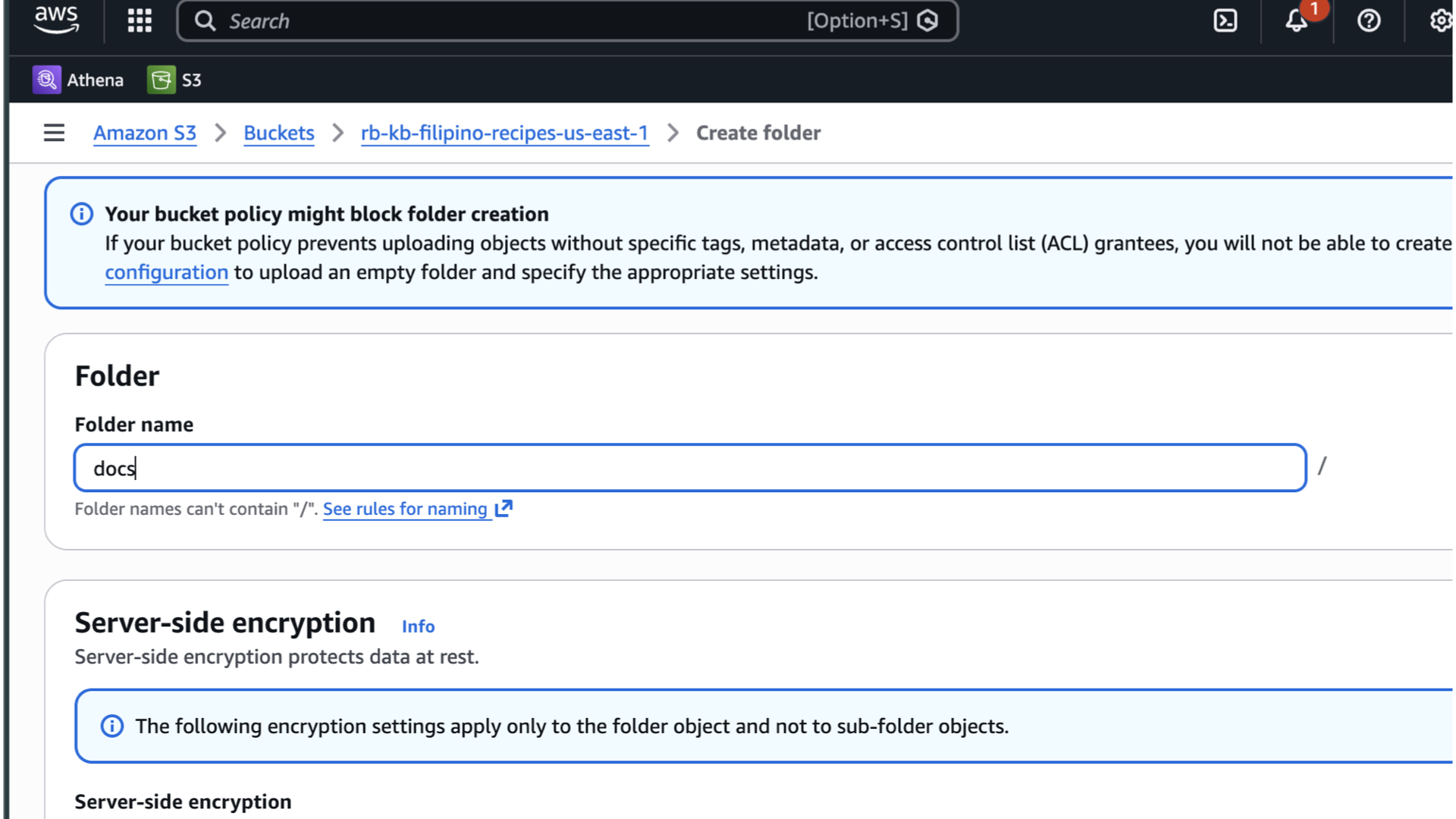
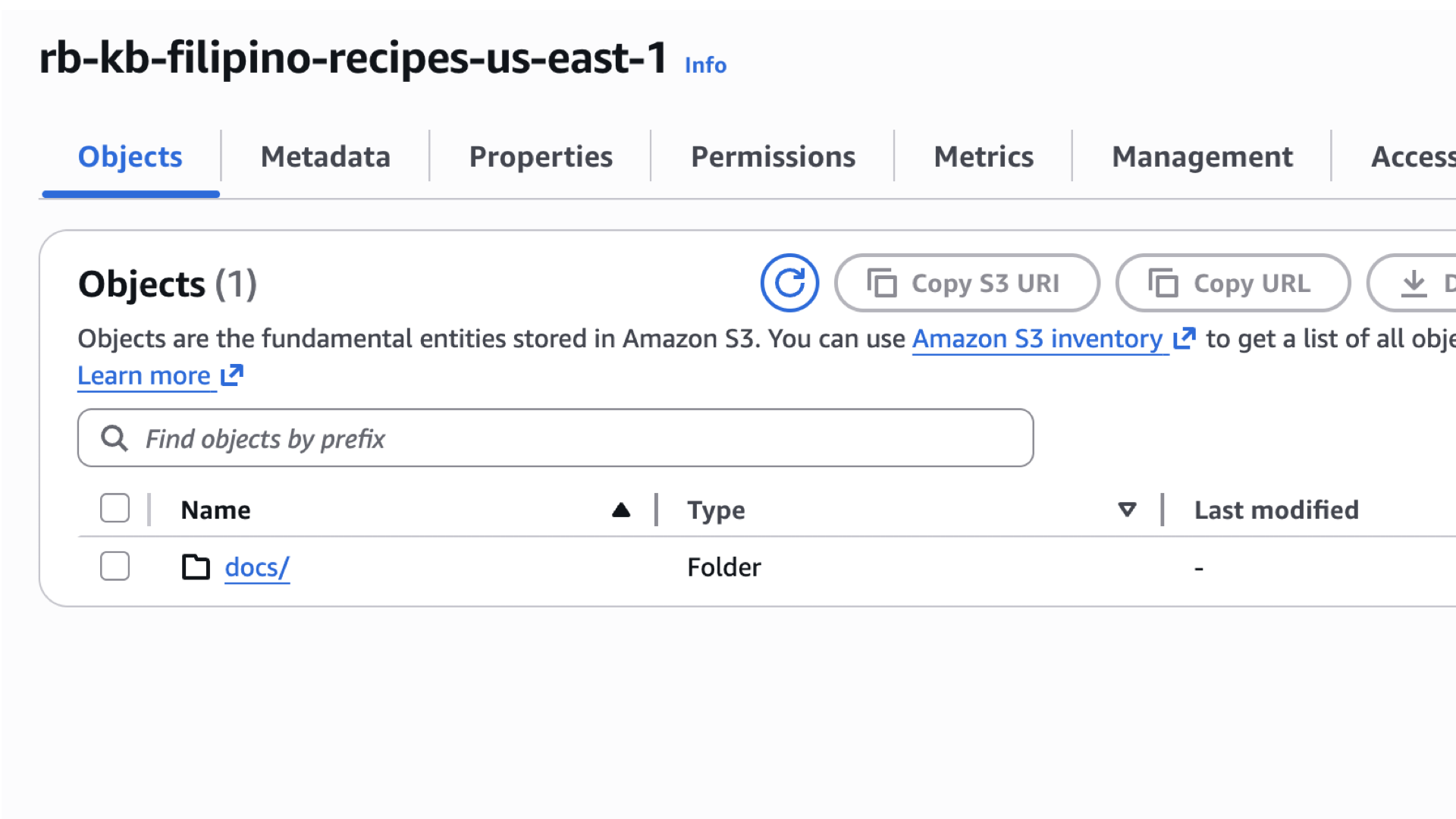
Click Create bucket and create a folder named docs.


-
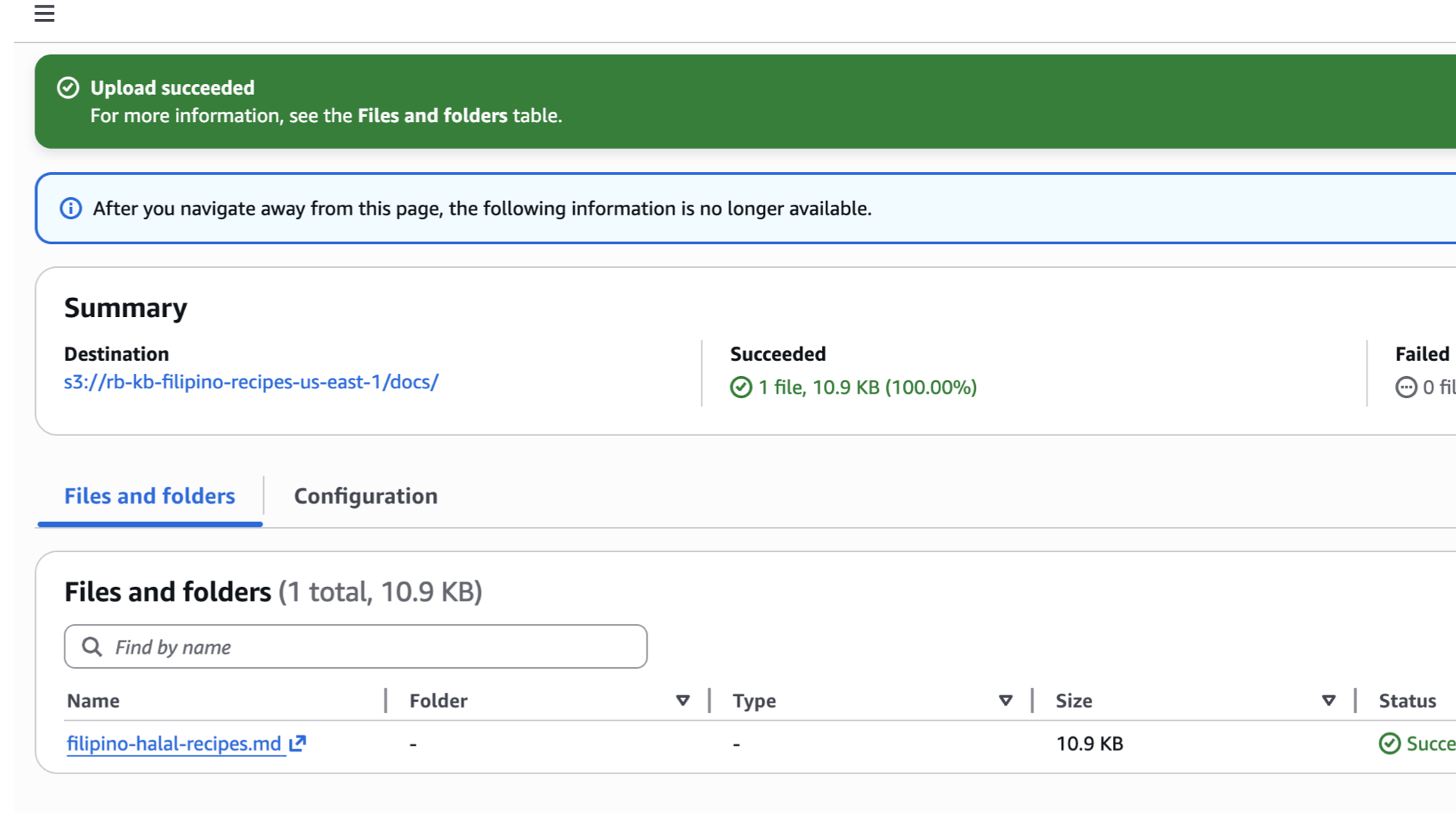
Upload files into
docs/folder and take node of the prefix (e.g.,s3://rb-kb-filipino-recipes-us-east-1/docs/filipino-halal-recipes.md).
Step 3 – Create Bedrock Knowledge Base (Console — recommended for tutorial)
Good job for going this far. Now let’s create our knowledge base.
Console Steps (exact labels may vary slightly if AWS UI updates):
-
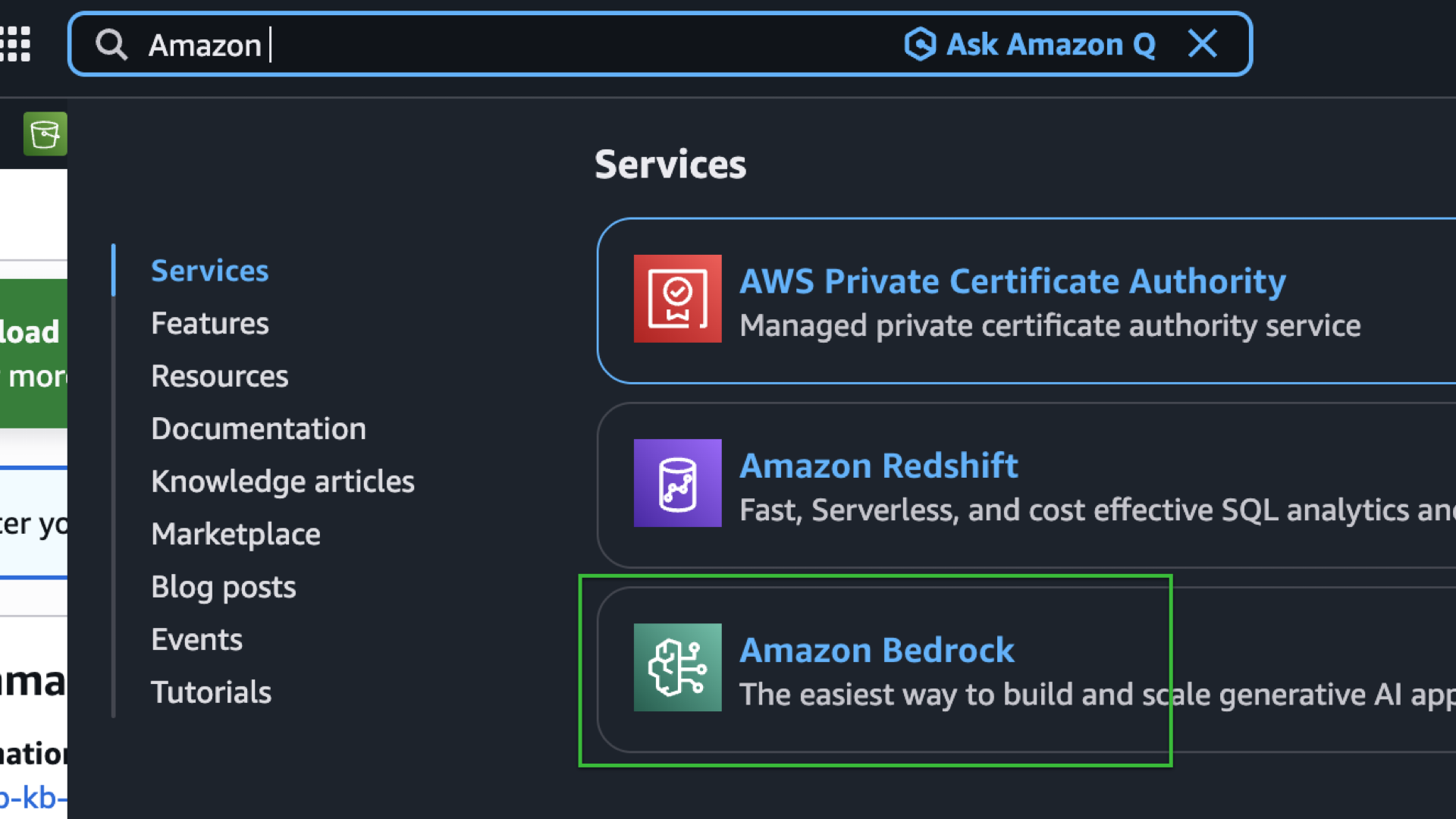
In the top search bar, type Amazon Bedrock and open the service.
-
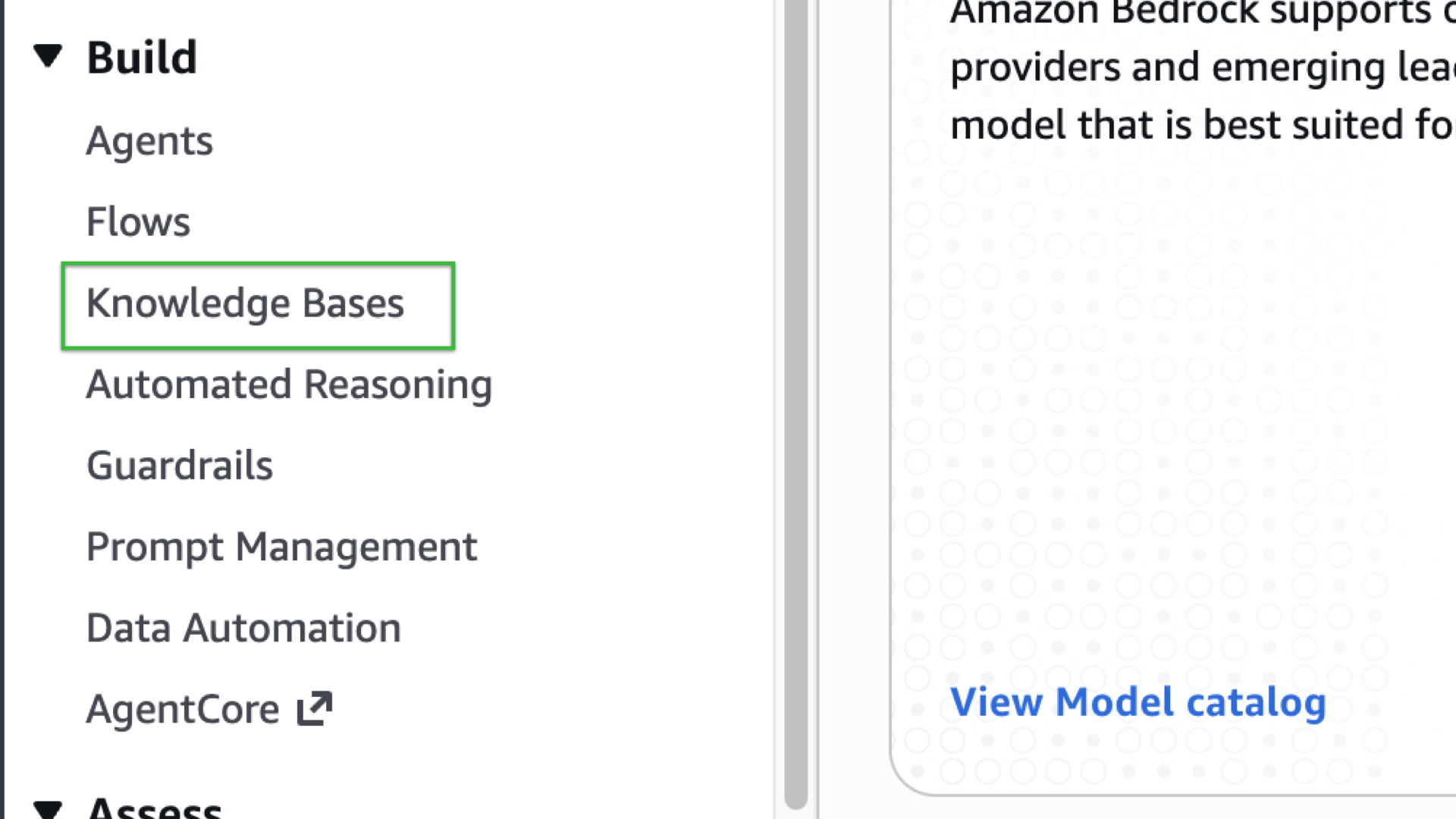
In the Bedrock console, select Knowledge Bases from the left side bar under Build dropdown.
-
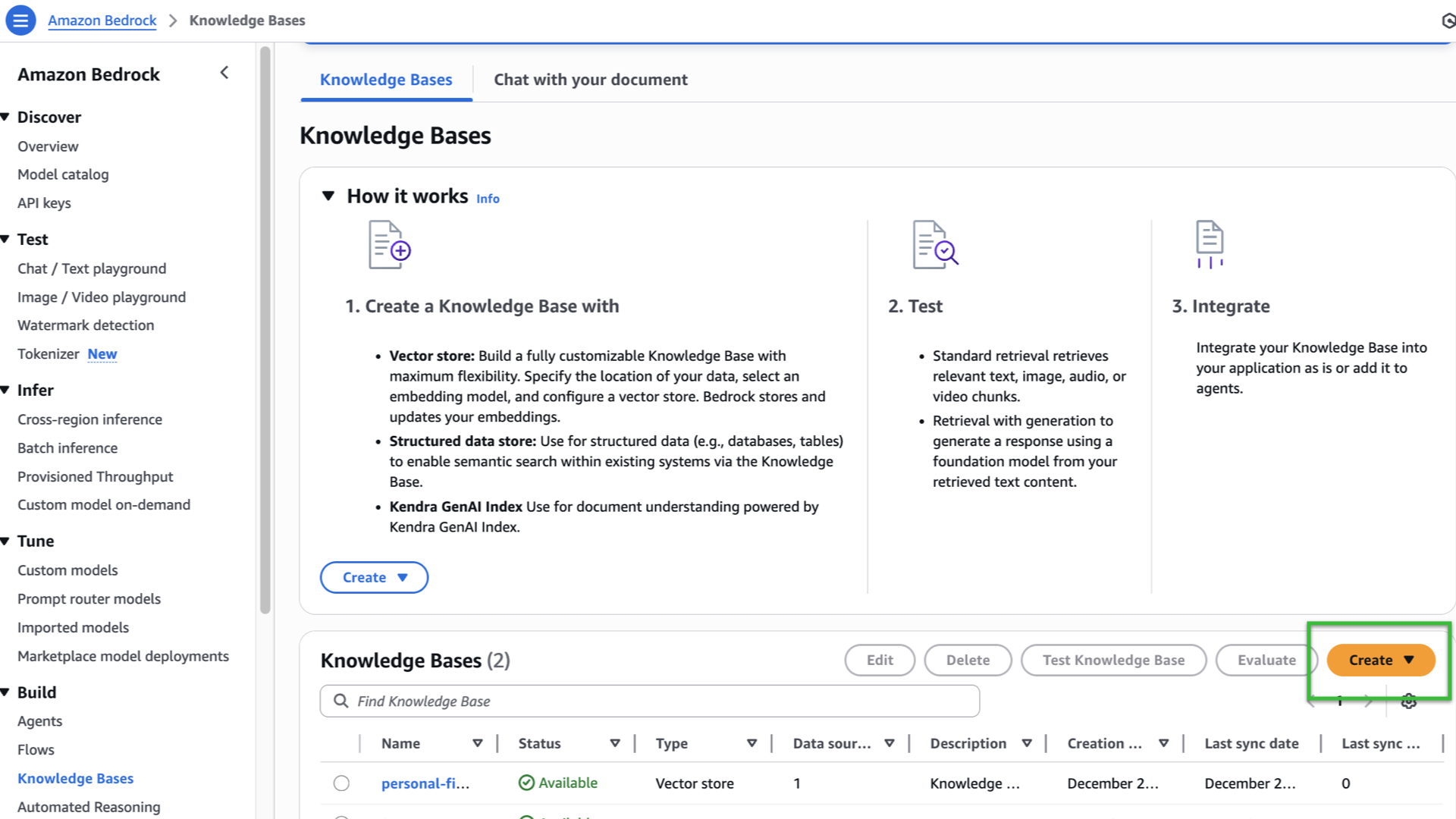
You should now see the Knowledge Bases landing page with a “How it works” section and scrolling down, you’ll see a Create button (the orange button).
-
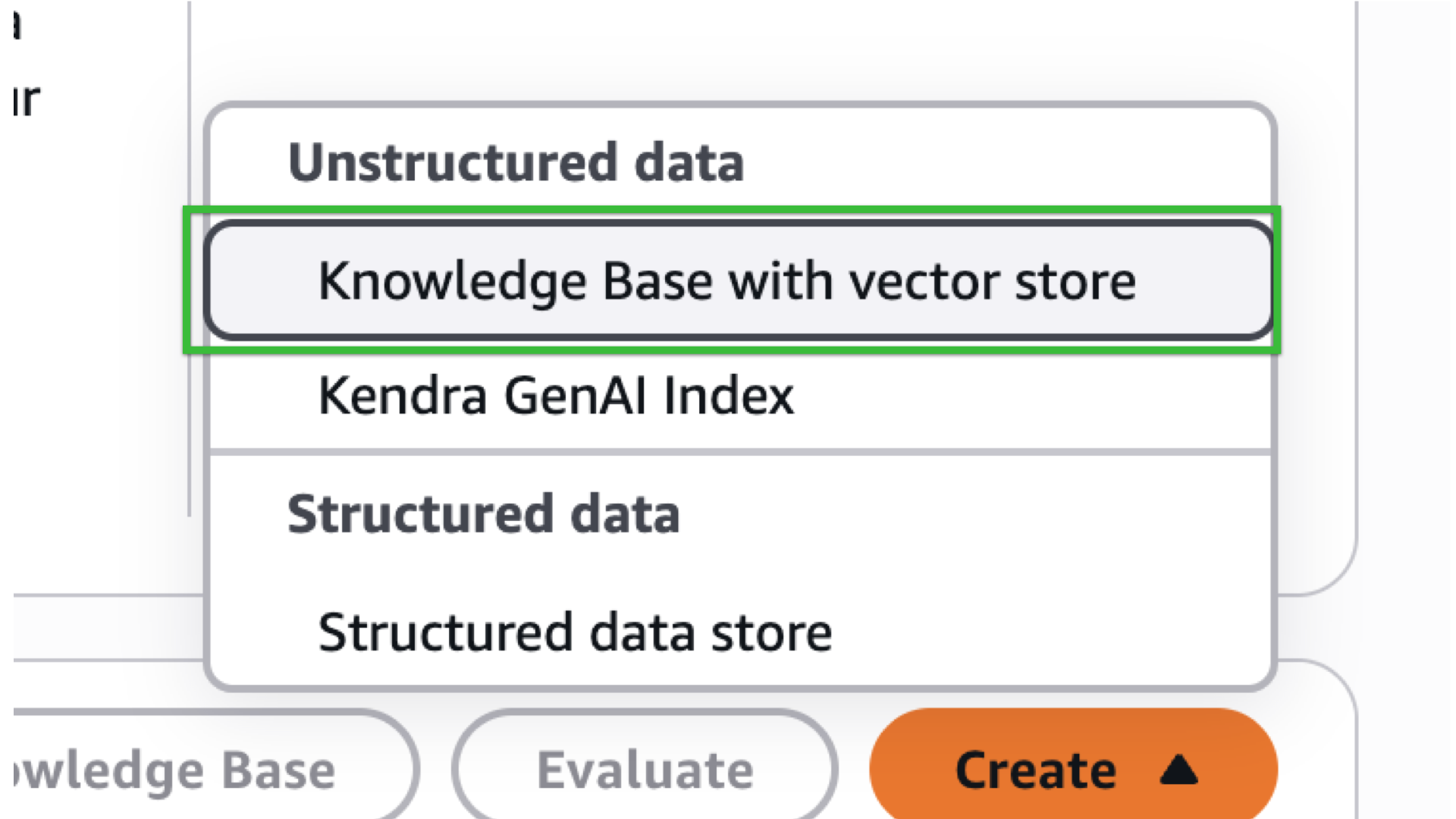
A dropdown option will pop-in, select “Knowledge Base with vector store”
-
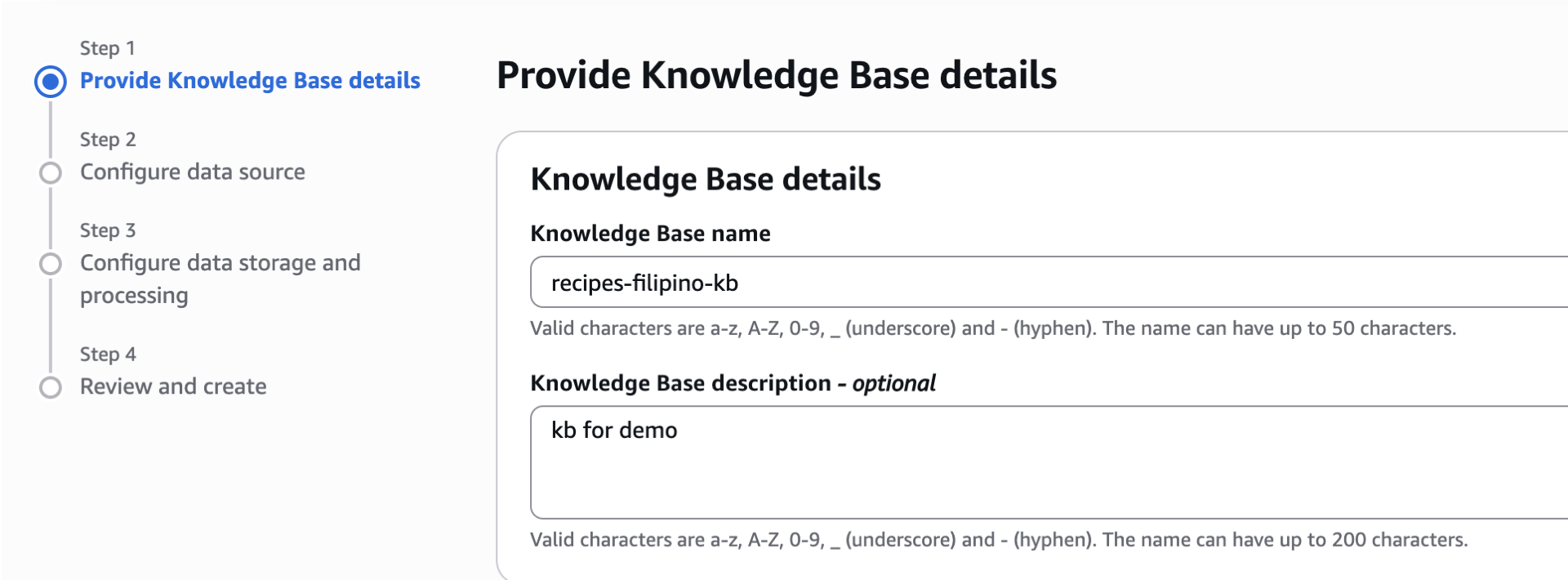
Enter your Knowledge base name `recipes-filipino-kb` for example.

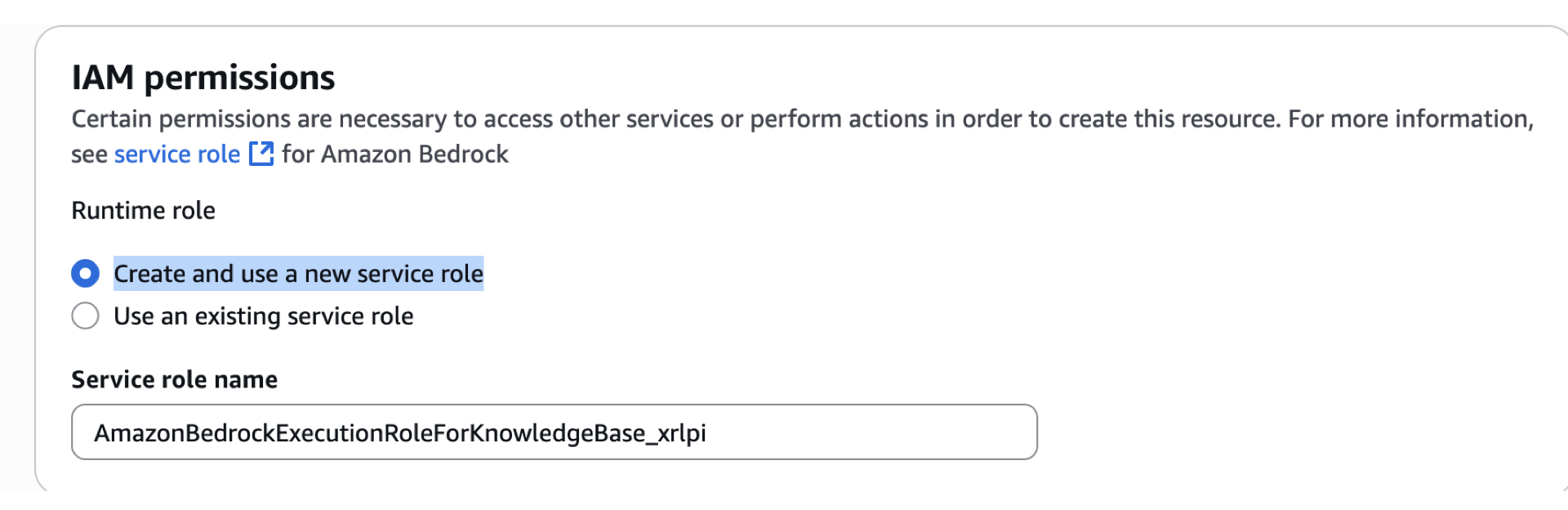
- Scroll down. For this part, we’ll add another IAM role for Service purposes. For this permissions, select Create and use a new service role. Take note of the service role name.
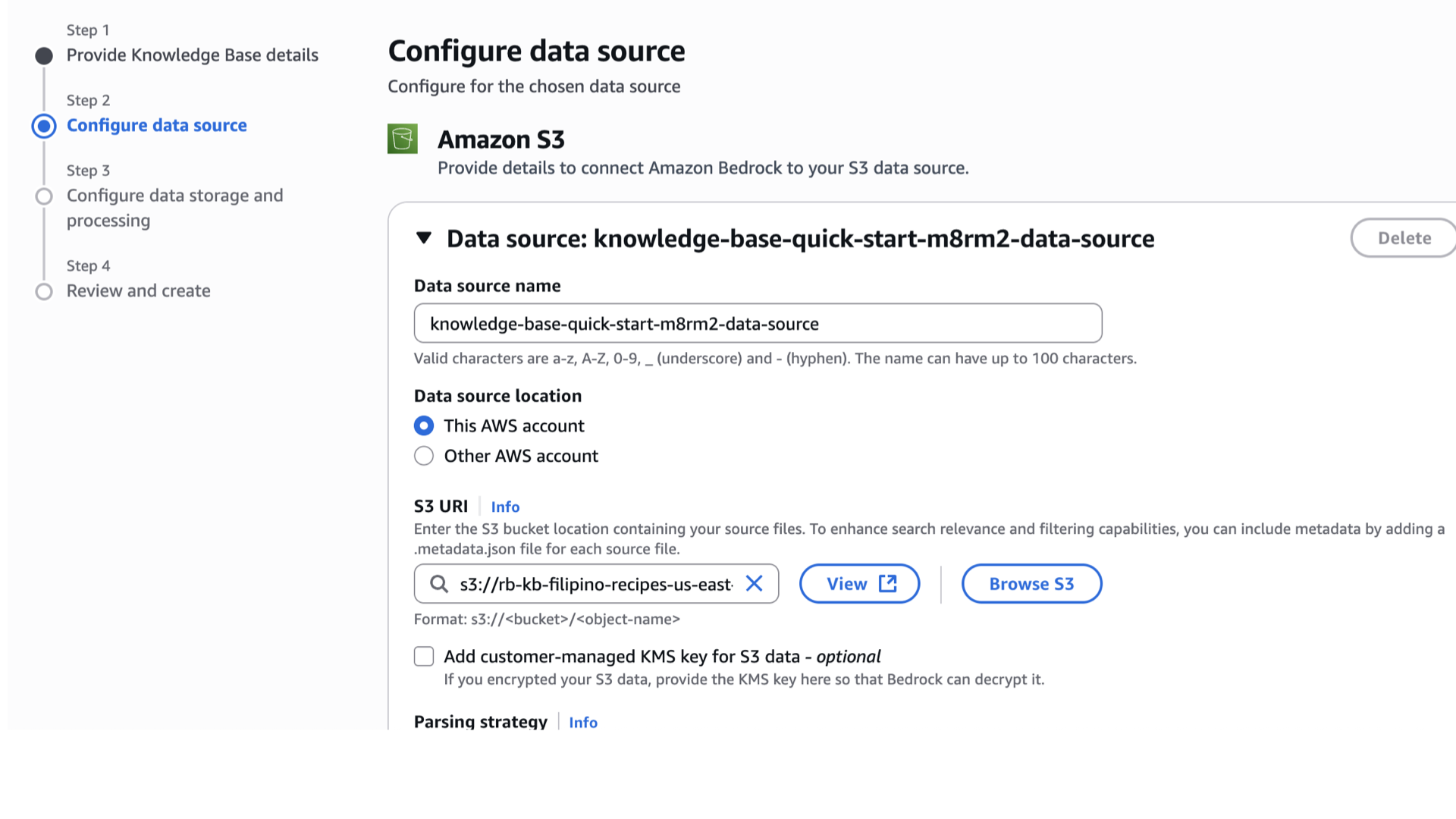
- In Choose Data source type, select Amazon S3.
- Click Next.
- For the Data source name, remember the s3 link I asked you to save earlier? We’ll paste this in S3 URI. If you’ve lost it, simply go back to the S3
we created earlier and select the checkbox of docs folder, then click “Copy S3 URI”. - Paste it in the S3 URI slot. You can change the data source name as well.
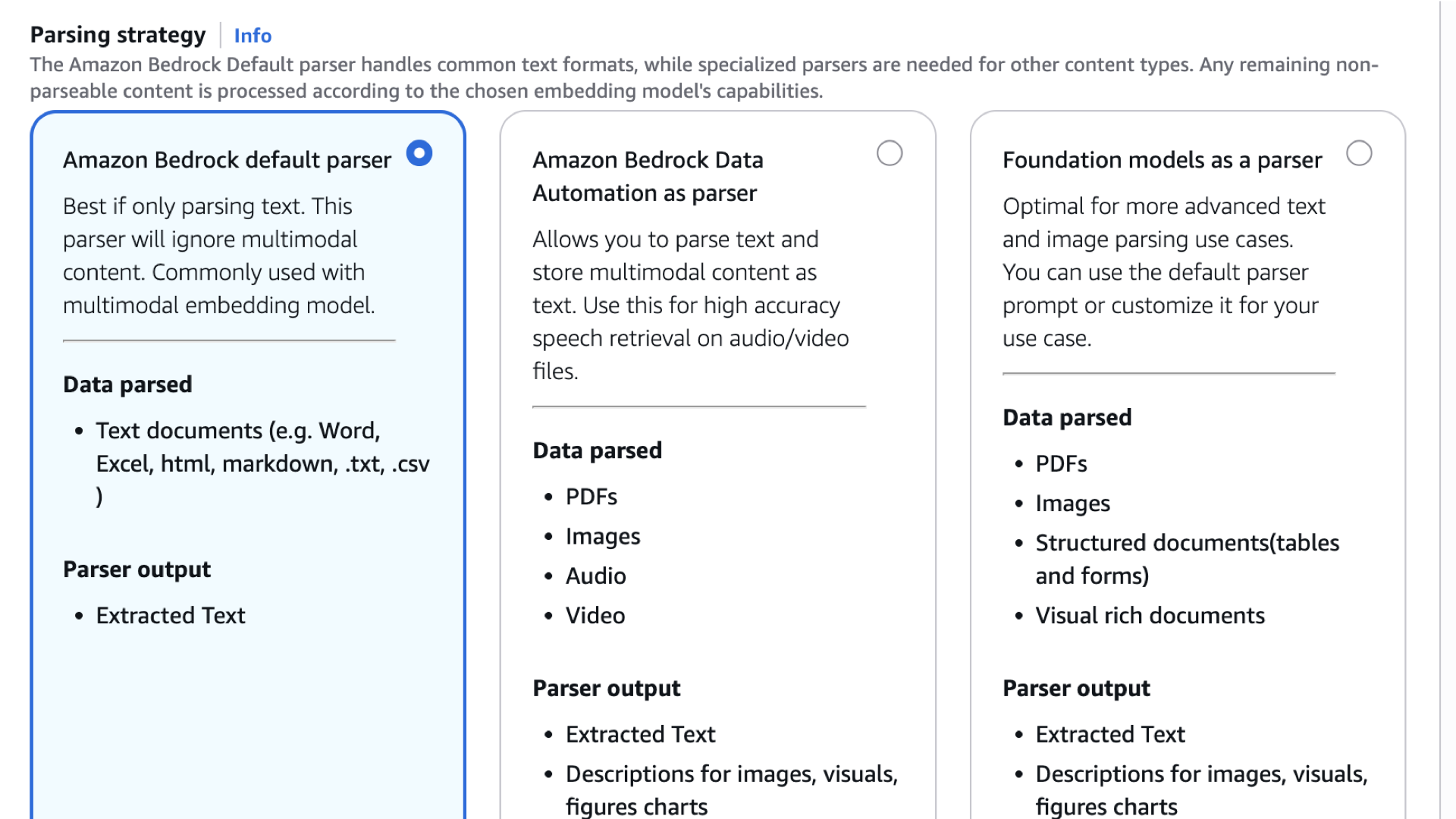
- Scroll down, and read the Parsing strategy, we’ll use Amazon Bedrock default parser since our knowledge base only consisted of textual info.
- For the Chunking Strategy, select default chunking.
- Click Next.
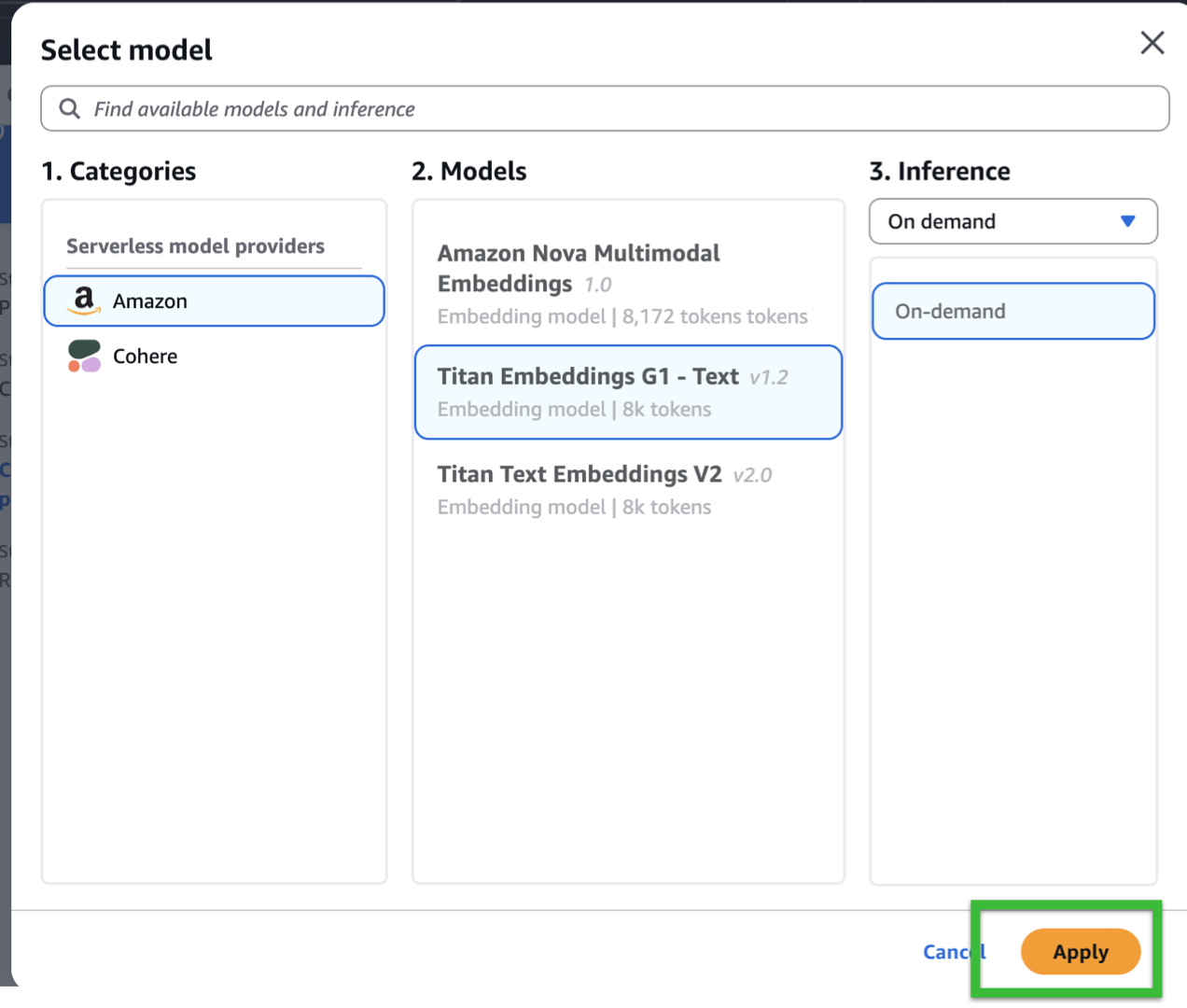
- For the embeddings model, we’ll use Titan Embeddings G1 – Text – On Demand. If you want to change the embedding model, the snippets in our Lambda Function pasted later on might need to be modified.

- Click Apply.
- Under Vector Store, select Quick create a new vector store – Recommended.
- Select Amazon S3 Vectors.
- Click Next. Review and click Create Knowledge Base.
Synchronization of Data Source.
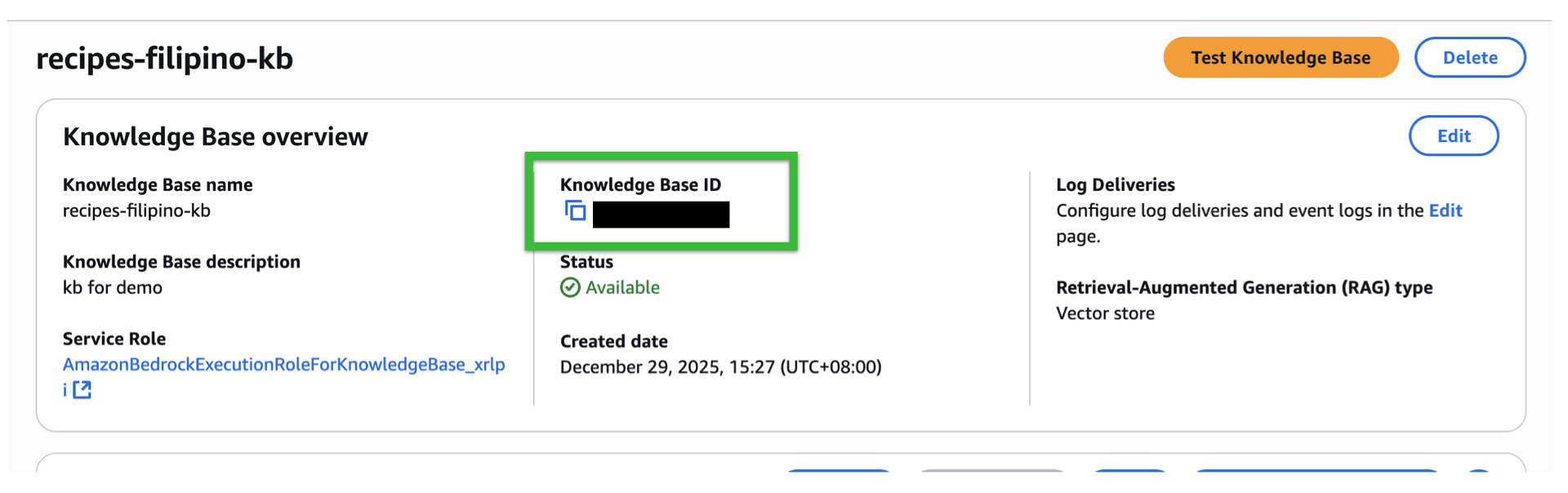
- After a few seconds of minutes, the Knowledge Base should be created. Take note of the Knowledge ID.

- Scroll down and click the check box for the data source.
- Click Sync.
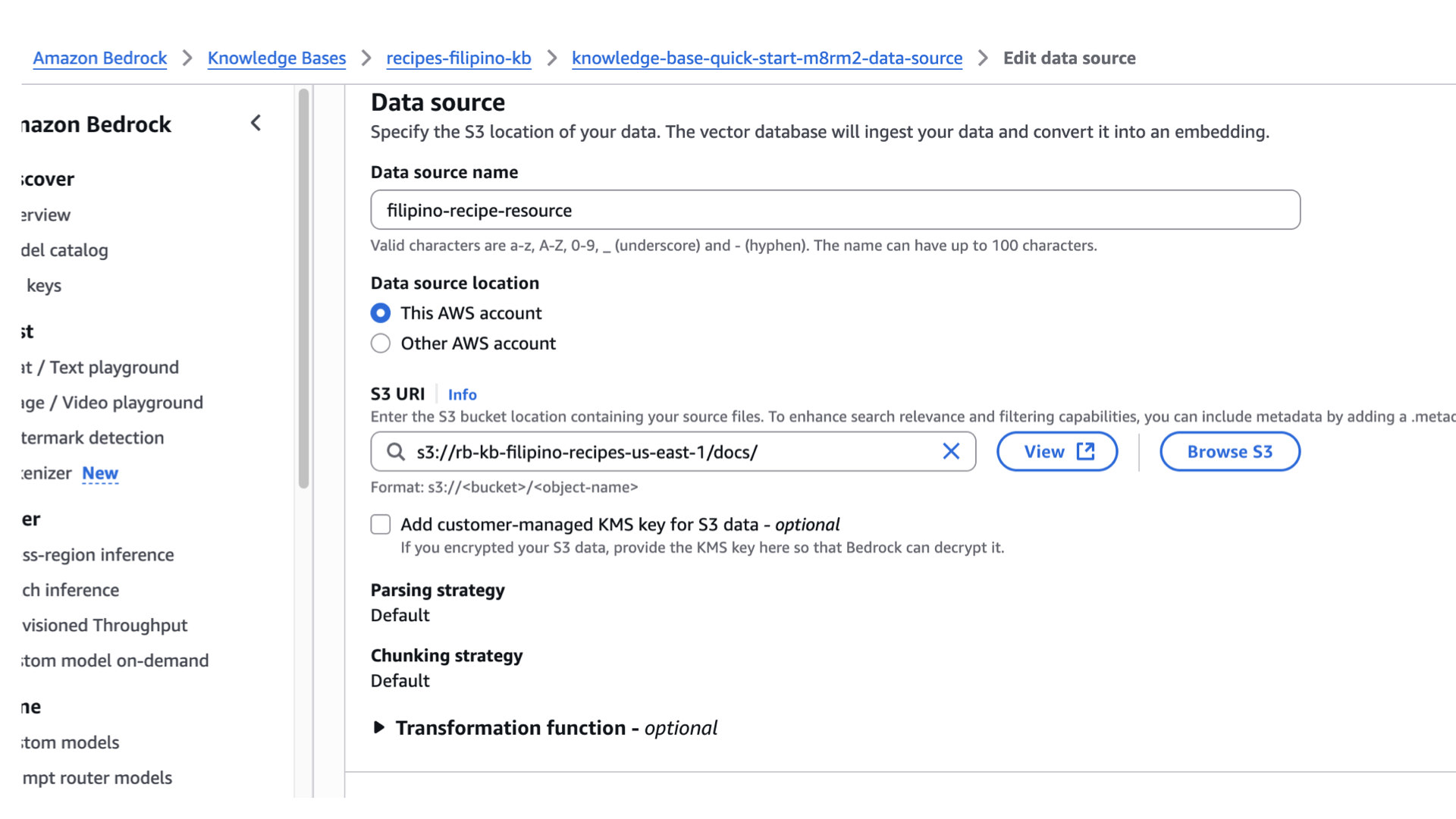
- Optionally, you can change the Data source name as well. On my end it’s still knowledge-base-quick-start-*****-data-source, I’ll rename it to.
- Click the data source name.
- Click Edit
- Change the name to whatever you’d like.
- Scroll down and click submit.
Initial Testing of our knowledge base.
Now let’s test our knowledge base.
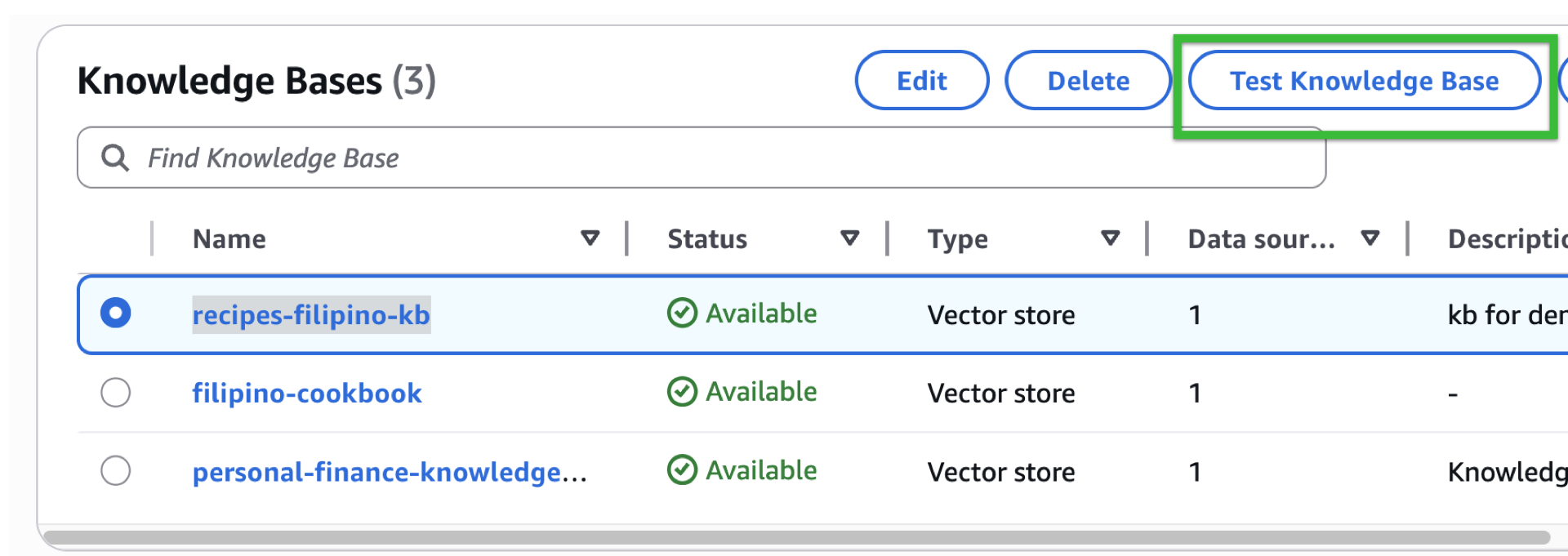
- Go back to Knowledge Base, select the knowledge base you’ve created by clicking the radio button. Click the “Test Knowledge base”

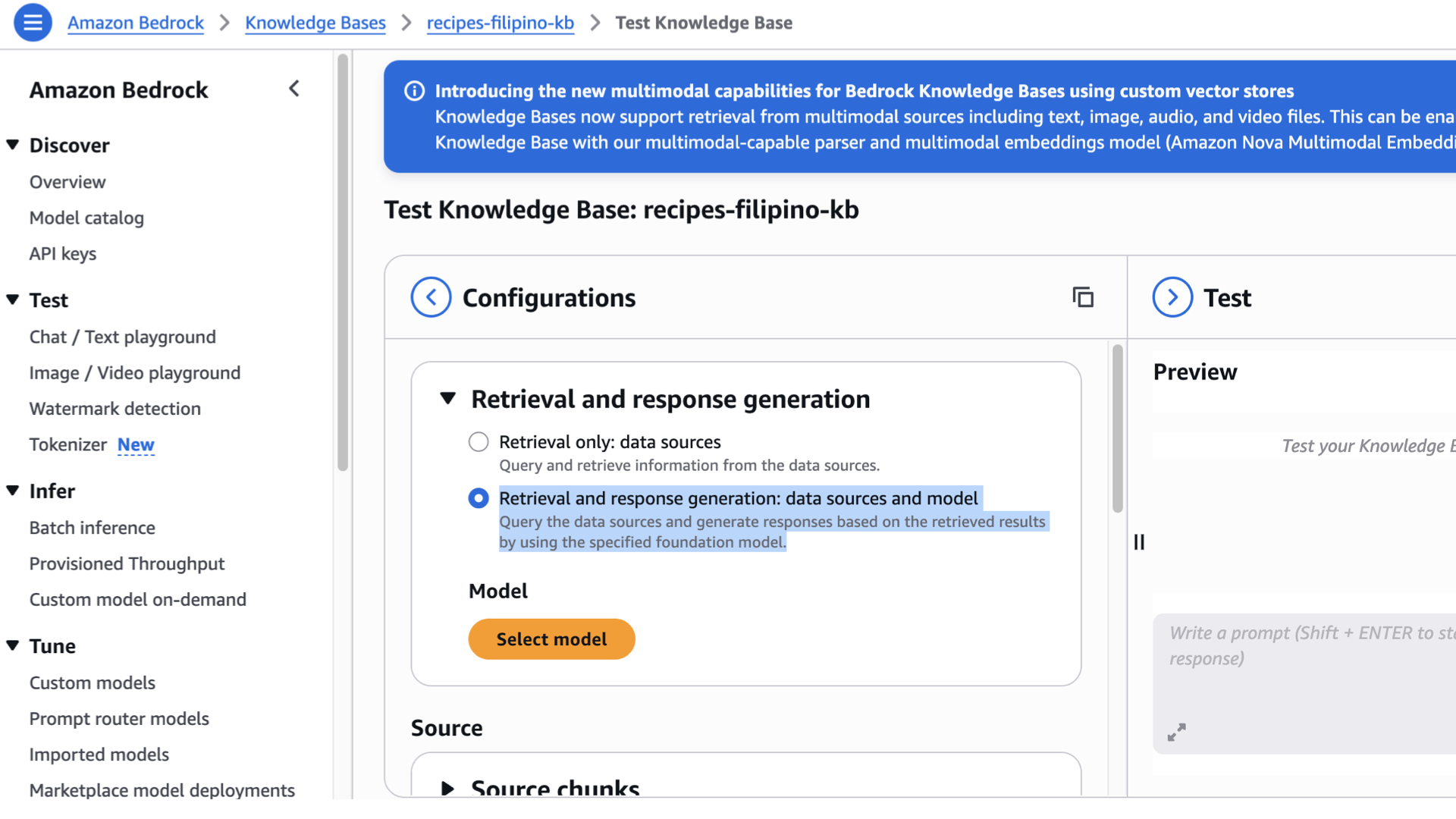
- Under Retrieval and Response generation, select Retrieval and response generation: data sources and model.
- Click Select model.
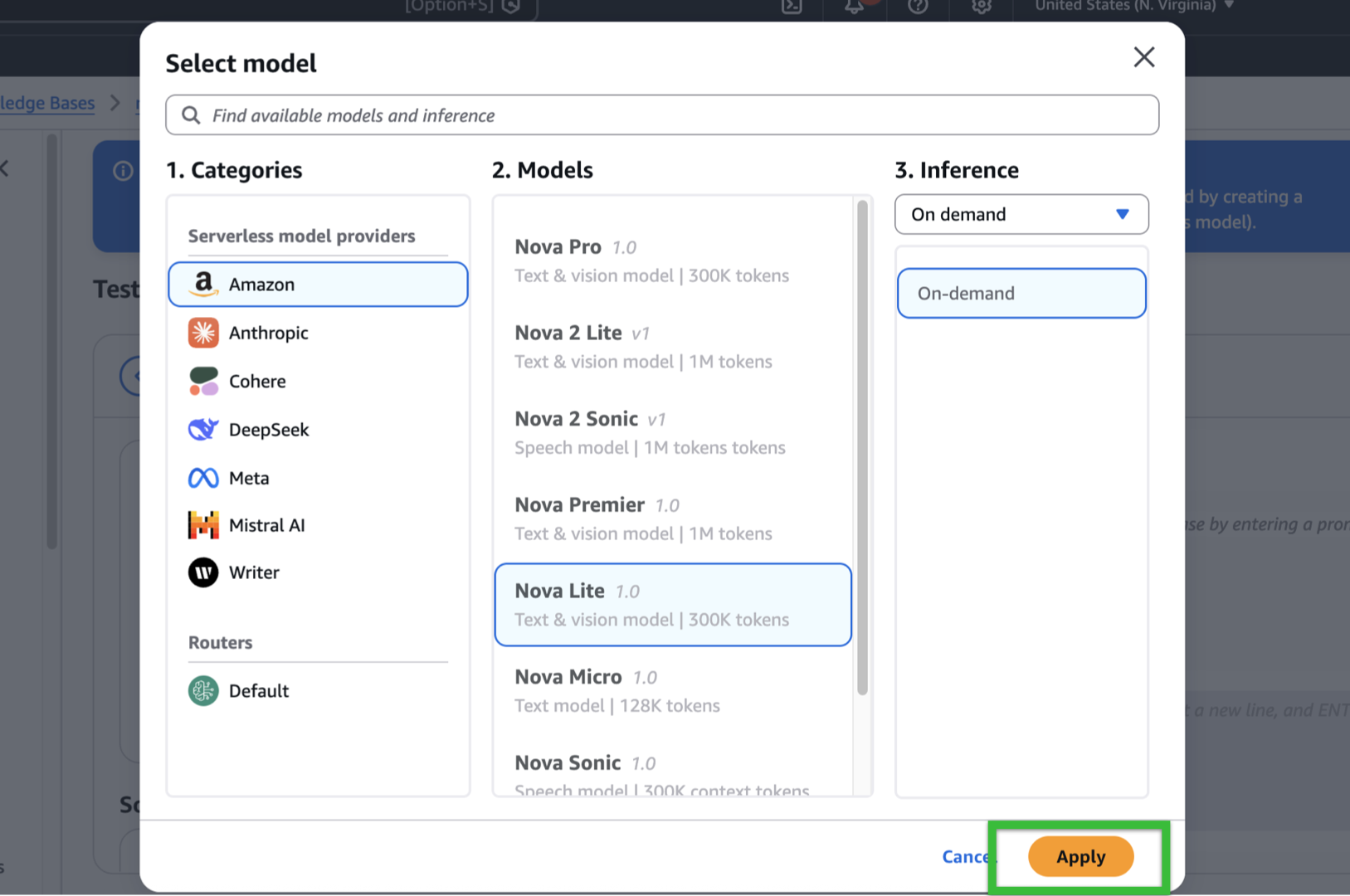
- As mentioned, we’ll be using Nova Lite 1.0 for demo purposes.
- Click Apply.

- Scroll down to experiment the Source, Data manipulation, Generation, and Orchestration while sending a prompt to the test panel. Do it repeatedly until it satisfies your expected response.
 7. Done! Congratulations for making your Knowledge Base work so far.
 7. Done! Congratulations for making your Knowledge Base work so far.
Now let’s handle the IAM permissions to be able to send request and retrieve responses for our Lambda function and API Gateway.
- Go back to IAM.
- Click Roles on the sidebar, find your lambda role (ex. rb-bedrock-kb-role)
- On your right, click Add permissions, in the dropdown, select Create inline policy.
- Toggle the json option.
- Copy and Paste your updated policy for your lambda retrieval. Change the REGION, YOUR_ACCOUNT_ID, and KB_ID (knowledge base id). (Otherwise use *)
- Name it as
LambdaRetrieveToBedrockPolicyor something more meaningful. - It will automatically be attached.
Integrate: Retrieve → Generate Lambda for AWS Bedrock model invocation.
Great job for making it this far, we’re quite near for this to work! For this part, we’ll be implementing this.
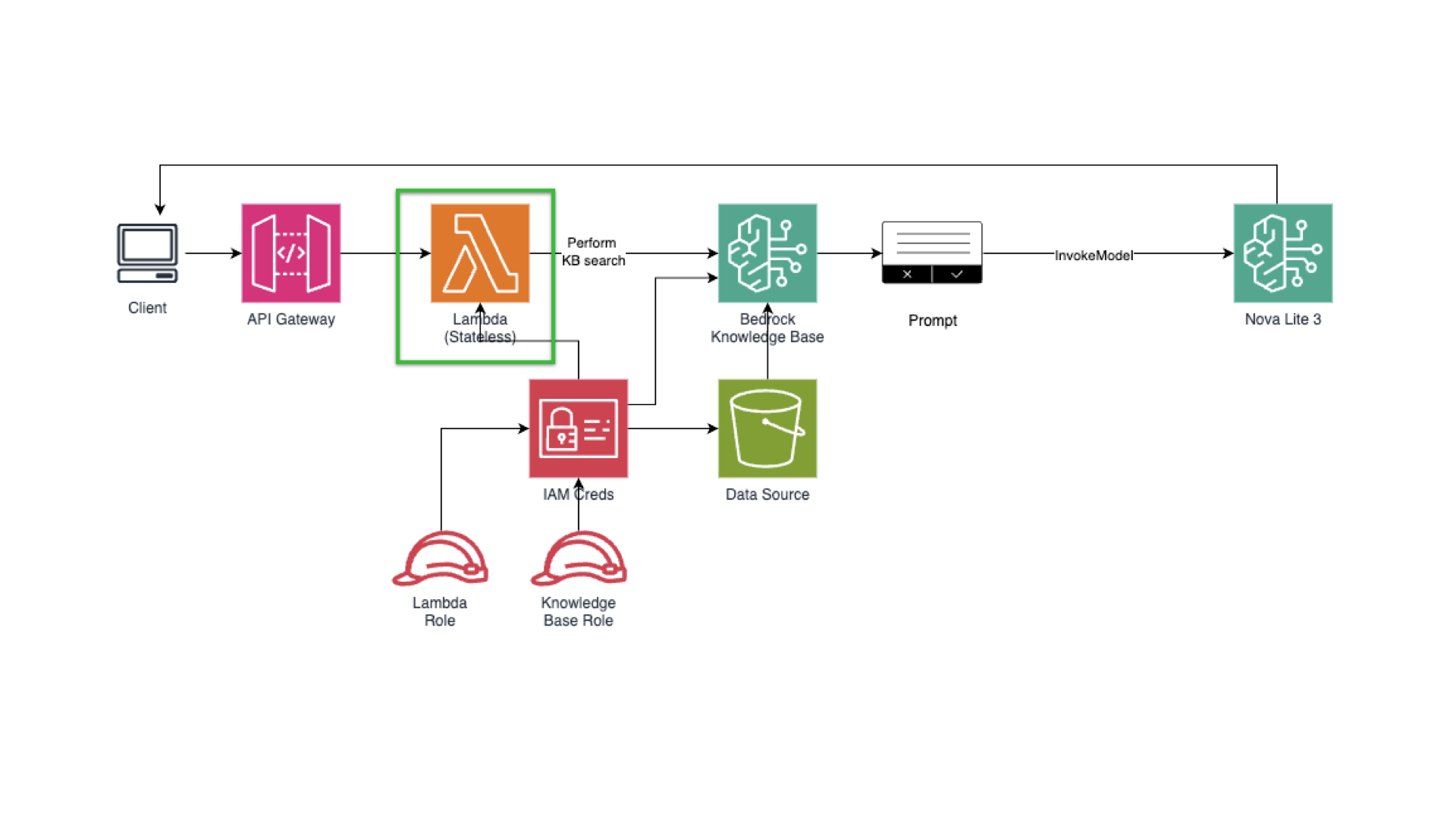
Let’s create our lambda function.
- Search Lambda.
- Click Create function.
- Select Author from scratch.
- Paste or create a function name (ex. recipes-kb-query-lambda).
- Under Runtime, select Python 3.11.
- Leave the architecture as is for this demo.
- Click Change default execution role.
- Select your existing role “rb-bedrock-kb-role”
- Scroll down, and click create function.
Below is a production-minded Lambda (Python) that:
-
Calls Bedrock Retrieve (KB search) — using
bedrock.search_knowledge_base(SDK naming can vary by environment; replace if your SDK uses another call). -
Builds a prompt with top-k chunks.
-
Calls
bedrock-runtime.invoke_modelto generate an answer (Nova Lite). -
Replace placeholders:
REGION,BEDROCK_MODEL_ID,KNOWLEDGE_BASE_ID. -
Feel free to modify the hyperparameters based on the values you’ve noted during the test.
After setting in the changes, paste this in your handler: (lambda_function.py)
-
import json
import boto3
from botocore.exceptions import ClientError

# Initialize Bedrock Agent Runtime client
bedrock_agent_runtime = boto3.client('bedrock-agent-runtime')

def lambda_handler(event, context):

    # ---- HANDLE CORS PREFLIGHT ----
    method = (
        event.get("httpMethod")
        or event.get("requestContext", {}).get("http", {}).get("method")
    )

    if method == "OPTIONS":
        return {
            "statusCode": 200,
            "headers": {
                "Access-Control-Allow-Origin": "*",
                "Access-Control-Allow-Headers": "Content-Type,Authorization,X-Amz-Date,X-Api-Key,X-Amz-Security-Token",
                "Access-Control-Allow-Methods": "POST,OPTIONS",
                "Access-Control-Max-Age": "3600"
            },
            "body": ""
        }


    """
    Lambda function to query Amazon Bedrock Knowledge Base using Nova Lite model.

    Expected event structure:
    {
        "query": "Your question here",
        "sessionId": "optional-session-id"
    }
    """

    # Configuration - REPLACE THESE VALUES
    KNOWLEDGE_BASE_ID = "YOUR_KNOWLEDGE_BASE_ID"
    MODEL_ARN = "arn:aws:bedrock:YOUR_REGION::foundation-model/YOUR_MODEL_ID"

    try:
        # Extract query from event
        if isinstance(event.get('body'), str):
            body = json.loads(event['body'])
        else:
            body = event

        query = body.get('query', '')
        session_id = body.get('sessionId')  # Optional, can be None

        if not query:
            return {
                'statusCode': 400,
                'headers': {
                    'Content-Type': 'application/json',
                    'Access-Control-Allow-Origin': '*',
                    'Access-Control-Allow-Headers': 'Content-Type,X-Amz-Date,Authorization,X-Api-Key,X-Amz-Security-Token',
                    'Access-Control-Allow-Methods': 'POST,OPTIONS'
                },
                'body': json.dumps({
                    'error': 'Query parameter is required'
                })
            }

        # Prepare the request parameters
        request_params = {
            'input': {
                'text': f"""
                You are a helpful assistant.
                Format answers clearly using sections when appropriate.

                Question:
                {query}
                """
            },
            'retrieveAndGenerateConfiguration': {
                'type': 'KNOWLEDGE_BASE',
                'knowledgeBaseConfiguration': {
                    'knowledgeBaseId': KNOWLEDGE_BASE_ID,
                    'modelArn': MODEL_ARN,
                    'retrievalConfiguration': {
                        'vectorSearchConfiguration': {
                            'numberOfResults': 5
                        }
                    }
                }
            }
        }

        # Only include sessionId if provided (for continuing conversations)
        if session_id:
            request_params['sessionId'] = session_id

        # Retrieve and generate response from knowledge base
        response = bedrock_agent_runtime.retrieve_and_generate(**request_params)

        # Extract the generated response
        output_text = response['output']['text']
        citations = response.get('citations', [])
        session_id = response.get('sessionId', '')

        # Format response
        result = {
            'answer': output_text,
            'sessionId': session_id,
            'citations': citations
        }

        return {
            'statusCode': 200,
            'headers': {
                'Content-Type': 'application/json',
                'Access-Control-Allow-Origin': '*',
                'Access-Control-Allow-Headers': 'Content-Type,X-Amz-Date,Authorization,X-Api-Key,X-Amz-Security-Token',
                'Access-Control-Allow-Methods': 'POST,OPTIONS'
            },
            'body': json.dumps(result, indent=2)
        }

    except ClientError as e:
        error_code = e.response['Error']['Code']
        error_message = e.response['Error']['Message']

        return {
            'statusCode': 500,
            'headers': {
                'Content-Type': 'application/json',
                'Access-Control-Allow-Origin': '*',
                'Access-Control-Allow-Headers': 'Content-Type,X-Amz-Date,Authorization,X-Api-Key,X-Amz-Security-Token',
                'Access-Control-Allow-Methods': 'POST,OPTIONS'
            },
            'body': json.dumps({
                'error': f'AWS Error: {error_code}',
                'message': error_message
            })
        }

    except Exception as e:
        return {
            'statusCode': 500,
            'headers': {
                'Content-Type': 'application/json',
                'Access-Control-Allow-Origin': '*',
                'Access-Control-Allow-Headers': 'Content-Type,X-Amz-Date,Authorization,X-Api-Key,X-Amz-Security-Token',
                'Access-Control-Allow-Methods': 'POST,OPTIONS'
            },
            'body': json.dumps({
                'error': 'Internal server error',
                'message': str(e)
            })
        }
Breakdown of the Handler Code:
I’ll break down the Lambda code section by section:
1. Imports and Client Initialization
-
import json import boto3 from botocore.exceptions import ClientError bedrock_agent_runtime = boto3.client('bedrock-agent-runtime') json: For parsing request data and formatting responsesboto3: AWS SDK to interact with AWS servicesClientError: For catching AWS-specific errorsbedrock_agent_runtime: Creates a client to interact with Amazon Bedrock’s Knowledge Base API

2. CORS Preflight Handler
-
method = (
    event.get("httpMethod")
    or event.get("requestContext", {}).get("http", {}).get("method")
)

if method == "OPTIONS":
    return {
        "statusCode": 200,
        "headers": {
            "Access-Control-Allow-Origin": "*",
            "Access-Control-Allow-Headers": "Content-Type,Authorization...",
            "Access-Control-Allow-Methods": "POST,OPTIONS",
            "Access-Control-Max-Age": "3600"
        },
        "body": ""
    }
What it does: When browsers make cross-origin requests, they first send an OPTIONS request to check if the server allows it. This code:
- Detects if it’s an OPTIONS request (works with both API Gateway v1 and v2)
- Returns a 200 status with CORS headers telling the browser “yes, POST requests are allowed from any origin”
Max-Age: 3600means the browser can cache this response for 1 hour
3. Configuration
-
KNOWLEDGE_BASE_ID = "*"
MODEL_ARN = "arn:aws:bedrock:us-east-1::foundation-model/amazon.nova-lite-v1:0"
- KNOWLEDGE_BASE_ID: The unique identifier for your Bedrock Knowledge Base (where your documents are stored)
- MODEL_ARN: The Amazon Resource Name for the AI model (Nova Lite in this case) that will generate responses
4. Request Body Parsing
-
if isinstance(event.get('body'), str):
    body = json.loads(event['body'])
else:
    body = event

query = body.get('query', '')
session_id = body.get('sessionId')
What it does: API Gateway can send the body as either a JSON string or already-parsed object, so this handles both cases:
- If it’s a string: parse it with
json.loads() - If it’s already an object: use it directly
- Extracts
query(the user’s question) and optionalsessionId(for conversation continuity)
5. Input Validation
-
if not query:
    return {
        'statusCode': 400,
        'headers': {...CORS headers...},
        'body': json.dumps({'error': 'Query parameter is required'})
    }
If no query is provided, return a 400 Bad Request error with CORS headers (important so the browser can read the error).
6. Prepare Request Parameters
-
request_params = {
    'input': {
        'text': f"""
            You are a helpful assistant.
            Format answers clearly using sections when appropriate.

            Question:
            {query}
        """
    },
    'retrieveAndGenerateConfiguration': {
        'type': 'KNOWLEDGE_BASE',
        'knowledgeBaseConfiguration': {
            'knowledgeBaseId': KNOWLEDGE_BASE_ID,
            'modelArn': MODEL_ARN,
            'retrievalConfiguration': {
                'vectorSearchConfiguration': {
                    'numberOfResults': 5
                }
            }
        }
    }
}
What it does:
- input.text: The prompt sent to the AI, which includes system instructions and the user’s question
- retrieveAndGenerateConfiguration: Tells Bedrock to:
- Use a Knowledge Base (not just the raw model)
- Search for the 5 most relevant documents using vector search
- Use the specified model to generate an answer based on those documents
7. Session Management
-
if session_id:
        request_params['sessionId'] = session_id
If the user provides a sessionId from a previous conversation, include it. This allows the AI to remember context from earlier in the conversation.
8. Call Bedrock API
-
response = bedrock_agent_runtime.retrieve_and_generate(**request_params)

output_text = response['output']['text']
citations = response.get('citations', [])
session_id = response.get('sessionId', '')
What happens:
- Bedrock searches your knowledge base for relevant documents
- Sends those documents + your query to the AI model
- AI generates an answer based on the retrieved documents
- Returns the answer, citations (which documents were used), and a new sessionId
9. Format and Return Success Response
-
result = {
    'answer': output_text,
    'sessionId': session_id,
    'citations': citations
}

return {
    'statusCode': 200,
    'headers': {...CORS headers...},
    'body': json.dumps(result, indent=2)
}
10. Error Handling
-
except ClientError as e:
    # AWS-specific errors (permissions, invalid KB ID, etc.)
    return {
        'statusCode': 500,
        'headers': {...CORS headers...},
        'body': json.dumps({
            'error': f'AWS Error: {error_code}',
            'message': error_message
        })
    }

except Exception as e:
    # Any other unexpected errors
    return {
        'statusCode': 500,
        'headers': {...CORS headers...},
        'body': json.dumps({
            'error': 'Internal server error',
            'message': str(e)
        })
    }
Catches errors and returns them in a format the frontend can understand, always including CORS headers.
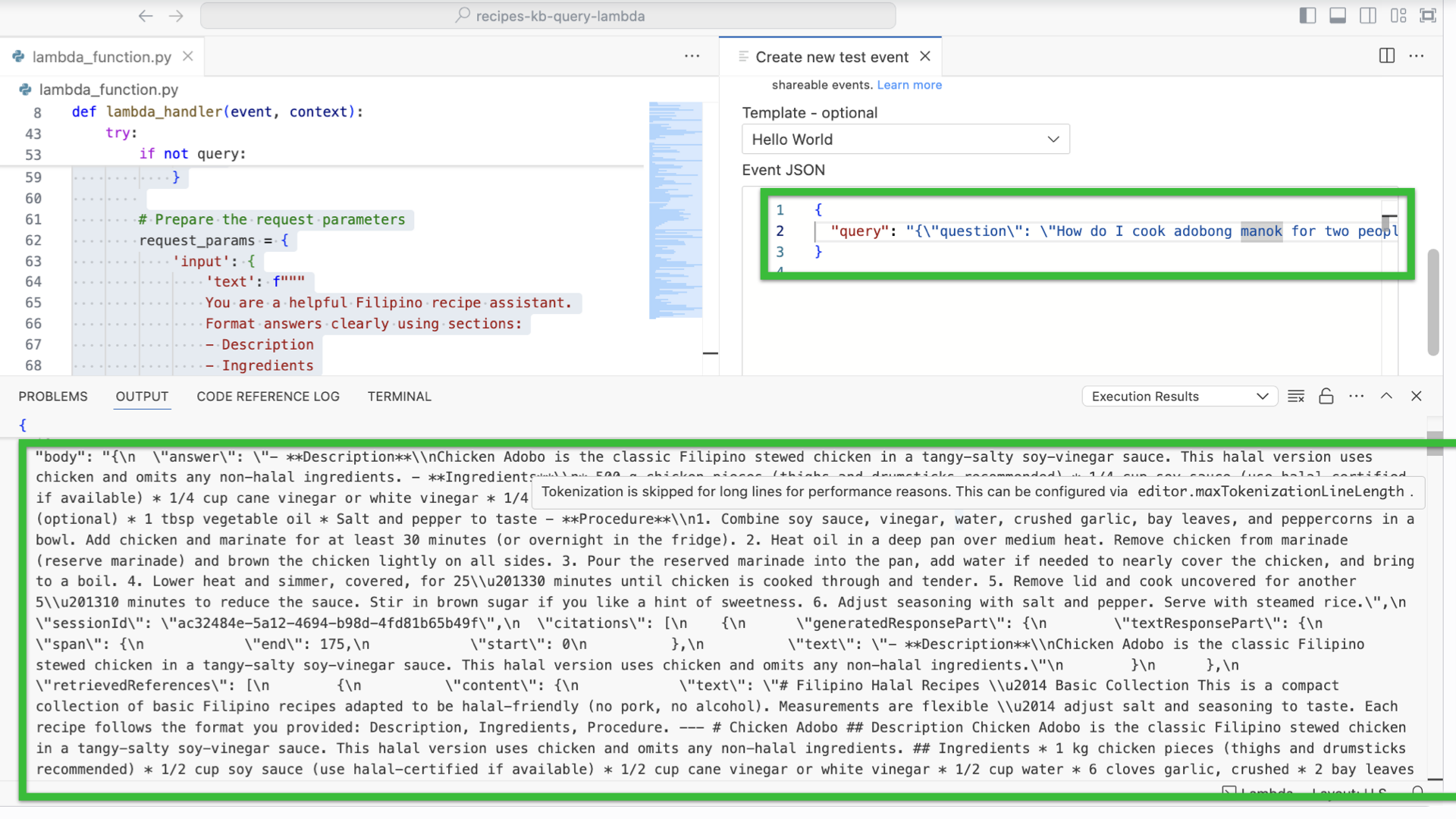
Testing your Lambda
- Switch to Configuration tab, on the side of the Code tab.
- On the side panel, find Environment variables.
- Add ENABLE_KB_DEBUG = true
- Add KNOWLEDGE_BASE_ID = KB_ID
- Click Deploy and afterwards, click Test.
- Select Create new test event.
- Scroll down and select Hello World as the template.
- Paste the following:
-
{
"query": "{\"question\": \"How do I cook adobong manok for two people?\"}"
}
-
- Scroll up, click Invoke. It should throw a response like this.
Creation of API Gateway for the Knowledge Base for our Amazon Bedrock model.
We’re near to the end! Currently we’re doing this:
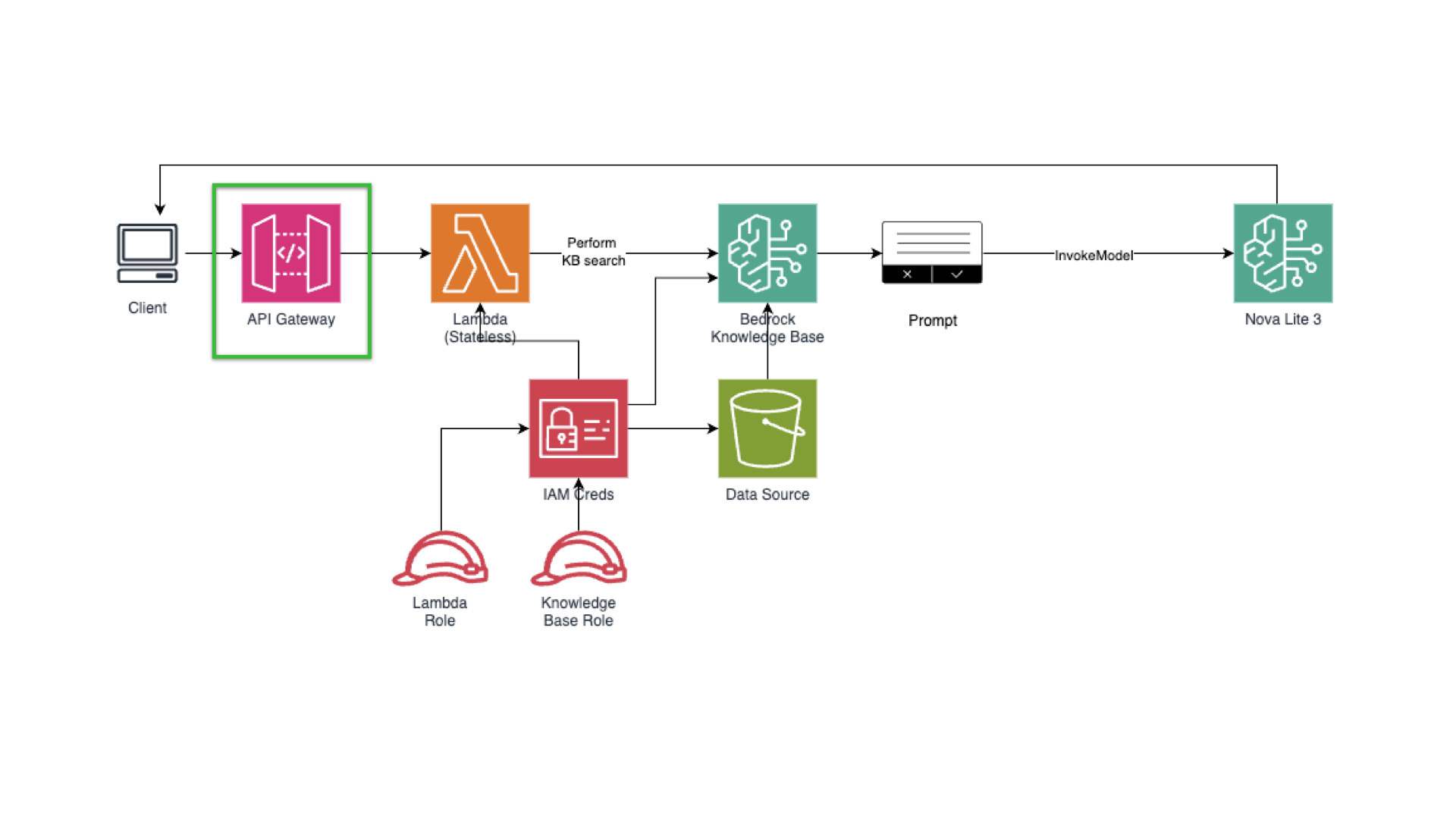
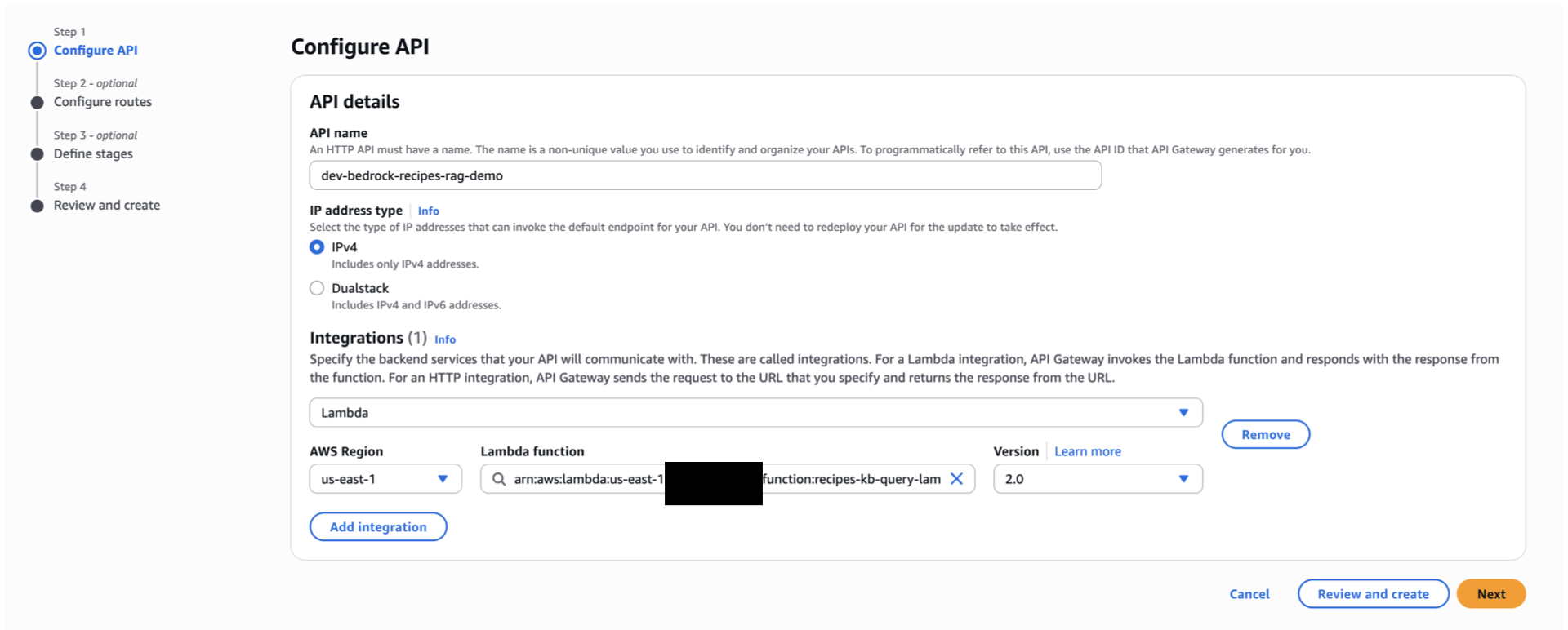
API Gateway
- Search and select for API gateway.
- Click Create API.
- Select HTTP API by clicking build.
- For the API name, paste what you’ve decided to add earlier, or use `dev-bedrock-recipes-rag-demo`
- In the integrations, select the lambda function we’ve created (ex. recipes-kb-query-lambda )

- Click Next.
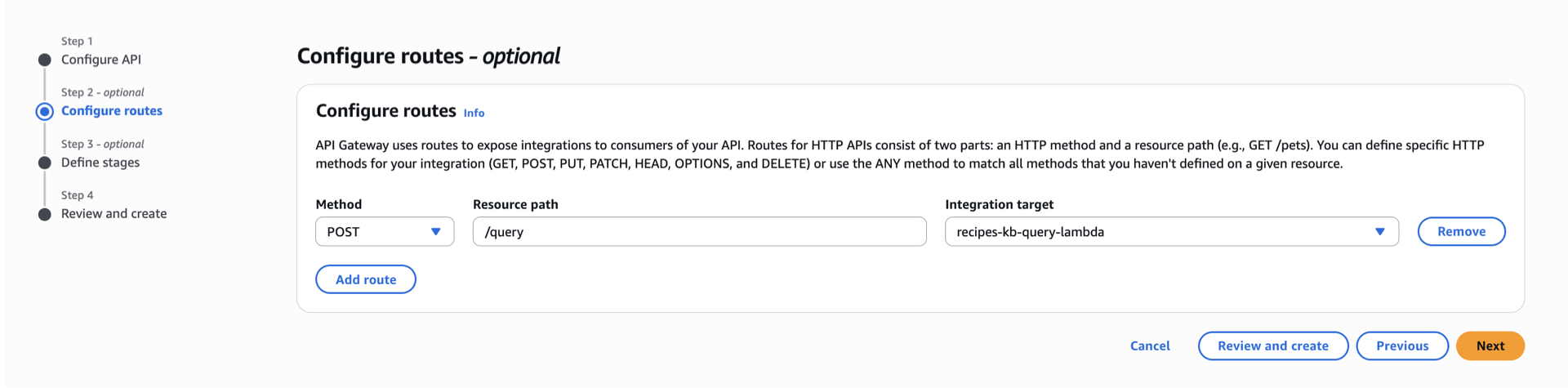
- Create a POST
/queryendpoint integrated with the Lambda function.

- Click next.
- For Define stages – optional, Leave the stage name as $default.
- Set the toggle of the Auto-deploy to on.
- Click create.
- Optional but recommended: Protect it with API keys or Cognito (do not leave public).
Test your API endpoint.
Set the CORS (Cross-Origin Resource Sharing) for you to access the API in your Application.
Congratulations for making this far, this is the last step before adding it to our UI app. We need an API gateway to create a secured endpoint for our application to use.
In the API Gateway console, navigate on your sidebar, and find for Deploy. Under stages, you’ll see the Invoke URL (as of now).
- Open your terminal, ensure that curl is available.
- Paste this (change values):
-
curl -X POST &amp;amp;amp;amp;amp;lt;url&amp;amp;amp;amp;amp;gt;\endpoint \ -H "Content-Type: application/json" \ -d '{ "query": "Your question here" }'
-
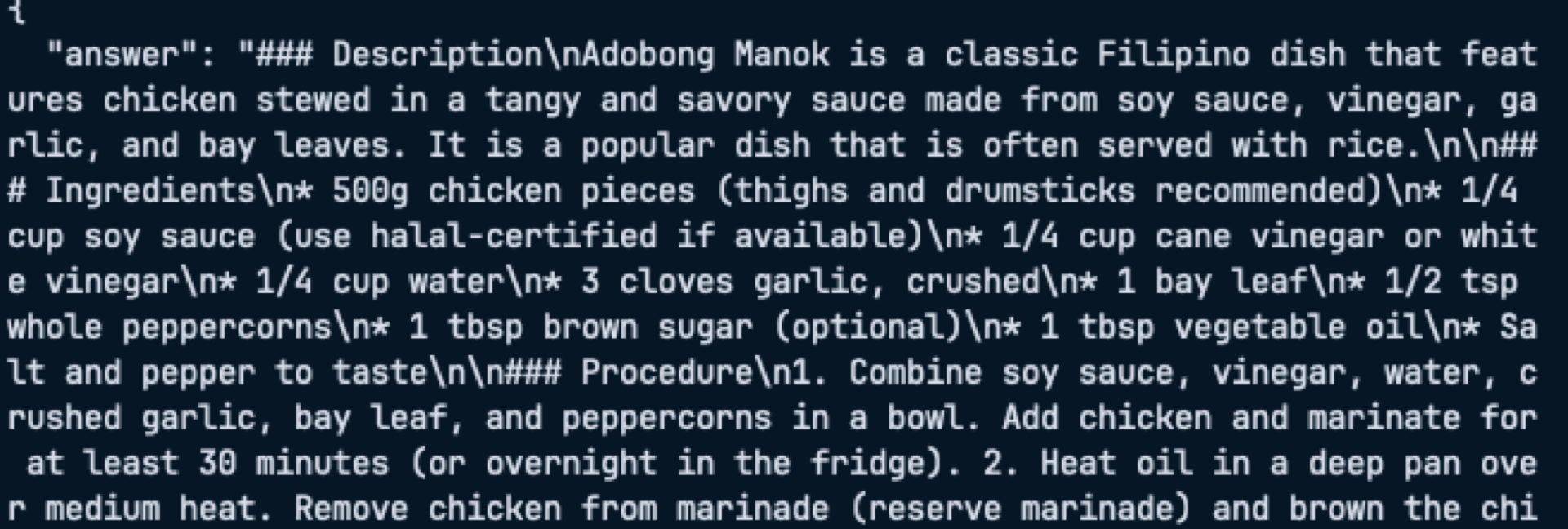
Example output (query: “How do I cook adobong manok for two people?”):
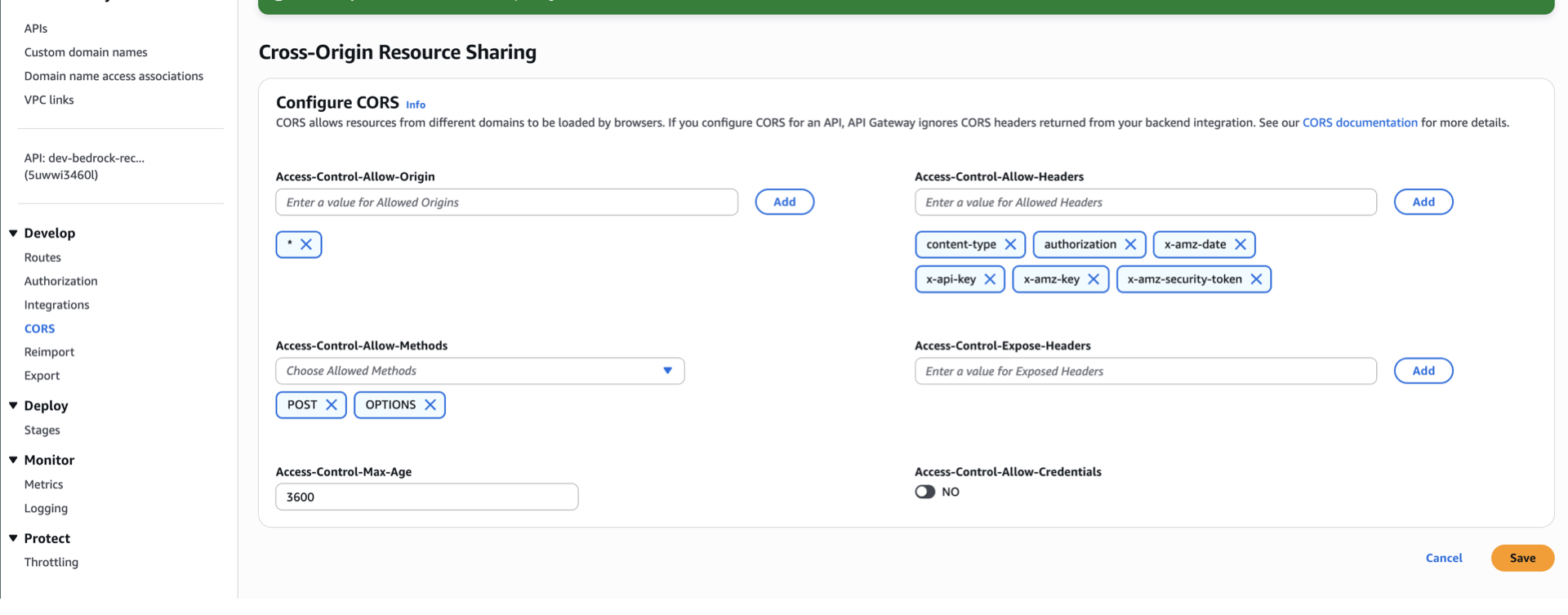
Setting the CORS option to be able to access it in your Application.
To ensure a smooth access to our app, ensure that you enabled CORS. Otherwise your request will get blocked. Go back th API gateway console, on the left panel, select CORS. Simply copy what’s on the image below.
Applying the API endpoint to the Client Application.
Open any text editor, paste this snippet:
-
https://github.com/kaynedrigs/rag-bedrock-cloudwatch/blob/main/kb-chat-ui.html
- Note that you need to change the following:
<YOUR_API_GATEWAY_ID>: Replace with your API Gateway ID<AWS_REGION>: Replace with your AWS region (e.g.,us-east-1)
- Save it as an index.html
- In line 221, change the API_URL to the API endpoint provided.
- Open a terminal, make sure it’s in the same directory with the index.html
- Run `python3 -m http.server 8080` (install python first)
- Open http://localhost:8080/kb-chat-ui.html
Optional: Observability: CloudWatch & token accounting for our Cost-Aware RAG through Amazon Bedrock and Lambda
- Go back to Knowledge Bases, to your knowledge base, and click edit button on the top right side.
- Scroll down and find Log Delivery.
- Click Add and select To Amazon CloudWatch Logs
- Log type should be APPLICATION_LOGS and you can use the default name given.
- Click the created link in the Log Delivery which will direct you in cloudwatch console.
- Click View in Log insights
If that doesn’t work, I challenge you to create your own observability! Expected output should be similar to this:
Congratulations in making this far! 🎉
We’re done in making your first Amazon Bedrock application. Note that this is my first time creating an in-depth hands-on blog about RAG, Gen AI, and Observability. Hope I did a job well done. Don’t forget to clean up everything once finished.
Conclusion
Building a RAG-based app with Amazon Bedrock enables powerful, context-aware AI features. By following the RAG pipeline – indexing your data with embeddings, retrieving relevant context, and then invoking Bedrock’s foundation models – you can create sophisticated assistants or search tools tailored to your domain (for instance, a personal finance Q&A assistant to improve financial literacy). At the same time, it’s critical to monitor these AI workloads using Amazon CloudWatch. Bedrock’s built-in metrics and dashboards (and flexible logging) make it straightforward to keep track of usage, latency, and costs. Beginners can start by experimenting in the AWS console (using the Bedrock console’s Knowledge Bases wizard and the CloudWatch console’s dashboards), while more advanced users can automate everything via the AWS SDKs and CloudWatch APIs. In either case, AWS documentation and blogs provide detailed guidance – as cited above – so developers at any level can ramp up quickly. By following these best practices, you’ll not only build a robust RAG application on AWS, but also demonstrate the kind of well architected, documented knowledge-sharing that AWS Community Builders values.
Browse my other blogs here:
https://tutorialsdojo.com/author/kayne-rodrigo/
🌸 25% OFF All Reviewers on our International Women’s Month Sale! Save 10% OFF All Subscriptions Plans & 5% OFF Store Credits/Gift Cards!

Learn AWS with our PlayCloud Hands-On Labs

$2.99 AWS and Azure Exam Study Guide eBooks

New AWS Generative AI Developer Professional Course AIP-C01

Learn GCP By Doing! Try Our GCP PlayCloud

Learn Azure with our Azure PlayCloud

FREE AI and AWS Digital Courses

FREE AWS, Azure, GCP Practice Test Samplers


Subscribe to our YouTube Channel

Follow Us On Linkedin


Written by: Kayne Uriel Rodrigo