
GitHub Issues Cheat Sheet
Core Elements of GitHub Issues
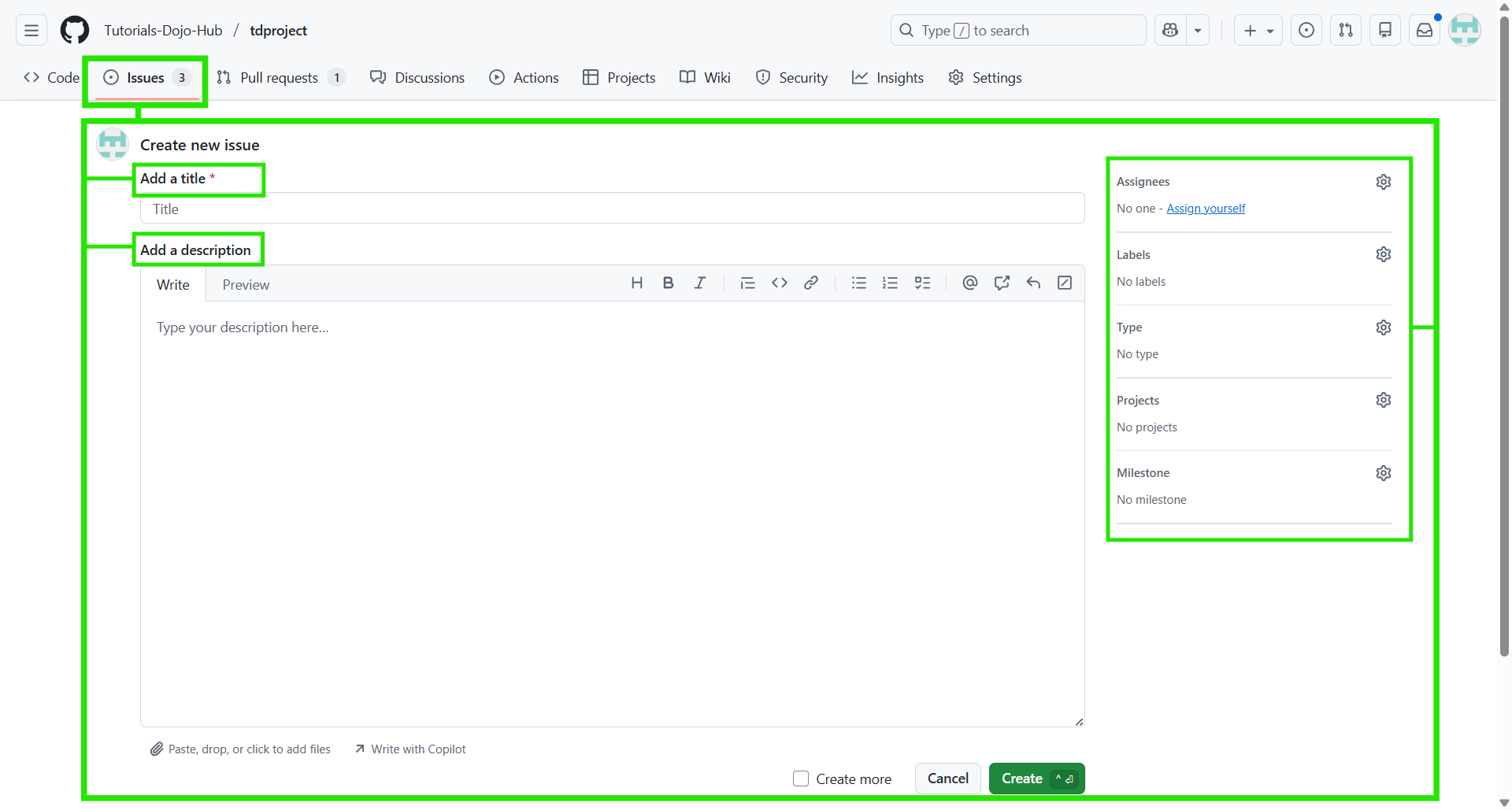
It is composed of the following elements:
|
Title
|
Short summary of the work item.
|
|
Description
|
Detailed information about the issue.
|
|
Assignees
|
Person(s) responsible for the work.
|
|
Labels
|
Tags for categorizing issues (bug, enhancement, etc.)
|
|
Milestones
|
Group issues into larger goals.
|
|
Projects
|
Connect issues to planning boards and workflows.
|
Basic Workflow
1. Create an Issue
-
Click the Issues tab in a repo “New issue“
-
Optionally use issue templates if defined.
2. Add Metadata
-
Apply labels (e.g., bug, feature)
-
Set assignees
-
Add to milestone or project for tracking.
3. Break Work Down
-
Create sub-issues to divide larger tasks.
-
Define issue dependencies (blocks/blocked by).
4. Track Progress
-
View issues in lists or project boards (tables, Kanban, roadmaps).
-
Monitor progress via milestones.

5. Collaborate
-
Discuss the issue inside the comments
-
@mention reviewers or collaborators
-
Reference issues from code/PR comments or commit messages.
6. Close an Issue
- Issues are closed when work is completed or merged via PR using keywords (e.g., fixes #123).
Using GitHub Issues
Creating an Issue
-
Steps
-
-
Navigate to Repository → Issues → New issue
-
Select an issue template (if configured)
-
Add:
-
-
-
-
Clear title
-
Detailed description (Markdown supported)
-
Labels, assignees, projects, milestones
-
-
-
Tips
-
Reference other issues or PRs using #issue-number
-
Use task lists (- [ ]) for progress tracking
-
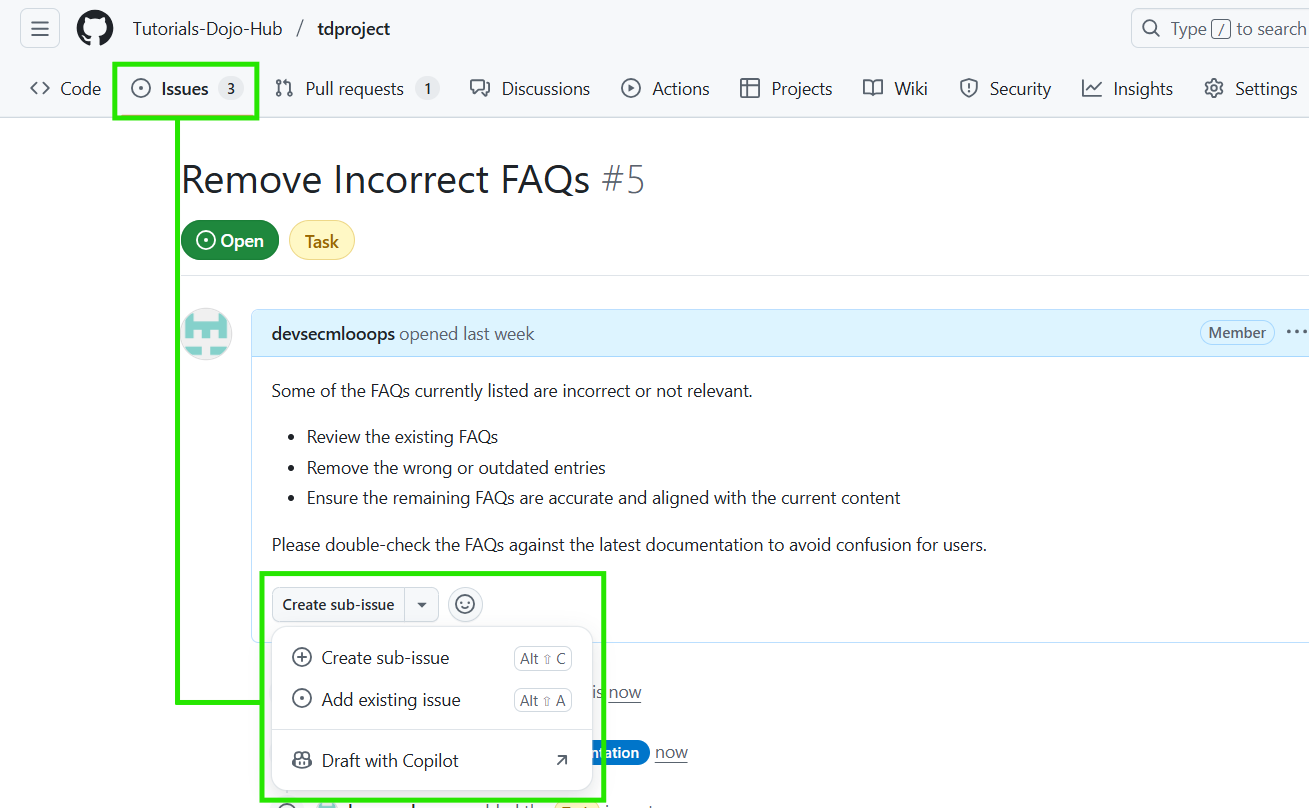
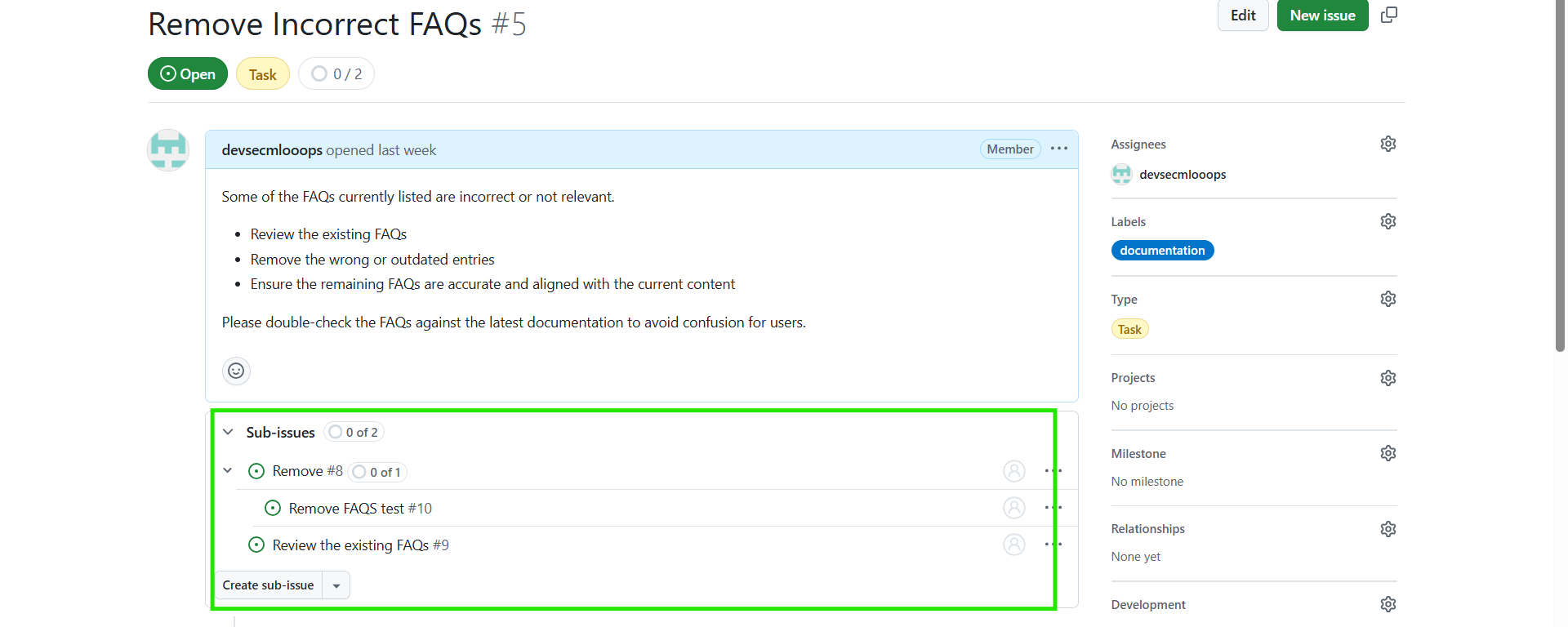
Adding Sub-Issues
Breaking large work into smaller, trackable tasks.
-
How
-
Open a parent issue
-
Add sub-issues using the Sub-issues section or issue sidebar
-
-
Benefits
-
Hierarchical tracking
-
Parent issue progress reflects sub-issue completion
-
Creating Issue Dependencies
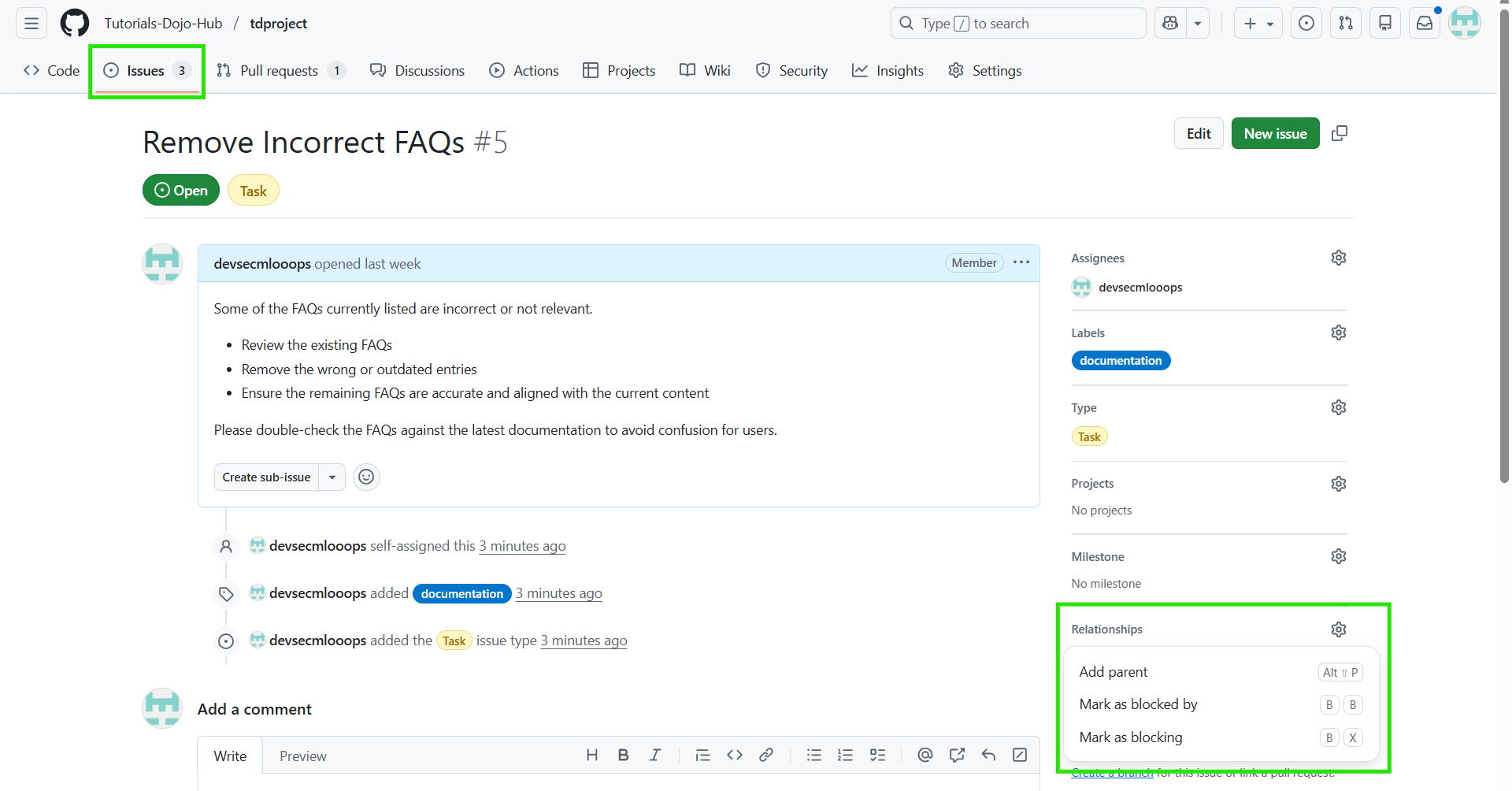
Work must happen in a specific order.
-
Dependency Types
-
Blocks – the current issue cannot start until another is done
-
Is blocked by – the current issue depends on another
-
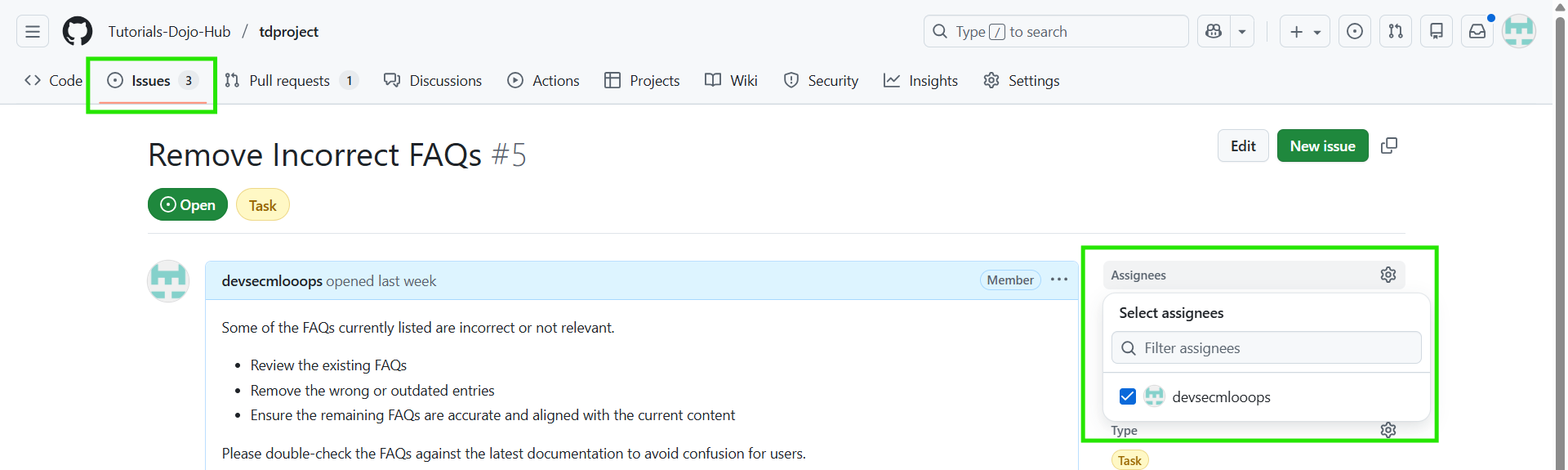
Assigning Issues & Pull Requests
-
Rules
-
Assignees must have repository access
-
Multiple assignees are allowed
-
-
Best Practice
-
Assign exactly one owner
-
Use comments for collaboration, not ownership
-
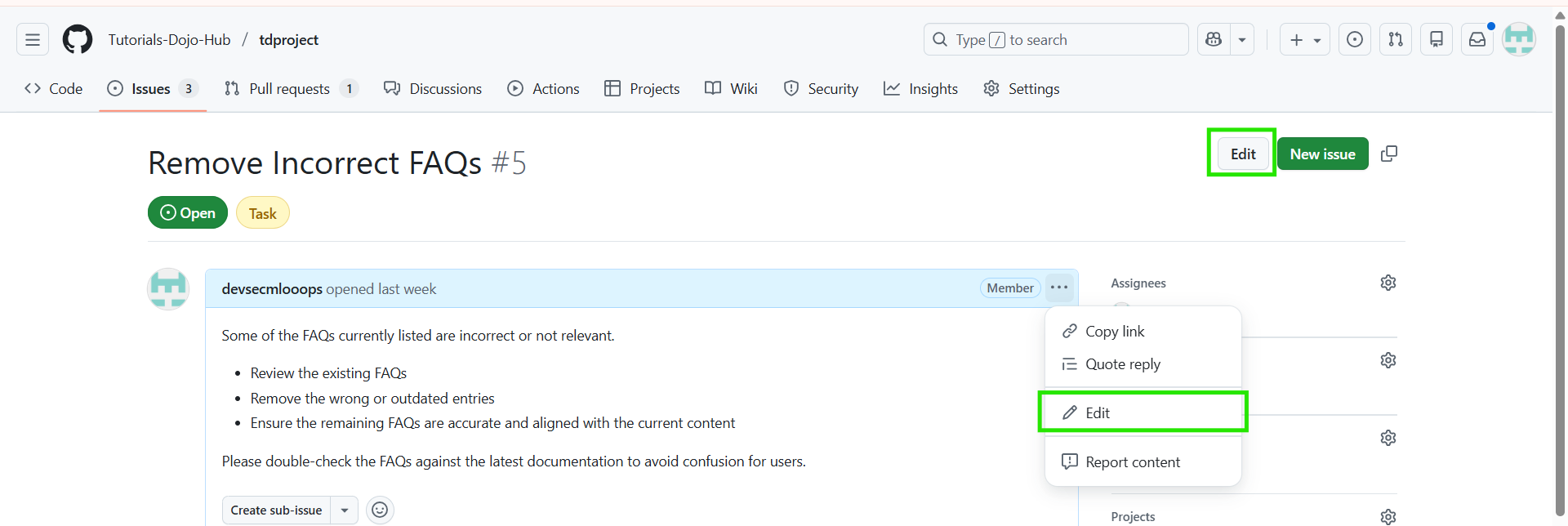
Editing an Issue
-
Editable Fields
-
Title & description
-
Labels
-
Assignees
-
Milestones
-
Issue type (if enabled)
-
-
Notes
-
Edits are logged in the issue timeline
-
Markdown changes update instantly
-
Viewing All Issues & PRs
-
Global View
-
Use github.com/issues to see issues across all repositories
-

Browsing Sub-Issues
-
Where
-
Parent issue → Sub-issues section
-
Repository issue list (if filtering supported)
-
-
Use Case
-
Sprint planning
-
Feature breakdowns
-
Filtering & Searching Issues
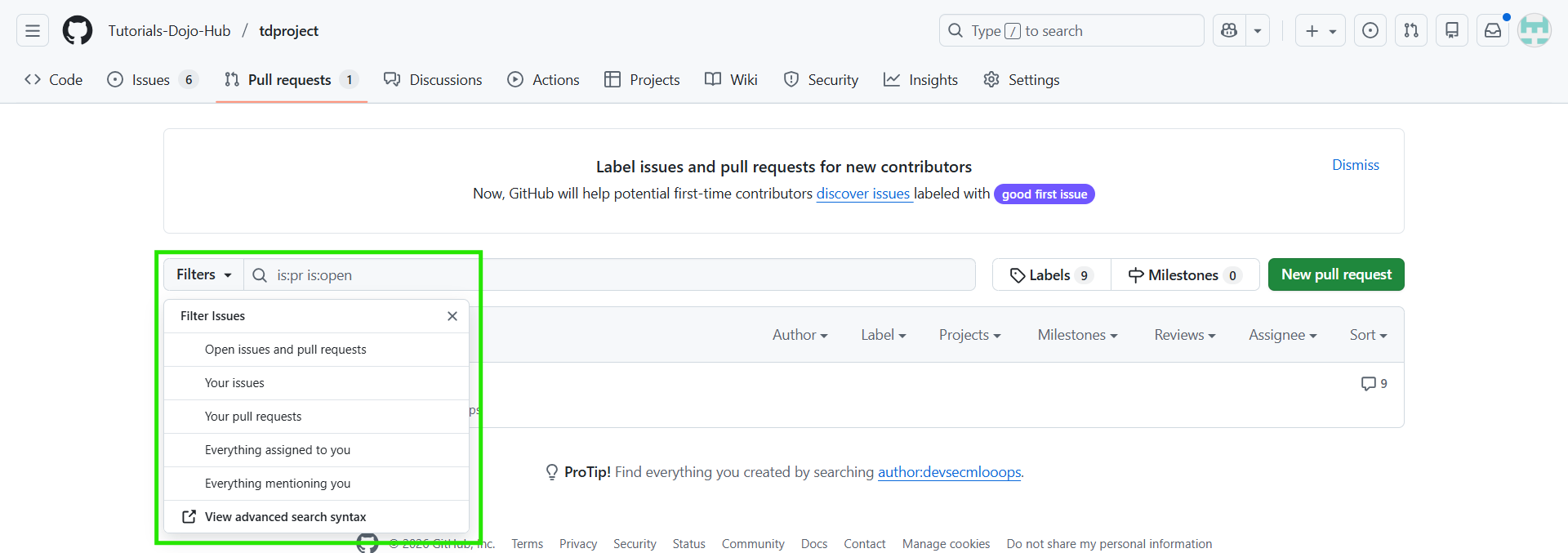
- All open items – Displays every open issue and pull request in the selected scope
- Created by the current user – Shows issues and pull requests authored by the current user
- Assigned to the current user – Highlights items that require the current user’s action or review
- Mentions of the current user – Surfaces issues and pull requests where the current user has been @mentioned

Creating a Branch for an Issue
- How
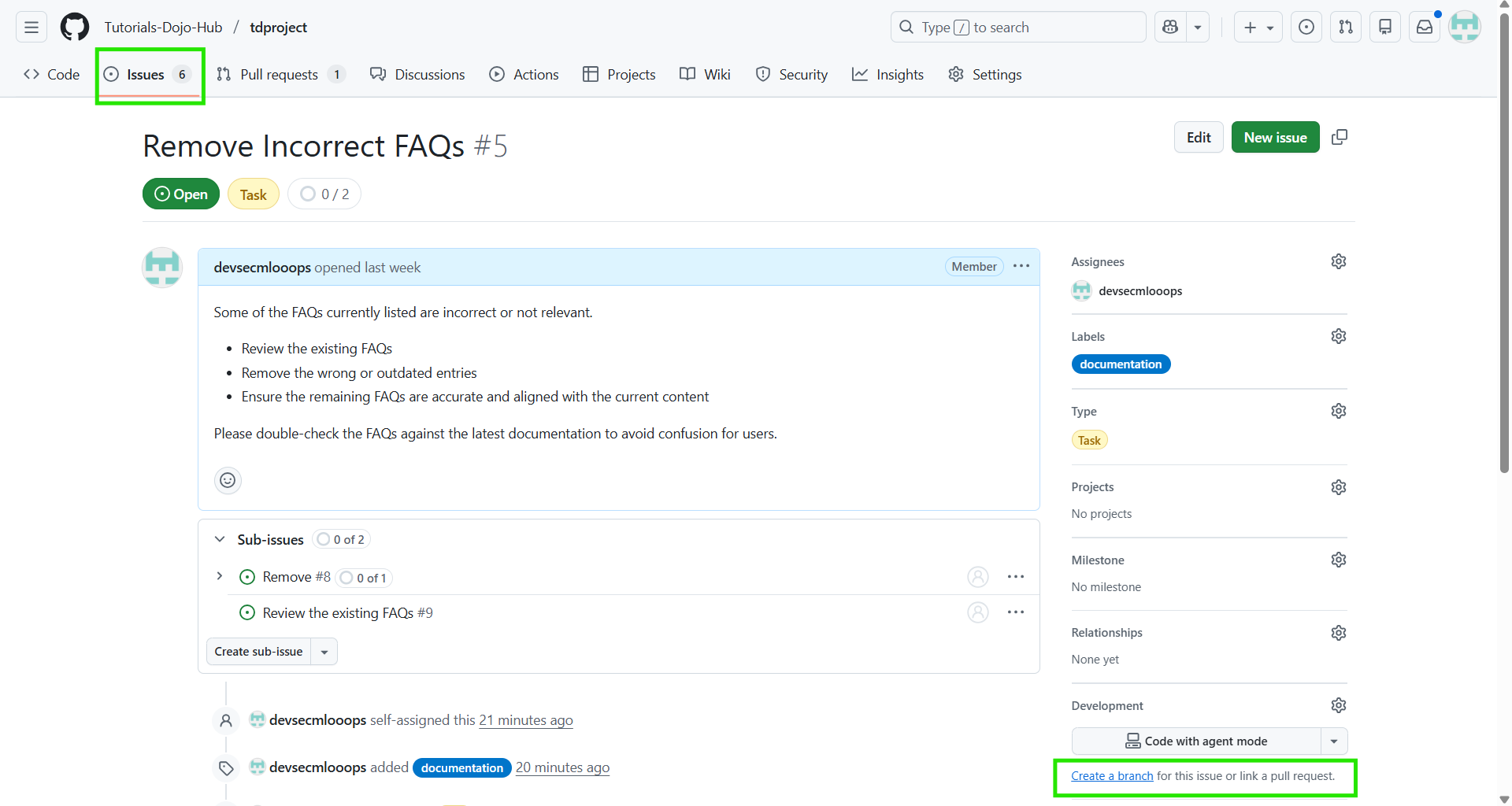
- From an issue → Create branch
- Branch name auto-links to issue
- Benefits
- Automatic traceability
- Easier PR linking
Linking a Pull Request to an Issue
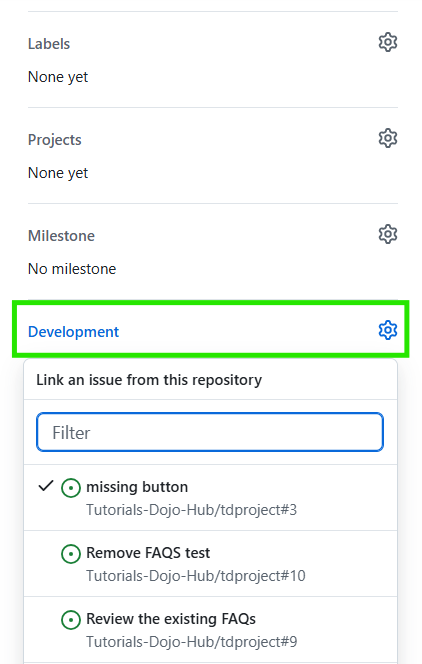
A pull request or branch can be linked to an issue to indicate that work on a fix is underway. When the linked pull request or branch is merged, the associated issue is automatically closed, helping keep issue tracking accurate and up to date.
- Automatic Closing Keywords
- Fixes #123
- Closes #123
- Resolves #123
- Result
- Issue closes automatically when PR is merged into default branch
Slash Commands (Inside Issues & PRs)
-
Examples
-
/assign @username
-
/label bug
-
/milestone v1.0
-
/close
-
-
Purpose
-
Faster issue management without UI navigation
-
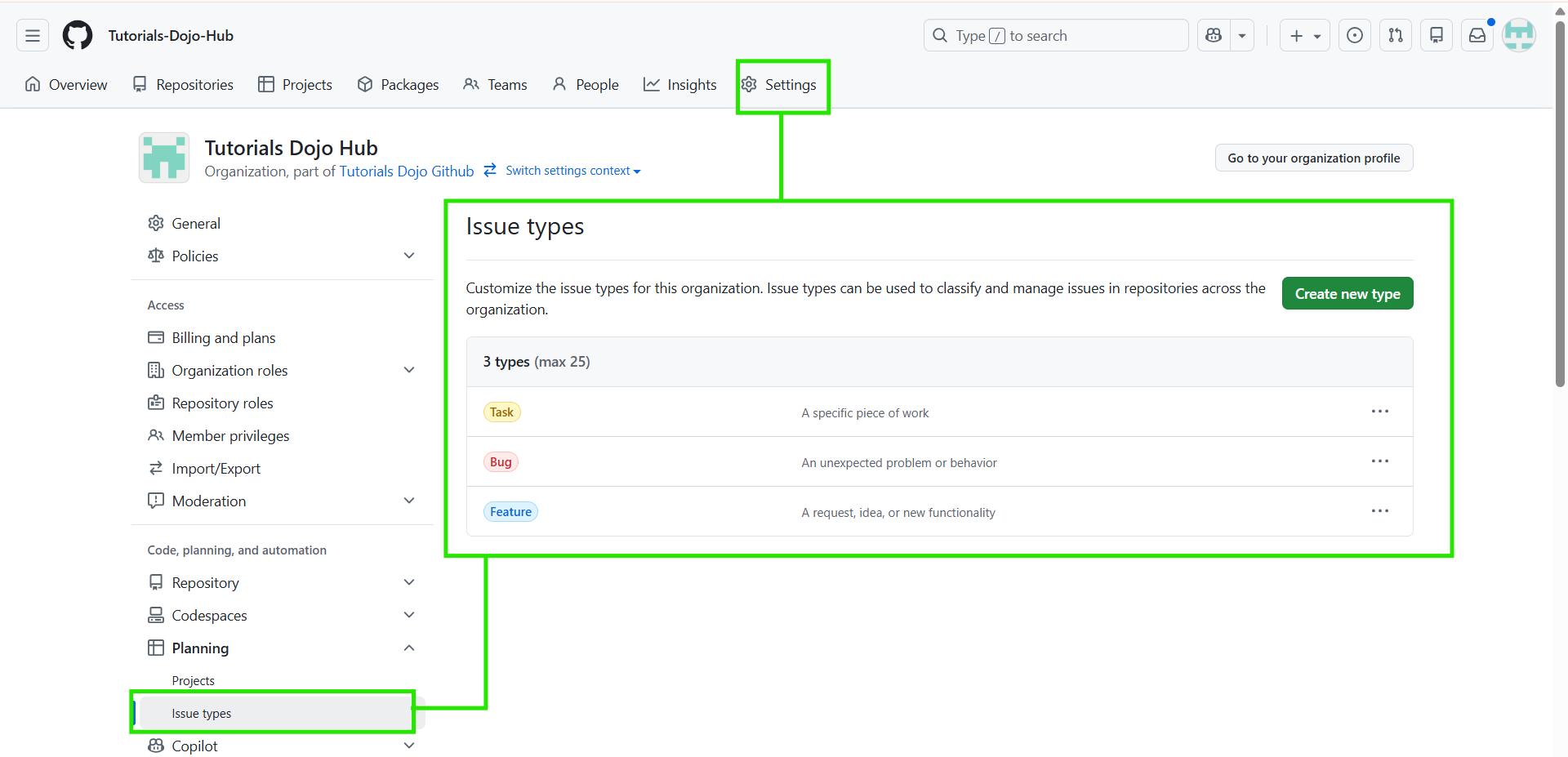
Managing Issue Types (Organizations)
-
Common Types
-
Bug
-
Feature
-
Task
-
Incident
-
-
Notes
-
Configured at organization level
-
Works alongside labels (not a replacement)
-
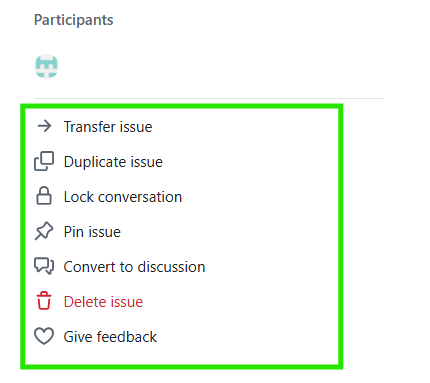
Administering Issues
|
Category |
Purpose |
Format |
|
Triaging Issues |
Uses GitHub’s AI-powered intake tool to classify and triage incoming issues | Helps identify actionable issues or those needing more details; requires admin access to enable |
|
Pinning Important Issues |
Keeps important issues visible at the top of the issue list | Up to three issues can be pinned: useful for high-priority bugs or tasks |
|
Marking Duplicates |
Links an issue or pull request as a duplicate of another | Add a comment: “Duplicate of #number”; duplicate status can be undone |
|
Transferring Issues |
Moves issues between repositories under the same owner or organization | Retains comments, assignees, and matching labels/milestones when possible; requires write access in both repos |
|
Closing Issues |
Marks an issue as resolved or no longer needed | Can be closed manually or automatically using keywords in pull requests |
|
Deleting Issues |
Permanently removes an issue from the repository | Requires admin permissions; deletion cannot be undone |
|
Duplicating Issues |
Creates a copy of an existing open issue | Useful for reusing templates, tracking similar work, or reproducing known issues |
C0nclusion
References
https://docs.github.com/en/issues/tracking-your-work-with-issues/learning-about-issues/
https://docs.github.com/en/issues/tracking-your-work-with-issues/using-issues
https://docs.github.com/en/issues/tracking-your-work-with-issues/administering-issues
🌸 25% OFF All Reviewers on our International Women’s Month Sale Extension! Save 10% OFF All Subscription Plans & 5% OFF Store Credits/Gift Cards!

Learn AWS with our PlayCloud Hands-On Labs

$2.99 AWS and Azure Exam Study Guide eBooks

New AWS Generative AI Developer Professional Course AIP-C01

Learn GCP By Doing! Try Our GCP PlayCloud

Learn Azure with our Azure PlayCloud

FREE AI and AWS Digital Courses

FREE AWS, Azure, GCP Practice Test Samplers


Subscribe to our YouTube Channel

Follow Us On Linkedin


Written by: Ace Kenneth Batacandulo




