
Managing workloads across multiple AWS accounts is a common strategy for improving security, separating environments, organizing teams, and controlling access to cloud resources. An organization might maintain separate AWS accounts for production, development, security, shared services, or individual business units. Although this separation provides many operational and security benefits, it can make monitoring more complicated.
Without centralized observability, administrators and operations teams may have to repeatedly switch between AWS accounts to investigate resource utilization, application health, or performance issues. This becomes increasingly inconvenient as the number of accounts grows.
Amazon CloudWatch cross-account observability addresses this problem by allowing one AWS account to act as a central monitoring account that can view observability data generated in other AWS accounts. Instead of treating account boundaries as monitoring boundaries, administrators can use the monitoring account to search, visualize, analyze, and troubleshoot supported telemetry from linked source accounts.
CloudWatch cross-account observability supports multiple types of telemetry, including CloudWatch metrics, CloudWatch Logs log groups, AWS X-Ray traces, Application Signals services and service level objectives (SLOs), CloudWatch Application Insights applications, and CloudWatch Internet Monitor monitors.
In this tutorial, we will configure CloudWatch Metrics cross-account sharing between two AWS accounts:
-
Monitoring account: AccountA
-
Source account: AccountB
-
AWS Region: Asia Pacific (Singapore) –
ap-southeast-1 -
Telemetry shared: Amazon CloudWatch Metrics
AccountA will become the central monitoring account. AccountB will remain the owner of its resources and metrics but will make its selected CloudWatch metric data available to AccountA through CloudWatch cross-account observability.
Understanding CloudWatch Cross-Account Observability
CloudWatch cross-account observability is built around two important account roles: the monitoring account and the source account.
A monitoring account is the AWS account from which administrators centrally view and interact with observability information. It can be linked to multiple source accounts, making it useful as an operations, observability, or monitoring hub.
A source account, on the other hand, is an AWS account where workloads and AWS resources actually generate observability information. The source account determines which supported telemetry it is willing to share with the monitoring account.
AWS implements this relationship using Amazon CloudWatch Observability Access Manager (OAM). Behind the console configuration, the monitoring account creates a resource known as a sink. The sink serves as an attachment point for source accounts. A source account then creates an observability link to that sink.
Each account can have one OAM sink per AWS Region, and the sink belongs to and is managed by the monitoring account. The corresponding link is owned and managed by the source account.
Conceptually, the relationship in this tutorial looks like this:
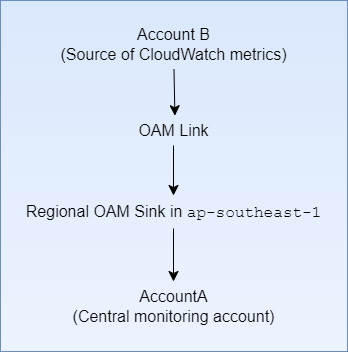
This design is important because AccountB does not stop owning its metrics or resources. Instead, it authorizes the monitoring account to access selected observability data.
Why Use Cross-Account Observability?
The primary purpose of CloudWatch cross-account observability is to provide a more unified operational view of workloads distributed across AWS accounts.
Imagine an application where the front-end infrastructure runs in one AWS account, databases run in another account, and shared backend services are hosted in yet another. If an outage occurs, investigating each component independently may require repeatedly changing accounts and reconstructing the relationship between different metrics and events.
With cross-account observability, the operations team can work from a central monitoring account and examine telemetry from linked accounts without repeatedly signing in to each one.
AWS describes this capability as allowing monitoring teams to interact with supported telemetry from source accounts without the usual account boundaries.
Centralized Operations
A dedicated monitoring account provides operations teams with a single place from which to investigate infrastructure and application behavior. This can make monitoring considerably easier in environments containing many AWS accounts.
For example, a company might operate separate production AWS accounts for several product teams but maintain one centralized account for its Site Reliability Engineering or Network Operations Center team. Cross-account observability allows that monitoring account to access authorized telemetry without placing application resources directly inside the monitoring account.
Reduced Account Switching
Without cross-account observability, engineers frequently need to sign in to or assume roles in different accounts while troubleshooting. Centralizing the observability experience reduces this operational friction.
This is particularly useful during incidents when engineers need to quickly correlate CPU utilization, request counts, latency, error rates, custom application metrics, and other performance indicators across systems.
Separation of Workloads and Monitoring Responsibilities
Cross-account observability also supports AWS environments in which application ownership and monitoring responsibilities are deliberately separated.
Application teams can continue operating their own accounts while a central operations team monitors overall application health from another account. The two functions therefore do not have to share an AWS account simply to gain visibility into the same monitoring information.
Selective Sharing
A source account does not necessarily need to expose every type of observability data.
The monitoring account defines which telemetry types it will accept, while the source account specifies which telemetry types it wants to share. For CloudWatch metrics and logs, sharing can be further filtered so that only selected metric namespaces or log groups are exposed.
For this implementation, only Metrics will be selected in both accounts. This keeps the scope of the exercise focused specifically on cross-account CloudWatch metrics.
It is important for the selections on both sides to be compatible. AWS states that if the monitoring account supports more telemetry types than the source chooses to share, the link can still be created and only the types selected by both sides are shared. However, if the source attempts to share telemetry types that the monitoring account has not permitted, link creation fails.
Scalability
CloudWatch cross-account observability is also designed for environments considerably larger than the two-account example in this tutorial.
A monitoring account can be linked to as many as 100,000 source accounts, while a source account can share observability information with as many as five monitoring accounts.
For organizations with many accounts, AWS recommends integrating the solution with AWS Organizations so that accounts can be onboarded more systematically. The individual-account URL method used in this tutorial is particularly convenient for labs, demonstrations, small environments, or situations in which a specific account needs to be linked manually.
Region Considerations
Before beginning the configuration, make sure that both AWS consoles are operating in:
Asia Pacific (Singapore) — ap-southeast-1
This detail is critical.
CloudWatch cross-account observability using OAM operates within an AWS Region. The OAM sink in AccountA is Regional, and AccountB creates its link to that Regional sink.
AWS documents CloudWatch cross-account observability as a mechanism for monitoring applications spanning multiple accounts within a Region. Each account can have one sink per Region.
Therefore, creating the monitoring configuration in Singapore and then attempting to view resources whose metrics exist only in another Region will not produce the expected result.
For this exercise, verify Asia Pacific (Singapore) in the AWS console Region selector before configuring either account.
Prerequisites
Before beginning, make sure that you have access to both AWS accounts and sufficient permissions to configure CloudWatch cross-account observability.

The configuration requires OAM permissions for creating and managing the monitoring sink and source link. AWS notes that administrators can perform the setup with full administrative access or with appropriately scoped OAM and CloudWatch permissions.
You should also confirm that AccountB is already publishing the CloudWatch metrics that you intend to observe. If the verification uses a custom namespace, make a note of that namespace before starting.
The accounts used in this walkthrough are:
|
Role |
AWS Account |
|
Monitoring account |
AccountA |
|
Source account |
AccountB |
|
Region |
Asia Pacific (Singapore) – ap-southeast-1 |
Part 1: Configure AccountA as the Monitoring Account
The first half of the configuration takes place in AccountA.
The objective is to tell CloudWatch that this account will function as a monitoring account, specify what kind of observability information it is allowed to receive, and authorize AccountB as a source.
Step 1: Open the CloudWatch Monitoring Account Configuration
Sign in to AccountA and first confirm that the selected Region is Asia Pacific (Singapore).
Open the Amazon CloudWatch console. From the CloudWatch navigation pane, select Settings.
Locate the Monitoring account configuration section and choose Configure.
This is more than simply enabling another CloudWatch console option. Configuring the account as a monitoring account establishes the CloudWatch OAM configuration that will eventually act as the centralized destination for observability access.
The sink created through this process becomes the attachment point to which authorized source accounts can create OAM links.
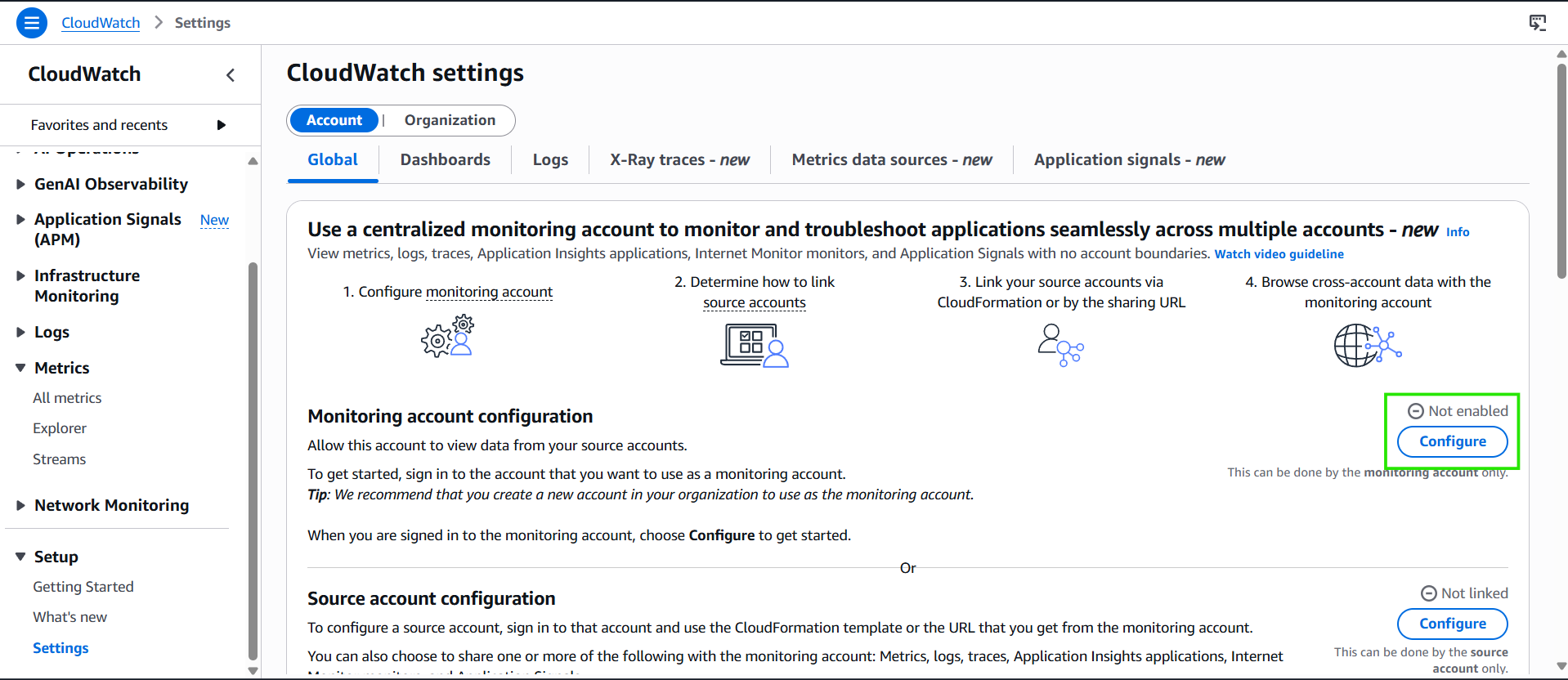 Figure 1: Opening the Monitoring account configuration from the CloudWatch Settings page.
Step 2: Allow Metrics Data
The configuration page presents the types of observability information that the monitoring account is willing to receive from linked source accounts.
Select Metrics.
For this implementation, we are deliberately enabling only metric sharing. This means the purpose of the relationship is to allow AccountA to observe CloudWatch metrics generated by AccountB.
CloudWatch cross-account observability supports other data types as well, including logs and traces, but enabling additional telemetry is not required for this exercise. Keeping only Metrics selected also makes the resulting relationship easier to understand and verify.
The selection made here defines what the monitoring account permits. Later, when configuring AccountB, the source account will separately specify what it intends to share.
Both sides participate in determining the effective sharing relationship.
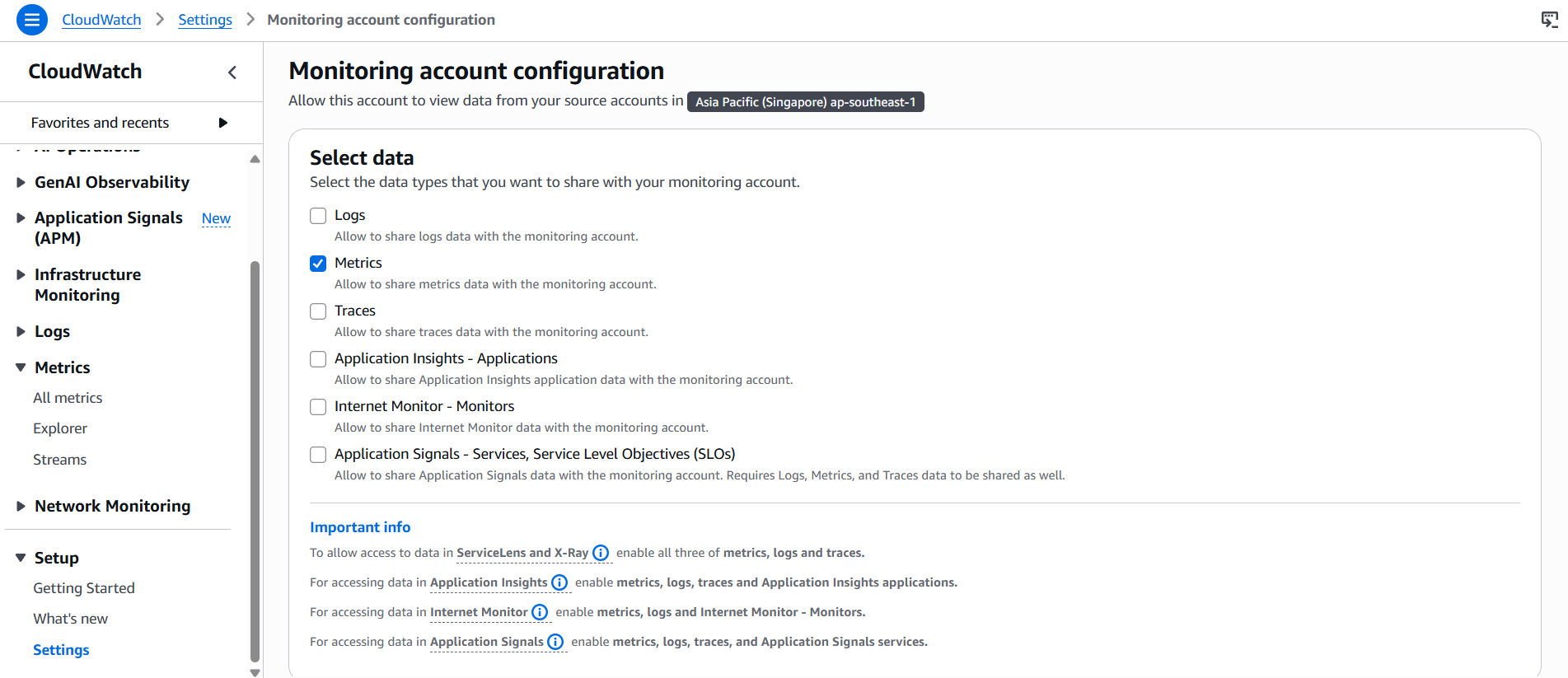 Figure 2: Selecting Metrics as the observability data type available to the monitoring account.
Step 3: Authorize AccountB
In the section where CloudWatch asks for the source accounts that the monitoring account will be permitted to view, enter the AWS account ID of AccountB.
For security purposes, the account ID is not included in this article.
Adding an account here does not immediately expose its metrics. Instead, this configuration authorizes that AWS account to establish the other half of the OAM relationship.
Think of this stage as the monitoring account declaring:
AccountB is allowed to link to my monitoring configuration and share the permitted observability information with me.
The actual link still needs to be accepted and created from the AccountB side.
AWS also supports specifying AWS Organizations organization IDs or organization paths instead of individual account IDs. For this tutorial, however, we are intentionally establishing a direct relationship between two individual AWS accounts.
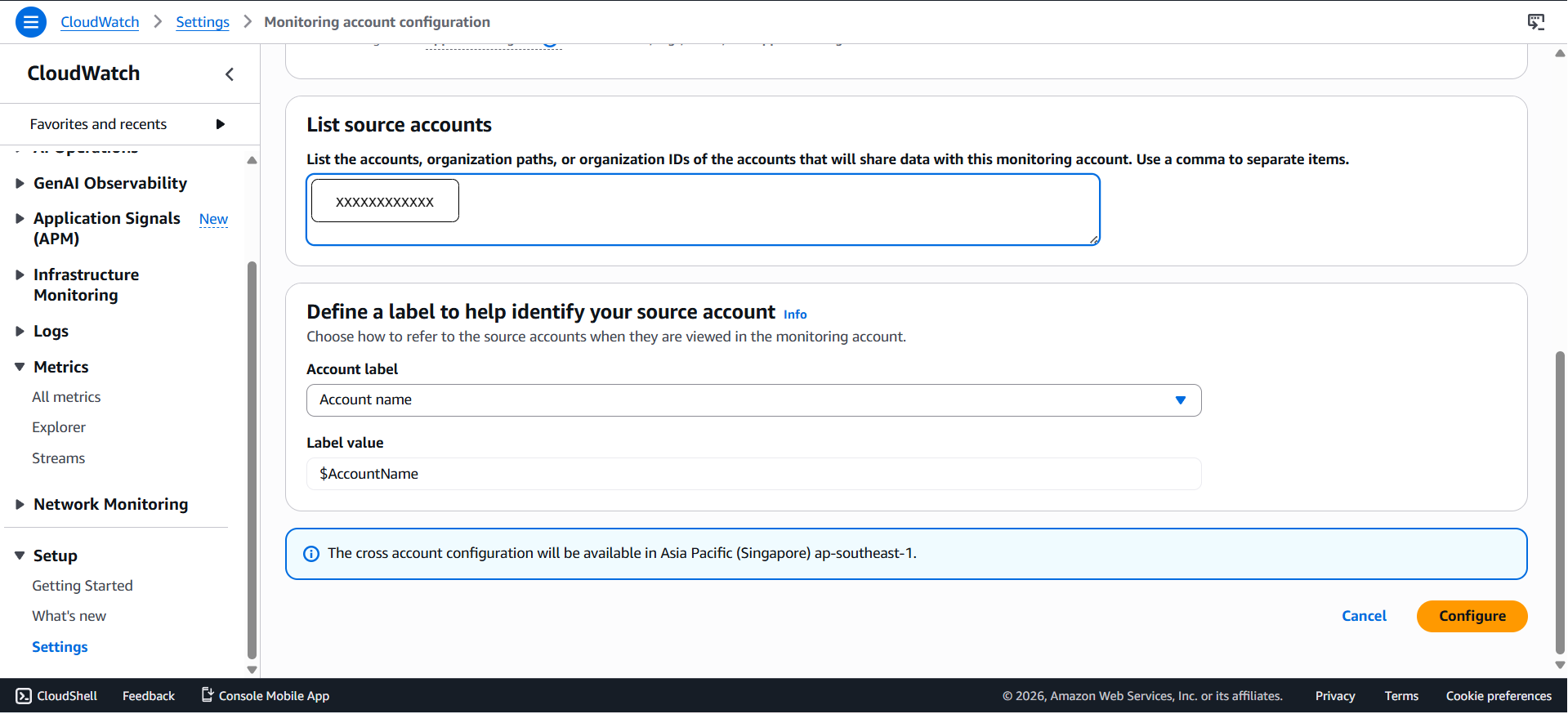 Figure 3: Adding AccountB as an authorized source account.
Step 4: Configure the Monitoring Account
After reviewing the configuration, choose Configure.
CloudWatch now saves the monitoring account configuration.
At this point, AccountA has been prepared to function as the monitoring account in ap-southeast-1. However, the setup is not yet complete.
AWS explicitly notes that configuring the monitoring account alone does not finish the cross-account relationship. The source account must still create a link to the monitoring account.
This separation is intentional. A monitoring account should not be able to unilaterally begin observing another account merely by entering its account ID. The source side must participate in establishing the link.
Part 2: Generate the Source-Account Linking URL
Instead of manually reconstructing the OAM configuration from AccountB, this tutorial uses the linking URL generated by CloudWatch.
The URL contains the information needed to direct AccountB to the correct monitoring-account configuration.
Step 5: Open Resources to Link Accounts
Remain signed in to AccountA.
Return to:
CloudWatch → Settings
Under Monitoring account configuration, choose Resources to link accounts.
This page provides mechanisms for onboarding source accounts.
AWS supports two general approaches: organizations can use AWS Organizations and CloudFormation for larger-scale onboarding, while individual source accounts can be linked using either CloudFormation or a generated URL.
Because only one source account is being added in this exercise, the URL approach is straightforward and appropriate.
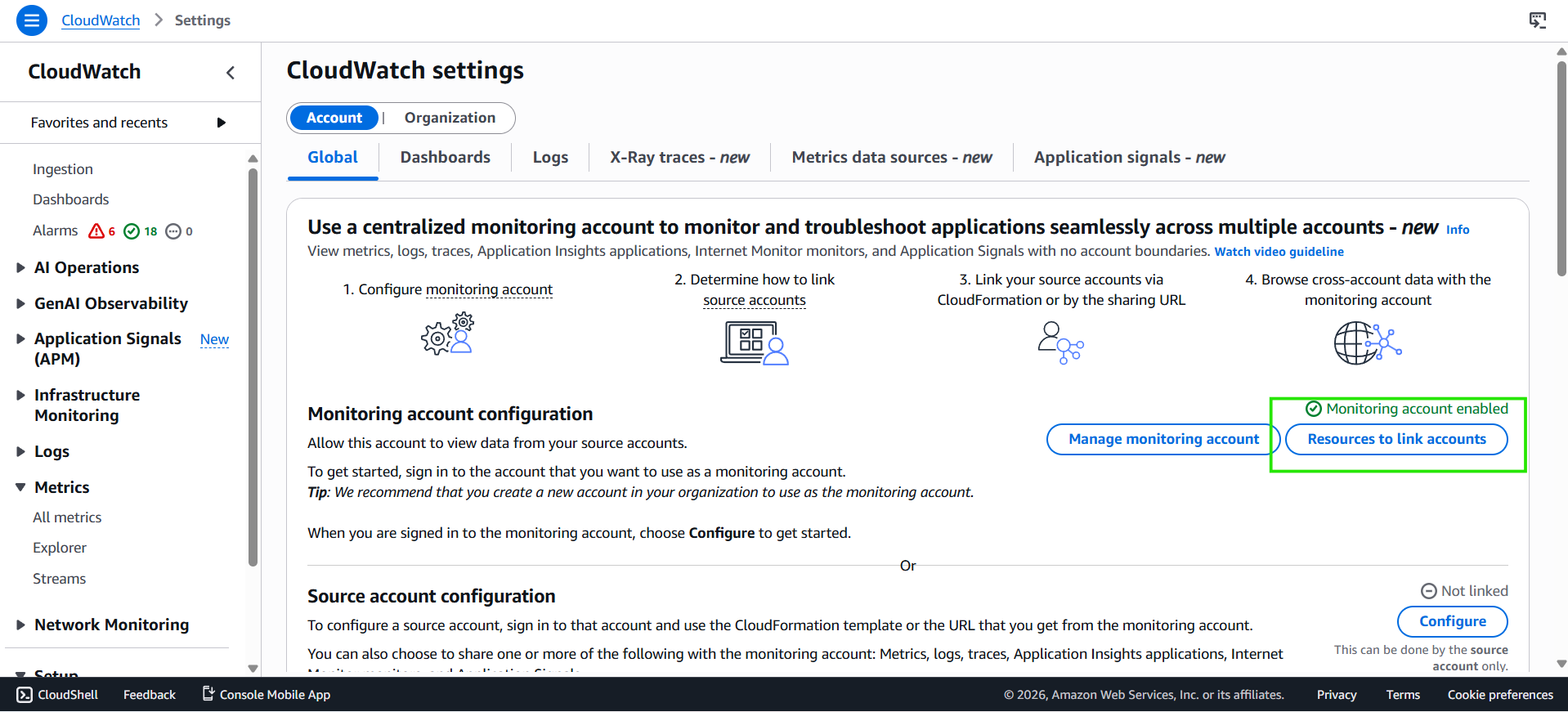 Figure 4: Opening Resources to link accounts from the monitoring account configuration.
Step 6: Select Any Account and Copy the URL
On the resources page, select Any account.
Then choose the option to copy the URL.
AWS provides the Any account option specifically for onboarding individual AWS accounts as source accounts. The generated URL directs a signed-in source-account administrator to the relevant CloudWatch settings page and prepopulates information associated with the monitoring account.
Copy this URL carefully.
You will use it while signed in to AccountB.
The URL is useful because it reduces the possibility of manually entering the wrong sink information. When the AccountB administrator opens it, CloudWatch knows which monitoring configuration the source account is being asked to link to.
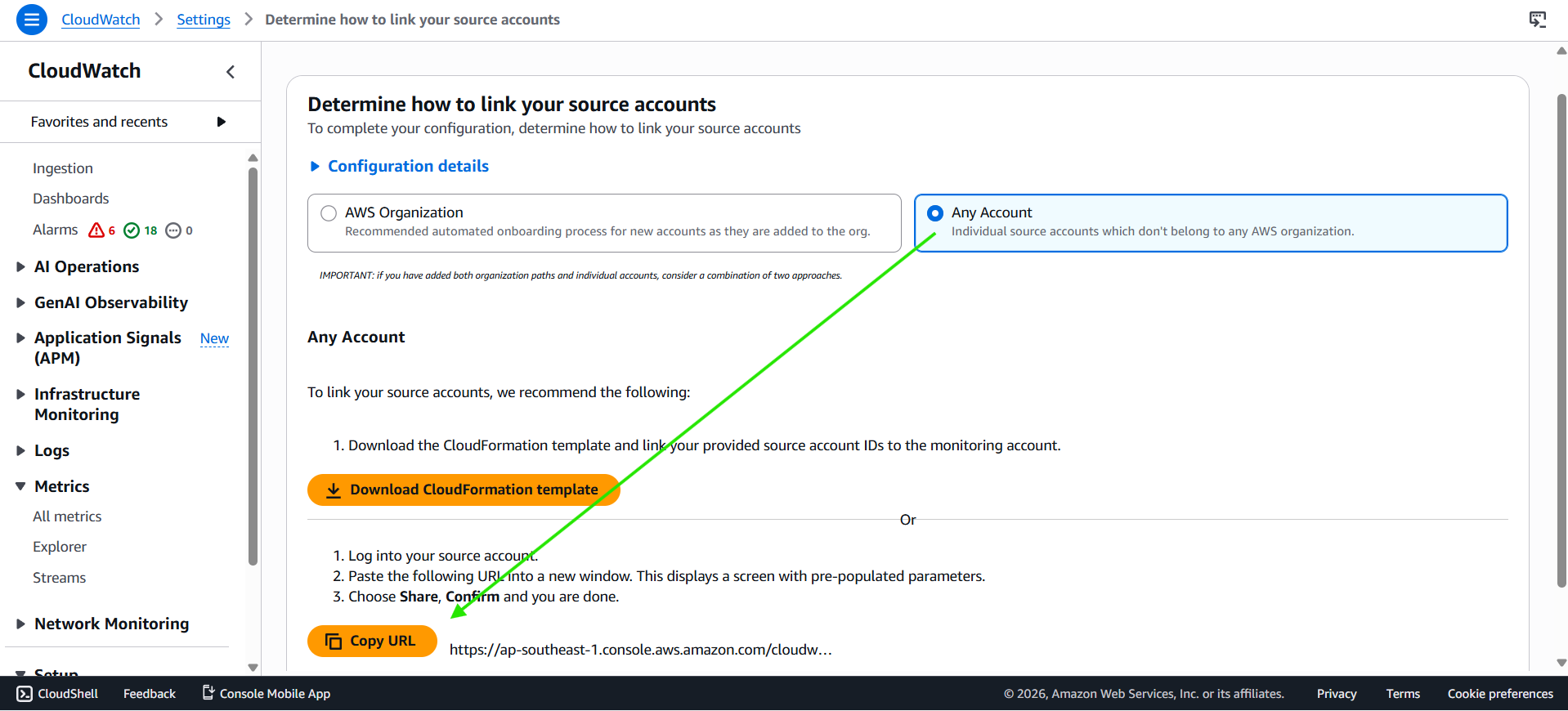
Figure 5: Selecting Any account and copying the source-account linking URL.
Part 3: Configure AccountB as the Source Account
The configuration now moves to AccountB.
AccountB owns the CloudWatch metrics that we ultimately want to view from AccountA. It must therefore explicitly create the observability link and specify what information it will share.
Before proceeding, make sure you are no longer operating in AccountA.
Sign in to AccountB and confirm once again that the console is set to:
Asia Pacific (Singapore) — ap-southeast-1
Step 1: Open the Link Generated by AccountA
Paste the URL copied from AccountA into your browser while authenticated to AccountB.
Opening the URL should take you to the CloudWatch configuration interface with information about the monitoring account already populated.
AWS specifically advises that when using the generated URL, the source administrator should not alter the monitoring-account configuration ARN supplied by the URL.
The prepopulated information identifies the monitoring account sink to which AccountB will create its link.
This is the point at which the two independently configured account roles begin to come together.
Step 2: Select Metrics Data
Under Select data, choose Metrics.
This selection tells CloudWatch that AccountB wants to share CloudWatch metric data through the link.
The choice is intentionally consistent with the configuration made earlier in AccountA:
AccountA monitoring account: permits Metrics
AccountB source account: shares Metrics
As a result, Metrics becomes the effective telemetry type for the relationship.
CloudWatch also allows the source account to share only a subset of metric namespaces if more granular control is necessary. AWS supports metric filtering based on the Namespace field. For example, organizations with many application namespaces could choose to expose only metrics belonging to a particular application or service rather than every available metric namespace.
For this tutorial, follow the configuration shown in the supplied screenshot and select Metrics data.
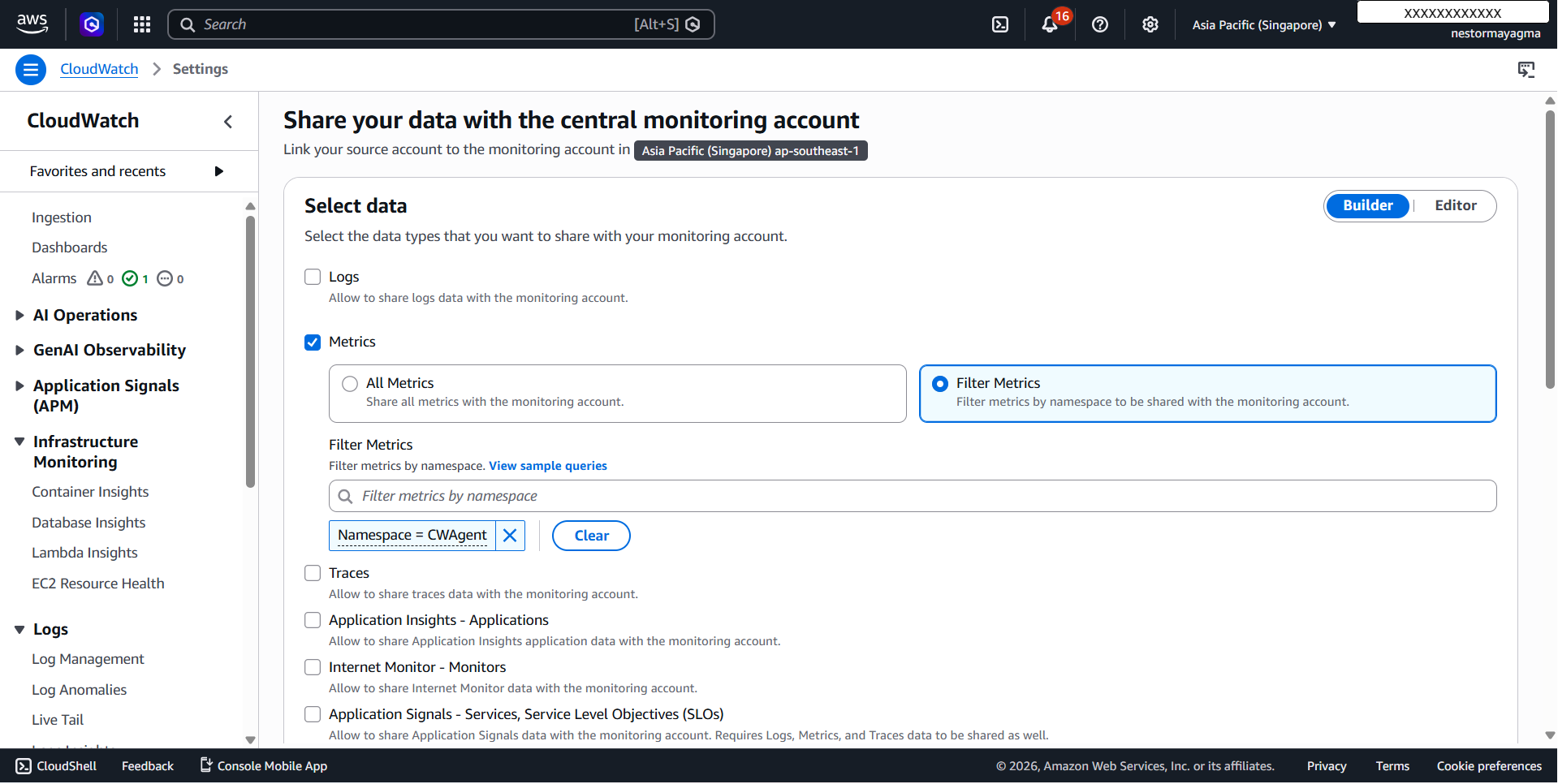
Figure 6: Configuring AccountB to share CloudWatch Metrics.
Step 3: Create the Link
Review the configuration and scroll toward the bottom of the page.
Choose Link.
This action requests the creation of the OAM link between AccountB and AccountA.
Behind the console, the relationship can now be understood as two OAM resources working together:
-
The sink exists in AccountA.
-
The link exists in AccountB.
The source account controls its link, which is also why removal of an established cross-account observability relationship is initiated from the source side. AWS documents links as resources managed by their respective source accounts.
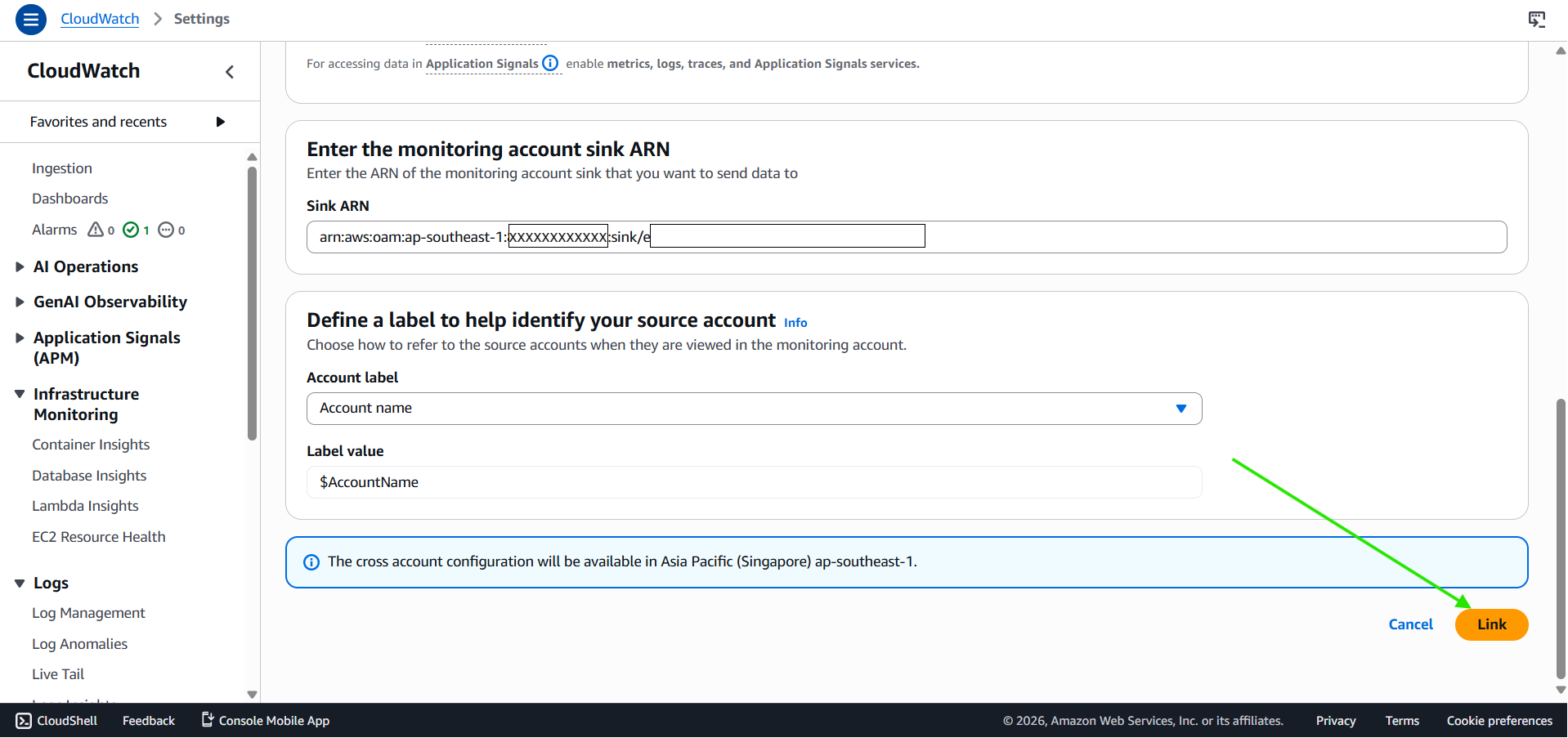
Figure 7: Selecting Link to establish the observability relationship with AccountA.
Step 4: Confirm the Cross-Account Link
CloudWatch displays a confirmation prompt before completing the operation.
Enter:
Confirm
Then choose Confirm.
The explicit confirmation helps prevent an administrator from unintentionally creating a cross-account telemetry-sharing relationship.
AWS’s documented URL-based workflow similarly requires choosing Link, entering Confirm, and then choosing Confirm to finalize the connection.
After confirmation succeeds, AccountB is linked to AccountA for the selected telemetry type.
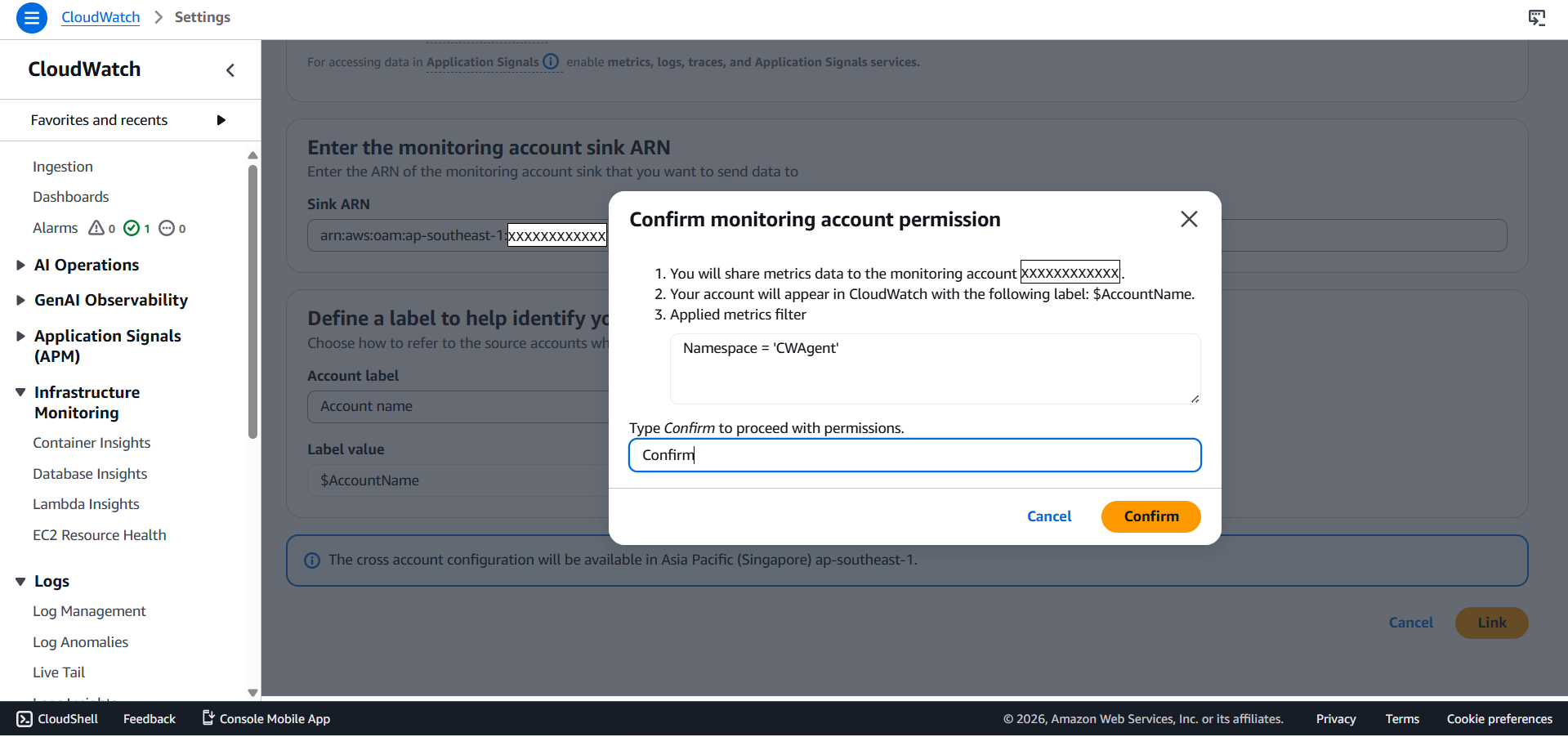
Figure 8: Confirming creation of the CloudWatch cross-account observability link.
Verifying the Cross-Account Metrics Configuration
After establishing the link, do not assume that a missing metric in the monitoring account immediately indicates a failed configuration.
Allow several minutes for the configuration and subsequent metric information to become visible across the accounts.
There is also an important CloudWatch behavior to keep in mind: AWS states that a metric name does not appear in the monitoring account until that metric emits a new data point after the link has been created.
Consequently, if you are testing with a custom metric that stopped publishing before cross-account observability was configured, simply waiting may not be sufficient. Generate or wait for another data point.
Once the configuration has had time to propagate:
-
Sign back in to AccountA.
-
Confirm that the selected Region is Asia Pacific (Singapore).
-
Open Amazon CloudWatch.
-
Navigate to Metrics.
-
Open the metric browsing interface, such as All metrics.
-
Look for the namespace containing the metrics generated in AccountB.
The expected namespace from AccountB should now be available from the AccountA monitoring environment.
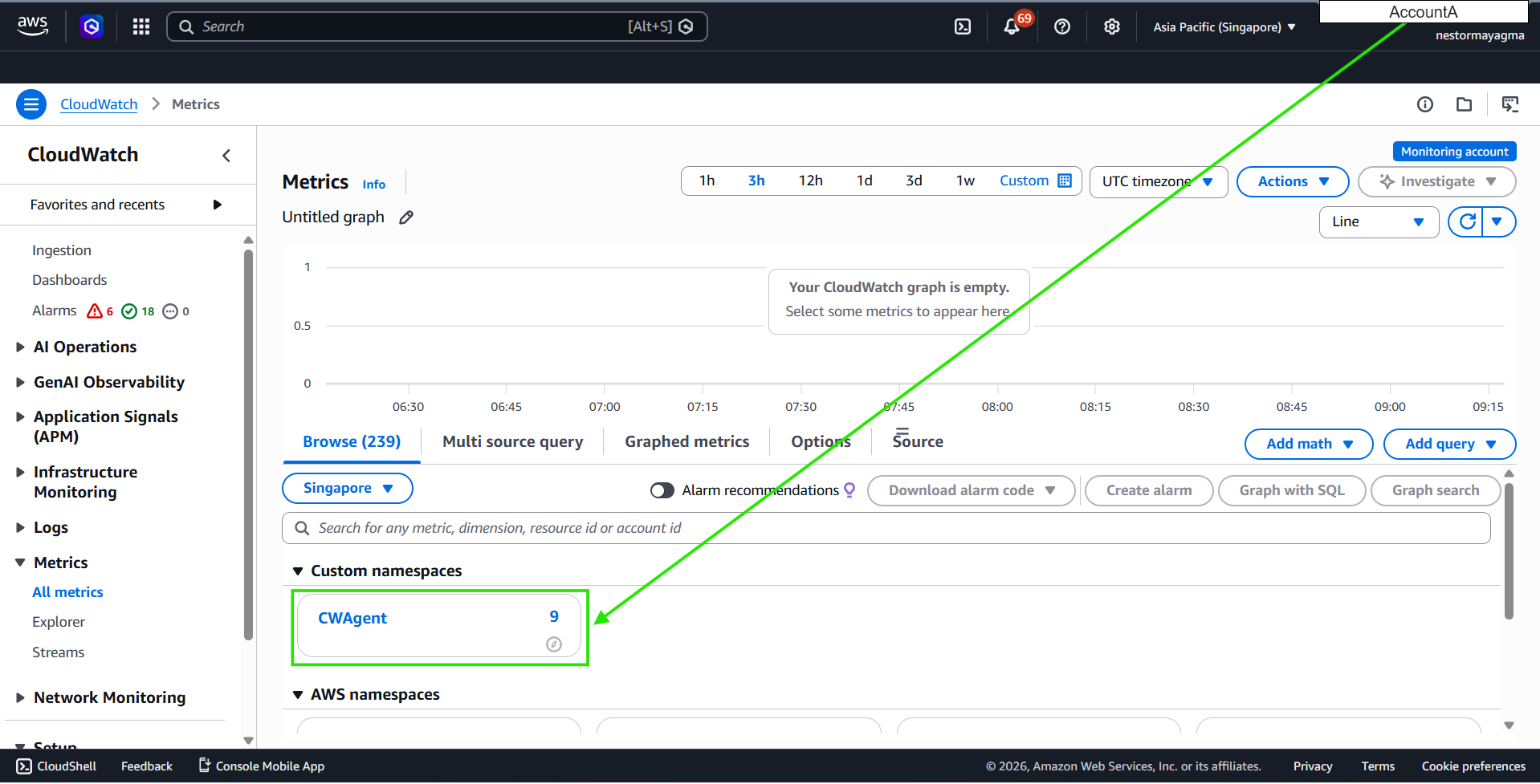
Figure 9: CloudWatch metrics from AccountB becoming available to AccountA.
Successfully seeing the source metric namespace confirms the essential path:

Metric generated in AccountB → shared through the OAM link → accessible from AccountA
This demonstrates that account boundaries no longer prevent the monitoring account from observing the authorized CloudWatch telemetry.
What Happens After the Accounts Are Linked?
Once the cross-account relationship is established, AccountA can become much more than a simple place for checking whether a namespace exists.
CloudWatch dashboards in a monitoring account can contain metrics originating from source accounts, and AWS supports creating alarms in the monitoring account that watch metrics from linked source accounts.
This makes the feature useful for building a centralized operations environment.
For example, instead of maintaining completely independent health dashboards for every AWS account, an operations team could create a central dashboard containing important metrics from several application accounts.
A typical dashboard might contain:
-
EC2 CPU utilization from one application account
-
Application Load Balancer request and error metrics from another
-
Amazon RDS database metrics from another environment
-
Lambda invocation and error information from shared services
-
Custom application metrics from multiple product accounts
The monitoring team can therefore gain a broader understanding of system health without moving the workloads themselves into a single AWS account.
Practical Use Cases
Centralized Monitoring for Multi-Account AWS Environments
One of the clearest use cases is an organization following a multi-account AWS strategy.
For example, suppose an organization maintains separate accounts for:
-
Production applications
-
Development
-
Testing
-
Shared infrastructure
-
Data processing
-
Internal services
A dedicated monitoring account can receive permitted observability information from these workloads and provide the operations team with a centralized place to investigate behavior.
This retains the administrative and security benefits of separate AWS accounts while reducing the monitoring fragmentation those account boundaries would otherwise cause.
Site Reliability Engineering and Network Operations Centers
SRE, DevOps, and NOC teams commonly need visibility into applications owned by several independent teams.
Instead of granting operators broad administrative access to each application account, organizations can build a dedicated observability account and expose the telemetry required for monitoring.
The operations team can then focus on the health of the environment while application teams continue managing their workloads independently.
Monitoring Production While Preserving Account Isolation
Many organizations deliberately isolate production workloads from development or general administration accounts.
Cross-account observability makes it possible to maintain that separation without forcing administrators to choose between isolation and visibility.
The application infrastructure remains inside its production account, while a separate monitoring account receives only the intended observability access.
Cross-Team Application Troubleshooting
Applications frequently contain components operated by different teams.
For example, one AWS account might contain an API layer while another hosts asynchronous workers and another contains shared infrastructure.
If the application experiences an increase in latency, centralized CloudWatch metrics can make it easier to examine the behavior of these components together rather than investigating each account in isolation.
Security and Access Considerations
Cross-account observability should still be treated as a deliberate access relationship.
The fact that the monitoring account is not modifying source-account workloads does not mean that observability information is unimportant. Metrics and logs can contain operational information about resource behavior, application architecture, workload volumes, and system usage.
Organizations should therefore follow least-privilege principles when deciding:
-
Which accounts are allowed to become sources
-
Which account should become the central monitoring account
-
Which administrators can modify the monitoring sink
-
Which administrators can create or remove source links
-
Which metric namespaces should be shared
-
Whether logs, traces, or other telemetry should also be enabled
For larger organizations, using a dedicated AWS account for monitoring can simplify governance. AWS itself recommends considering a dedicated monitoring account for cross-account observability.
Metrics Filtering and Least-Privilege Observability
Although this exercise shares Metrics as the telemetry category, CloudWatch can provide more granular control over which metric namespaces are shared.
When configuring Metrics from the source account, the Filter Metrics capability can limit sharing based on the metric Namespace.
AWS supports expressions using operators such as equality, inequality, AND, OR, LIKE, NOT LIKE, IN, and NOT IN when building namespace filters.
This can be useful in a source account containing unrelated systems.
For example, if an account hosts applications belonging to several teams, the organization may not want every custom namespace exposed to the central monitoring environment. A namespace filter can restrict the observability relationship to the application being centrally managed.
Selective sharing is particularly valuable when cross-account observability is incorporated into a broader least-privilege security strategy.
Cost Considerations
CloudWatch cross-account observability itself does not add a separate cross-account observability charge for sharing metrics and logs. AWS also states that Application Signals and the first trace copy have no additional cross-account observability charge, although the normal charges associated with the underlying CloudWatch services and telemetry usage still apply.
In other words, configuring cross-account visibility does not eliminate normal CloudWatch costs such as metric ingestion, dashboards, alarms, or other billable CloudWatch features.
Always evaluate the current Amazon CloudWatch pricing documentation for workloads where cost estimation is important.
Troubleshooting Verification Issues
If the AccountB namespace does not appear in AccountA after completing the configuration, check several areas before recreating the link.
Confirm the AWS Region
Both sides of this implementation should be configured in:
ap-southeast-1
A sink configured in Singapore does not provide a universal cross-Region observability relationship.
Confirm That Metrics Is Selected on Both Sides
The AccountA monitoring configuration must permit Metrics, and AccountB must also select Metrics when establishing the source link.
A mismatch in the telemetry configuration can prevent the expected sharing relationship.
Confirm That AccountB Is Linked
From the monitoring account settings, inspect the linked source-account configuration and verify that AccountB appears.
Similarly, the source-account CloudWatch settings can be used to inspect the monitoring accounts to which it is linked.
Generate Fresh Metric Data
This is an especially important troubleshooting step.
AWS states that a metric name does not appear in the monitoring account until the metric produces a new data point after link creation.
If a custom namespace was used solely for testing, publish another metric data point after the cross-account link has been established.
Check IAM Permissions
If configuration actions fail rather than simply producing missing metrics, inspect the permissions of the identity performing the operation.
CloudWatch cross-account observability requires appropriate Observability Access Manager permissions to create and manage sinks and links.
Cleaning Up the Configuration
If the relationship is no longer required, remove the link from AccountB.
This is important because OAM links are managed by source accounts. AWS also requires the links associated with a monitoring sink to be removed before the sink itself can be deleted from the monitoring account.
This ownership model reinforces an important security characteristic of CloudWatch cross-account observability: the monitoring account can authorize source accounts, but the source account retains control of its own link and can stop sharing its observability information.
Conclusion
Amazon CloudWatch cross-account observability provides a practical solution to one of the operational challenges created by multi-account AWS architectures: maintaining centralized visibility without eliminating account isolation.
In this implementation, AccountA was configured as the monitoring account, while AccountB was configured as the source account. Both sides were configured in the Asia Pacific (Singapore) Region (ap-southeast-1), and the sharing relationship was restricted to CloudWatch Metrics.
The monitoring account first established the Regional monitoring configuration and authorized AccountB as a source. A generated linking URL was then used from AccountB to create the corresponding OAM link. Once that relationship was confirmed and fresh metric data became available, AccountB’s metric namespace could be observed from CloudWatch in AccountA.
Although this exercise uses only two accounts and a single telemetry category, the same architecture can form the foundation of a much larger centralized observability strategy. CloudWatch cross-account observability can support large multi-account environments and can include metrics, logs, traces, Application Signals, Application Insights, and Internet Monitor information.
For organizations with only a few manually managed accounts, the URL-based approach demonstrated here offers a simple onboarding method. For environments containing many AWS accounts, AWS recommends considering AWS Organizations so that new accounts can be incorporated into the observability model more systematically.
Ultimately, the value of cross-account observability is not simply that one AWS account can display another account’s metric. Its larger benefit is that infrastructure teams can maintain the security, ownership, and organizational advantages of a multi-account AWS architecture while gaining a much more unified view of application and infrastructure health.
References:
CloudWatch cross-account observability
https://docs.aws.amazon.com/AmazonCloudWatch/latest/monitoring/CloudWatch-Unified-Cross-Account.html
Monitor AgentCore resources across accounts
https://docs.aws.amazon.com/bedrock-agentcore/latest/devguide/observability-cross-account.html
MetricConfiguration
https://docs.aws.amazon.com/OAM/latest/APIReference/API_MetricConfiguration.html
🔖 BLACK FRIDAY SALE 25% OFF Starts Today! Get an Extra 5% OFF on AWS Foundational, KCNA and GCP Practice Exams & eBooks for as LOW as $2.99 only!

Turn Your Team Into Cloud-Ready Professionals Today

Learn AWS with our PlayCloud Hands-On Labs

$2.99 AWS and Azure Exam Study Guide eBooks

Learn GCP By Doing! Try Our GCP PlayCloud
Learn Azure with our Azure PlayCloud
FREE AI and AWS Digital Courses

FREE AWS, Azure, GCP Practice Test Samplers


Subscribe to our YouTube Channel

Follow Us On Linkedin


Written by: Nestor Mayagma Jr.