
Last updated on February 12, 2026
I’ve always been curious about how AI-powered tools actually work behind the scenes. How does ChatGPT know when to search the web? How do enterprise chatbots answer questions about company documents they’ve never “seen” before? The answer is RAG, and building one myslef turned out to be more accessible than I expected.
This article documents my experience and a hands-on tutorial that walks you through creating your very first AI API. I’m sharing the context that they don’t they teach you, the “why” behind each tool, and adjustments
What makes this guide different:
- Beginner-friendly explanations of every buzzword and tool before we use them
- Linux-specific setup
- Honest lessons learned, including what confused me and what finally made things click
By the end, you’ll have a working RAG API running entirely on your own machine. No OpenAI subscription, no cloud bills, no data leaving your laptop.
What are we actually building?
Before touching any code, let’s breakdown what we’re creating. There are a lot of buzzwords in AI development, understanding them upfront will make everything else click.
The big picture
We’re building an API (Application Programming Interface), a service that other programs can talk to.. You send it a question, it sends back an answer. Our API will be smarter than a basic chatbot. It will use RAG (Retrieval Augmented Generation) to answer questions based on documents you provide.
What is RAG, really?
Traditional AI (without RAG)
- You ask a question
- The AI guesses from its training data
- Sometimes it’s right, sometimes it “hallucinates”
AI with RAG
- You ask a question
- The system searches your documents for relevant information
- AI reads that context (understand the meaning)
- It generates an answer based on what it actually found
Think of it like the difference between a closed-book exam and an open-book exam. RAG gives the AI an open book, your book.
This is the same technique powering ChatGPT plugins, enterprise knowledge bases, and AI assistants that can actually cite their sources. And you’re about to build one.
Tech stack
Our project uses these tools that work together
Python: the programming language we’ll use to write our API code. Think of Python as the foundation; we can’t run any of our API code without it.
FastAPI: a modern Python web framework that makes it easy to build APIs with automatic documentation (called Swagger UI), type validation, and high performance.
Ollama: a tool that lets you run large language models locally on your own computer. In this project, we’ll use Ollama to run the “tinyllama” model, which will power the AI responses in your RAG system. It’s perfect for learning and development.
Chroma: a vector database that stores document embeddings (numerical representations of text). ChromaDB searches through these embeddings when a user asks a question, which is the “retrieval” part of RAG.
Uvicorn: an ASGI (Asynchronous Server Gateway Interface) web server for Python. It runs our FastAPI app and makes it accessible locally on your computer (or on the internet).
This stack is perfect for learning. It’s completely free (no API keys, no credit cards, no surprise bills), runs locally, is beginner-friendly, and is production-relevant; these are tools used in real companies. The skills you learn here transder directly to paid services if you ever need them. Swap Ollama for OpenAI’s API, swap Chroma for Pinecone—the concepts remain identical.
[how your rag api works, insert photo]
Set up your environment
Set up Python and Ollama, the core tools for building your RAG API
- Verify Python is installed
- Install Ollama
- Pull the tinyllama model

Verify Python installation
python3 --version
If you don’t have Python 3.13, install it from the Python 3.13 release page.
Install Ollama
ollama --version
If you don’t have Ollama, visit ollama.com/download
For Linux, copy and paste this in your terminal:
curl -fsSL https://ollama.com/install.sh | sh
if this error appears:

Your system just needs zstd (Zstandard) to extract the Ollama package.
To fix, run this:
sudo apt update
sudo apt install -y zstd
Then retry Ollama:
curl -fsSL https://ollama.com/install.sh | sh
Why this happened
Ollama’s installer uses .zst compressed files, Debian doesn’t install zstd by default, so the extractor failed. If this hasn’t happened to you, move on to the next step (verify installation).
Verify installation
ollama --version
Start Ollama and verify it’s running
curl http://localhost:11434
You should see “Ollama is running”

Terminal showing ollama running
Pull tinyllama Model
Check if you have the model:
ollama list

Terminal showing ollama list output with no tinyllama model
If you don’t have tinyllama, download the model:
ollama pull tinyllama
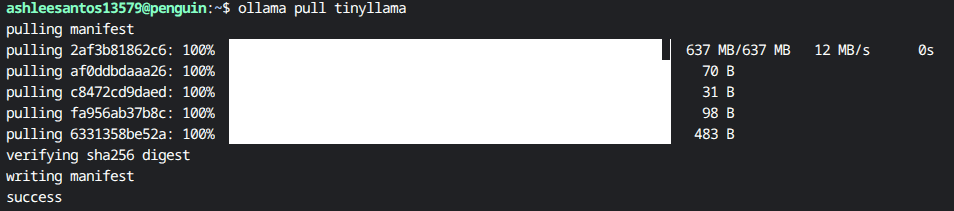
Terminal showing ollama pull tinyllama with download progress
What’s tinyllama and why are we using this model in our project?
A small language model that runs locally on your machine, which will be the “brain” behind your RAG API’s responses. We use tinyllama here because it’s still lightweight but more capable for chat than the smaller SmolLM variants. If installing tinyllama is slowing you down, feel free to use SmolLM instead.
Test the model
ollama run tinyllama

Terminal showing ollama run tinyllama chat interface ready for input
Type: What is Tutorials Dojo?
The response might be inaccurate – that’s why we need RAG! Exit with /bye.
Set up Python workspace
We’ll set up a virtual environment and install all the dependencides needed for your RAG API
- Create a project folder named
rag-apion your Desktop - Create and activate a virtual environment using Python 3.13:
python3.13 -m venv venv - Install the required packages by running
pip install fastapi uvicorn chromadb ollama.
Create project folder
mkdir ~/rag-api
cd ~/rag-api
pwd
Create virtual environment
An isolated Python environment that keeps project dependencies separate. Different projects can use different package versions without conflicts.
If you have Python 3.13 installed, use it explicitly:
python3.13 -m venv venv
If python3.13 isn’t available, use:
python3 -m venv venv
Why specify Python 3.13?
This ensures your virtual environment uses Python 3.13, which has full compatibility with all the packages we need. If you have Python 3.14 installed, using python3 might default to 3.14 and cause compatibility issues.
List files to verify: ls
You should see venv folder created.
Activate virtual environment
source venv/bin/activate

Your prompt should show (venv) at the start.
Install dependencies
What are we installing?
FastAPI: Web framework for building APIs
Uvicorn: Server that runs FastAPI apps
ChromaDB: Vector database for storing embeddings
Ollama: Python client for Ollama
Note. Make sure you activate your virtual environment, or venv first! to activate, run this:
source venv/bin/activate
Verify pip is using your virtual environment
pip --version

Terminal-showing-pip-version-with-venv-path
Path should include venv.
Install packages
pip install fastapi uvicorn chromadb ollama
Verify installation
pip list | grep -E "fastapi|uvicorn|chromadb|ollama"
You should see all four packages with version numbers.

Terminal showing pip list filtered for installed packages
Create your Knowledge Base and Embeddings
Your Python environment is set up. Now, let’s create your knowledge base and convert it into embeddings that your RAG API can search through.
- Write content in your knowledge base
- Create a script that prepares your content for AI search
- Run the script to make your content searchable
Why do we need a knowledge base?
tinyllama or any small AI model has limited knowledge from its training data. By providing your own knowledge base, you can give the AI accurate, up-to-date information on specific topics.
Open project in Kiro IDE
Open your rag-api folder in Kiro IDE (or your preferred IDE)
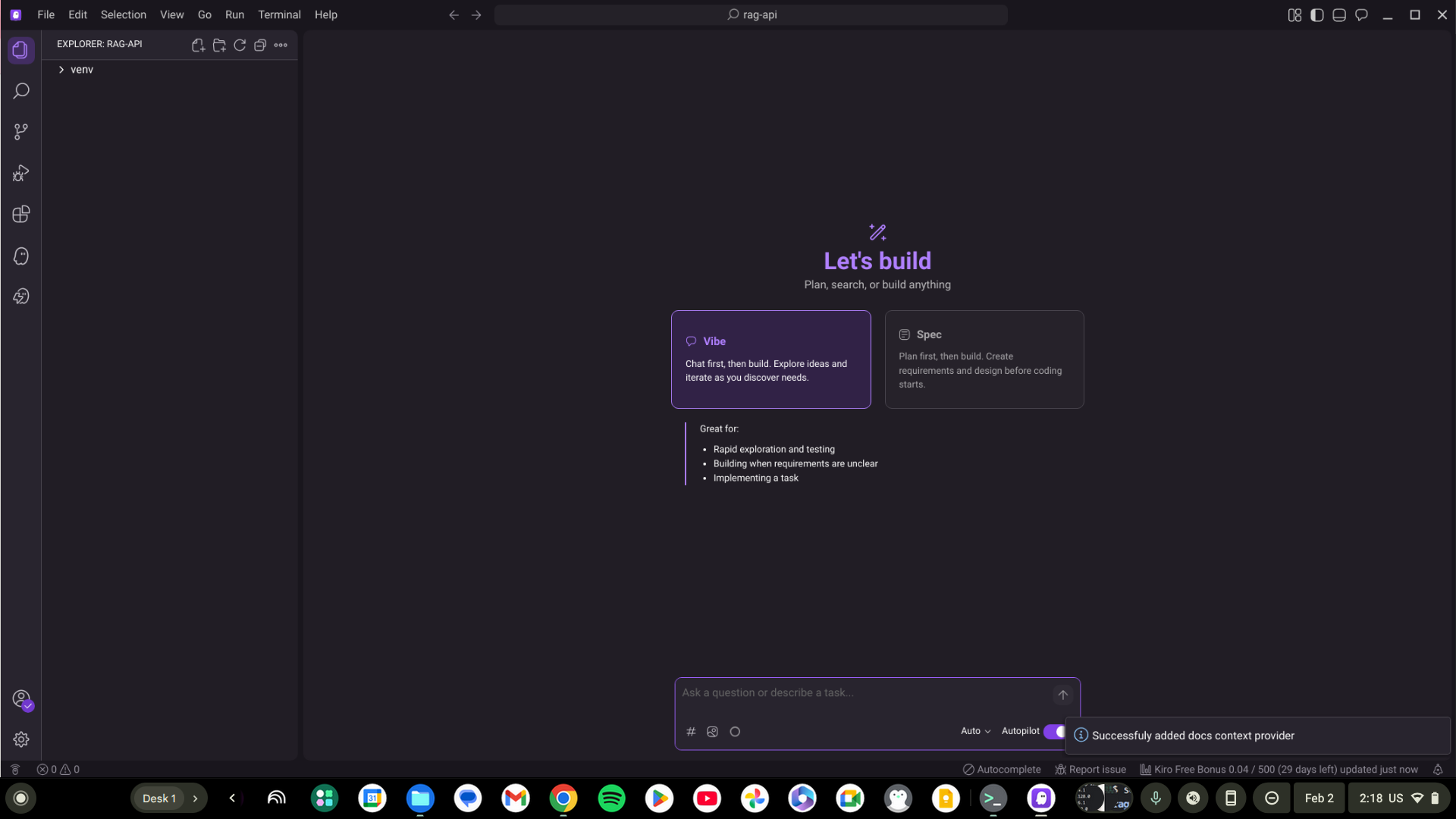
Kiro IDE showing project folder open with file explorer in left sidebar
Don’t have Kiro? download from kiro.dev or use VS Code or any IDE you prefer
Create Knowledge document
Create a new file td.txt with this content:
Tutorials Dojo is a popular EdTech platform and AWS Authorized Training Partner specializing in high-quality, affordable study materials for cloud computing and IT certifications. Founded by Jon Bonso, it is renowned for its realistic practice exams, video courses, hands-on labs, and free study guides/cheatsheets for AWS, Azure, Google Cloud, and Kubernetes

Kiro IDE showing td.txt file with the Tutorials Dojo description
Create Embedding script
Create embed.py
import chromadb

client = chromadb.PersistentClient(path="./db")
collection = client.get_or_create_collection("docs")

with open("td.txt", "r") as f:
    text = f.read()

collection.add(documents=, ids=["td"])

print("Embedding stored in Chroma")
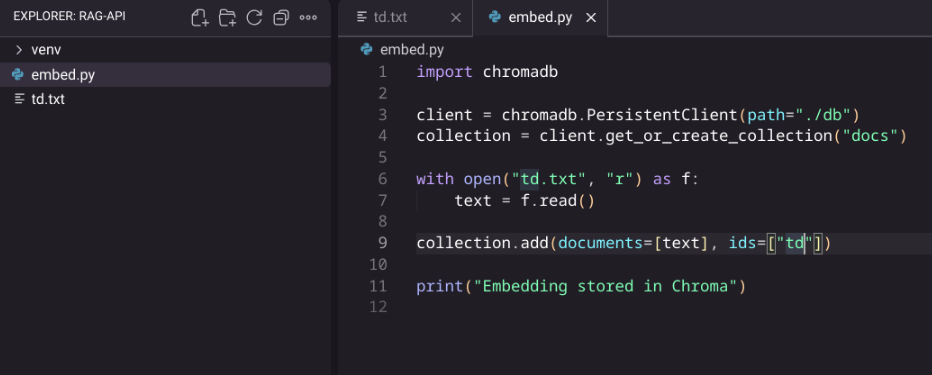
Kiro showing embed.py with Chroma code
This script reads td.text and stores it in Chroma as embeddings (numerical representation) for semantic search. This prepares your knowledge base for the RAG system.
Run Embedding script
Make sure your virual envuronment is activated (venv in prompt)!
python embed.py

Terminal showing python embed.py command running
You should see “Embedding stored in Chroma” and a new db/ folder appear.
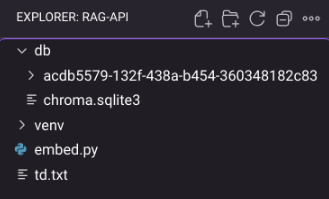
File explorer showing db folder containing chroma.sqlite3 and a subfolder with embeddings
🌸 25% OFF All Reviewers on our International Women’s Month Sale! Save 10% OFF All Subscriptions Plans & 5% OFF Store Credits/Gift Cards!

Learn AWS with our PlayCloud Hands-On Labs

$2.99 AWS and Azure Exam Study Guide eBooks

New AWS Generative AI Developer Professional Course AIP-C01

Learn GCP By Doing! Try Our GCP PlayCloud

Learn Azure with our Azure PlayCloud

FREE AI and AWS Digital Courses

FREE AWS, Azure, GCP Practice Test Samplers


Subscribe to our YouTube Channel

Follow Us On Linkedin


Written by: Ashley Nicole Santos




